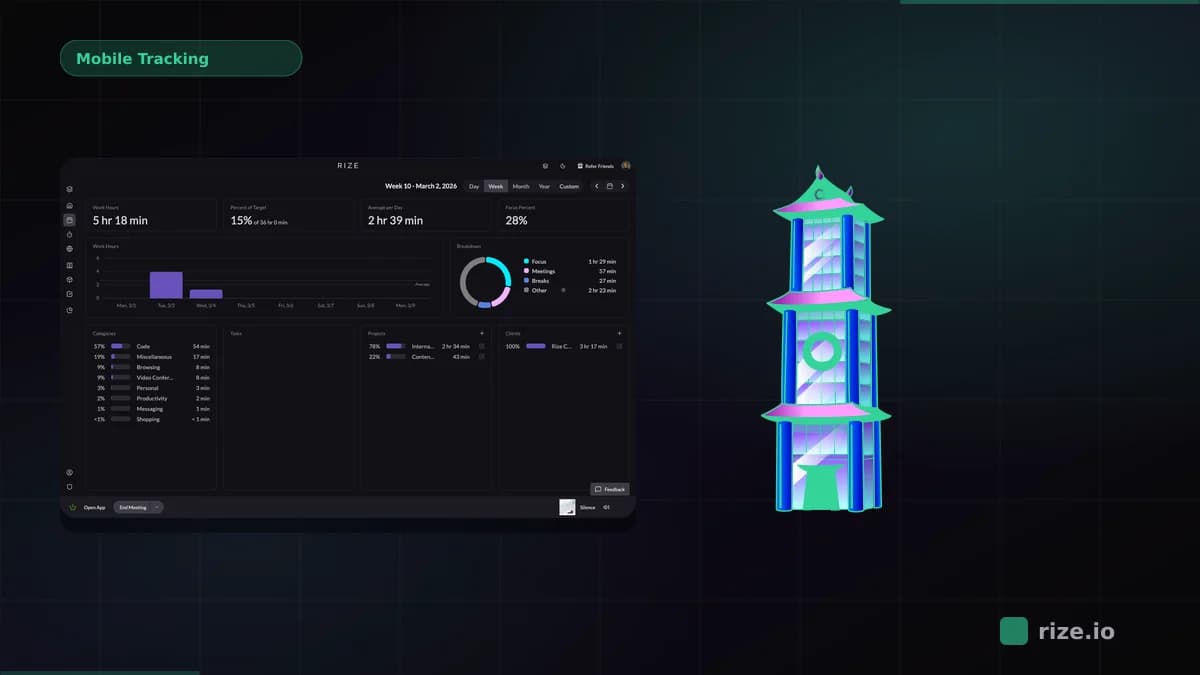
The top automated time capture features in time tracking tools are continuous background capture, AI categorization to clients and projects, calendar and meeting sync, editable tag rules, a review queue, and integrations that move approved hours into billing. Rize implements all six on Mac and Windows; Timely and Memtime capture activity but lean harder on manual confirmation, while Toggl Track, Clockify, and Harvest still run on manual timers.
Quick Answer
Top automated time capture features: background capture of every app, document, and browser session; AI that tags each session to a client, project, and task; calendar sync for meetings; tag rules that improve over time; a To Review queue instead of a blank timesheet; and exports or integrations that send approved hours to invoicing and payroll. Rize has all of them, with no screenshots by default (Vision is opt-in) and no keystroke logging. Team is $29.99/seat/month billed annually.
What Counts as Automated Time Capture?
Automated time capture means the tool records work activity in the background and turns it into drafted time entries, with no timer for the person to remember.
The distinction matters because most tools marketed as "automatic" are really timers with helpers: idle detection, reminder popups, or one-tap widgets. Real capture logs which app, document, or site held focus and for how long, then turns that record into entries a person reviews. The coverage gap is the whole point. Research by Gloria Mark at UC Irvine found it takes an average of 23 minutes to refocus after an interruption, and days built on constant switching are exactly the ones manual timesheets reconstruct worst. According to Harvard Business Review, untracked time costs US businesses billions per workday.
On phones, true capture is technically limited. Apple's BackgroundTasks framework only lets iOS apps run background work when the system schedules it, so mobile "automatic" tracking leans on timers, GPS, and calendar data. Desktop is where continuous capture actually works.
The 6 Automated Time Capture Features That Matter
Evaluate tools on six features: background capture, AI categorization, calendar sync, tag rules, a review queue, and integrations for approved hours.
1. Continuous background capture. The tool records every app, document, and browser session as it happens, including the 6-minute email replies and 4-minute context switches timers miss. This is the base layer; everything else sits on top of it.
2. AI categorization to client, project, and task. Captured activity is raw material until it is assigned somewhere. Strong tools use AI plus client and project context to tag sessions automatically, so a Figma file or a QuickBooks tab lands on the right client without a dropdown.
3. Calendar and meeting capture. Meetings are the hours most likely to be billable and least likely to be opened in a tracker. Syncing Google Calendar or Outlook turns each event into tracked time, attributed to the client's project, with no manual entry.
4. Editable tag rules. Keyword rules that map an app, document title, or domain to a client or project let teams correct the AI once and never again. Rules are how capture compounds: week 2 needs less review than week 1.
5. A review queue, not a blank timesheet. Drafted entries should land in a queue where each person approves, edits, or rejects them. Managers need a pending-versus-approved view so follow-up targets the people with unconfirmed time instead of the whole team.
6. Integrations that move approved hours. Captured time has to reach invoices, payroll, and project tools. Look for native integrations with the tools clients and tasks already live in, an API or automation layer like Zapier for the rest, and an MCP server if your team runs AI agents against the data.
How the Top Tools Compare on Automated Capture
| Tool | Capture method | AI categorization | Calendar capture | Review flow |
|---|---|---|---|---|
| Rize | Continuous background capture | Client, project, task, label | Google Calendar, Outlook | To Review tab |
| Timely | Automatic Memory capture | Suggested projects | Calendar integrations | Daily confirmation |
| Memtime | Continuous background capture | Rules you configure | Calendar sync | Manual entry from timeline |
| Toggl Track | Manual timers, idle detection | Manual tagging | Calendar integration | Approvals on Premium |
| Clockify | Manual timers, auto tracker on Pro | Manual tagging | Calendar integration | Approvals on Standard |
| Harvest | Manual timers | Manual tagging | Calendar integration | Approvals on Enterprise |
How Rize Implements Automated Time Capture
Rize captures work continuously on Mac and Windows, tags it to a client, project, and task with AI and tag rules, and routes drafted entries to a To Review tab.
Rize runs in the background and records every app, document, and browser session. AI assigns each session a client, project, task, and label with a short description of the work, and keyword tag rules let teams lock in their own naming so the same file always lands on the same client. Meetings come in through Google Calendar and Outlook sync, and off-desk blocks like Focus, Meeting, and Break can be logged manually. There is no keystroke logging and no GPS, and no screenshots by default; Vision screenshot capture is opt-in for orgs that enable it.
Drafted entries sit in a To Review tab in My Timesheet until each person approves, edits, or rejects them. Managers open Team Timesheets for pending versus approved hours, utilization, and capacity filtered by client, project, task, label, team, or member. Approved hours become invoice line items, export as CSV, or sync to QuickBooks, Xero, and FreshBooks through Zapier, which covers 6,000+ apps. Native integrations connect Linear, ClickUp, Asana, and Slack, and the Rize MCP server lets AI agents query and write time data directly.
Rize also closes the loop on where captured time goes: reports break down billable versus non-billable hours, focus and deep work analytics sit on the same timeline, and project profitability shows margin by client. Limits: capture is desktop-only, so field work needs a paired mobile timer. Pricing: Basic is $12.99/month ($9.99 billed annually); Team is $29.99/seat/month billed annually ($39.99 monthly), 2-seat minimum, 7-day free trial. See pricing.
See your own automated capture
Rize records your work in the background and drafts every timesheet. Try it free for 7 days.
Start Free TrialWhat Else Counts as Automation (and What Does Not)
Idle detection, reminders, and one-tap widgets reduce friction but still depend on the person; only background capture removes the person from the recording step.
Toggl Track's idle detection and Clockify's auto tracker log app usage into a private timeline, but entries still require a person to convert them. Harvest and Monday.com time columns are manual timers. Memtime captures everything like Rize but categorizes through rules you maintain rather than AI assignment. Timely captures and drafts like Rize, with a required daily confirmation step; read Rize vs Timely for the full split.
Employee monitoring is a different category, not a capture feature. Tools like Hubstaff and Time Doctor pair activity tracking with screenshots, URL logging, or GPS. That data answers "what was the person doing" for surveillance, while time capture answers "what work happened" for billing. Check each vendor's security page for exactly what is recorded.
How to Evaluate Automated Time Capture Before Buying
Run a one-week capture test: install the tool, work normally, and measure how much of the week arrived pre-tagged and how long review took.
1. Measure coverage. Compare captured hours to your actual workweek. A good tool shows 95%+ of computer time recorded, including short tasks.
2. Measure tagging accuracy. Count how many sessions landed on the right client and project on day 1, then add tag rules and recount on day 5. The second number is what your team will live with.
3. Time the review step. Approving a drafted day should take minutes. If review approaches the cost of filling in a blank timesheet, the categorization is not carrying its weight.
4. Check privacy scope. Confirm the tool captures app and document context, not screen content or keystrokes. For hourly staff, the US Department of Labor still requires daily and weekly hour records regardless of capture method.
5. Trace the billing path. Approved hours should reach an invoice, CSV, or accounting sync without a spreadsheet in the middle. If agents or AI tools will query the data, check for an MCP server or full API.
For tool-by-tool breakdowns, see the best automated time tracking software ranking, the automatic timesheet software comparison, or browse all comparisons. To see capture running on your own week, book a demo.
Start tracking time automatically
Join thousands of professionals who stopped guessing where their time goes. Free for 7 days.
“Rize has been a no-brainer for me.” — Ali Abdaal Read more →
Macgill Davis is cofounder of Rize, an automatic time tracker that improves focus and builds better work habits.