Rize is replacing categories with labels and per-app rules, one workspace at a time. The migration runs on our side, and nothing you tracked is deleted. This guide covers why we made the change, what carries over without you touching anything, and the 20 minutes of setup that gets the most out of labels.
If you want the full list of what changed in the release, read the categories deprecation announcement. This post is the practical companion: what to check, in what order, and how to fix the two problems people hit most often after switching.
Quick answer: Categories did two jobs at once: describing your work and controlling tracking behavior. Labels now describe the work and are applied to time entries by AI prompts you can edit. App & Website Rules now control focus, meeting, idle detection, blocking, and do-not-track on each app directly. Your history, your rules, and your reports keep working. Setup is optional and takes about 20 minutes.
Why did Rize move from categories to labels?
Categories judged an app, and an app does not tell you what the work was.
A category rule looked at "youtube.com" and returned one answer every time. It could not tell a React tutorial from Shorts, or a client Slack channel from a social one. Fixing that meant hand-built keyword and URL rules, per site, kept current by you. Most people wrote a few rules in their first week and never opened the page again.
A label is a name, a description, and an AI prompt attached to a time entry. Rize reads the entry's summary, the window titles and URLs behind it, and the client, project, and task it belongs to before picking a label. The tutorial becomes Training. The Shorts session becomes Personal. You change the outcome by editing a sentence of plain English, not by maintaining a rule set.
Categories also carried tracking behavior. Whether an app counted as focus, started a meeting, went idle, or triggered the Distraction Blocker depended on which category it sat in, and that category's place in four separate lists. Answering "why did Rize count this as a meeting" took three clicks across three settings pages. Now the answer is one click away, on the app.
There is a cost side too. Every new app or site used to trigger an AI call to guess its category, plus database writes when the guess changed. Labels are applied to time entries the AI already summarizes, so the extra categorization pass is gone. That is fewer background jobs on your account and faster activity updates on your timeline.
What migrates automatically?
Everything that mattered carries over without setup: your history, your rule behavior, and a starting set of labels.
- Tracked history. Old category data stays on your account. Exports and reports covering pre-migration dates still show it. Deprecation means no new categorization, not hidden data.
- App rule behavior. Every app and website rule keeps the behavior it inherited from its category. An app that was non-focus stays non-focus. An app that never went idle still never goes idle. Rize writes those settings onto the rule itself during migration.
- Default labels. A team with no labels gets a starter set to begin with. The generic set is 13 labels, but if you picked a firm type during onboarding (agency, accounting, consultancy, or law), you get a different set tailored to that work. A team that already built labels keeps them unchanged.
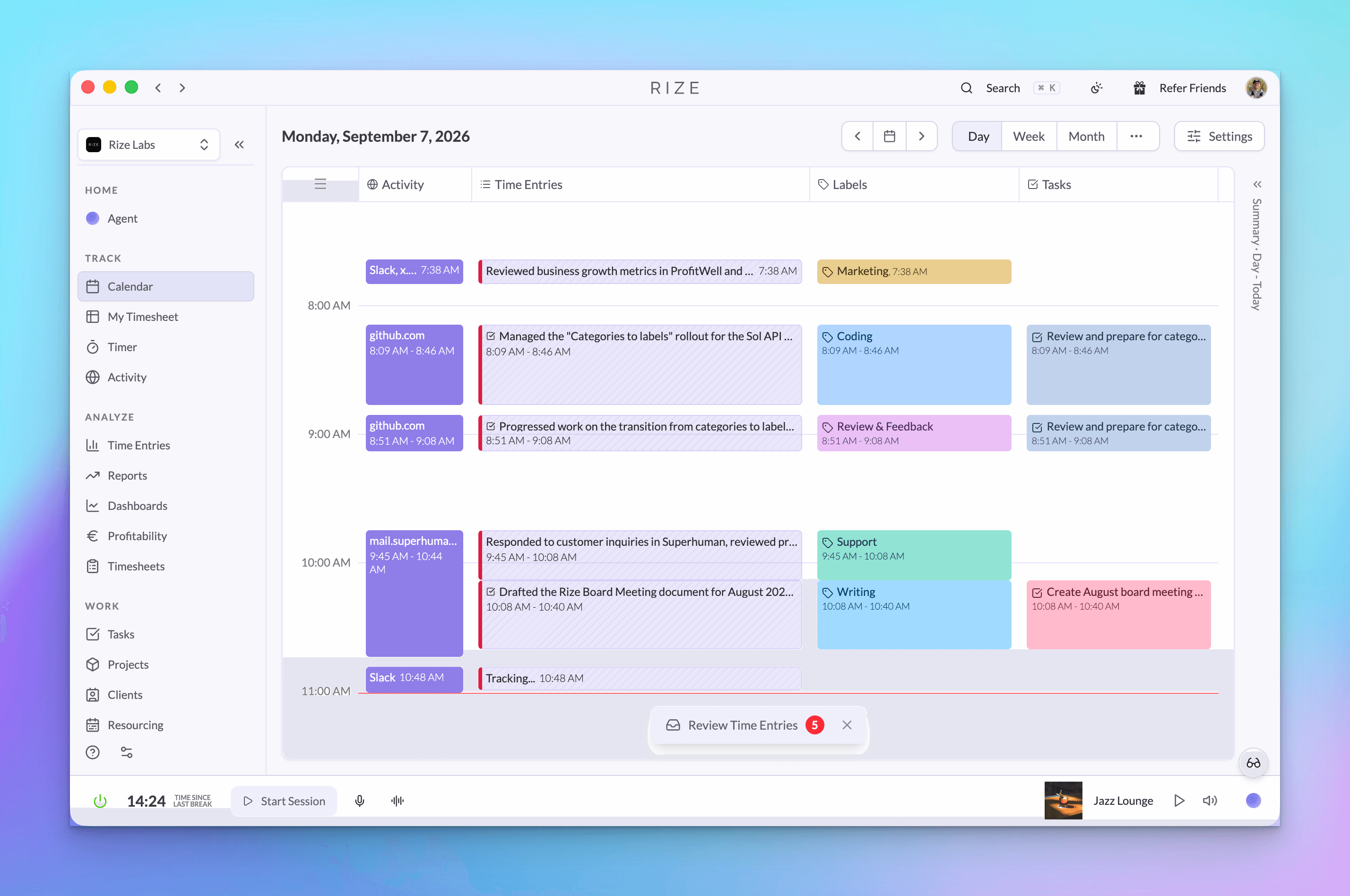
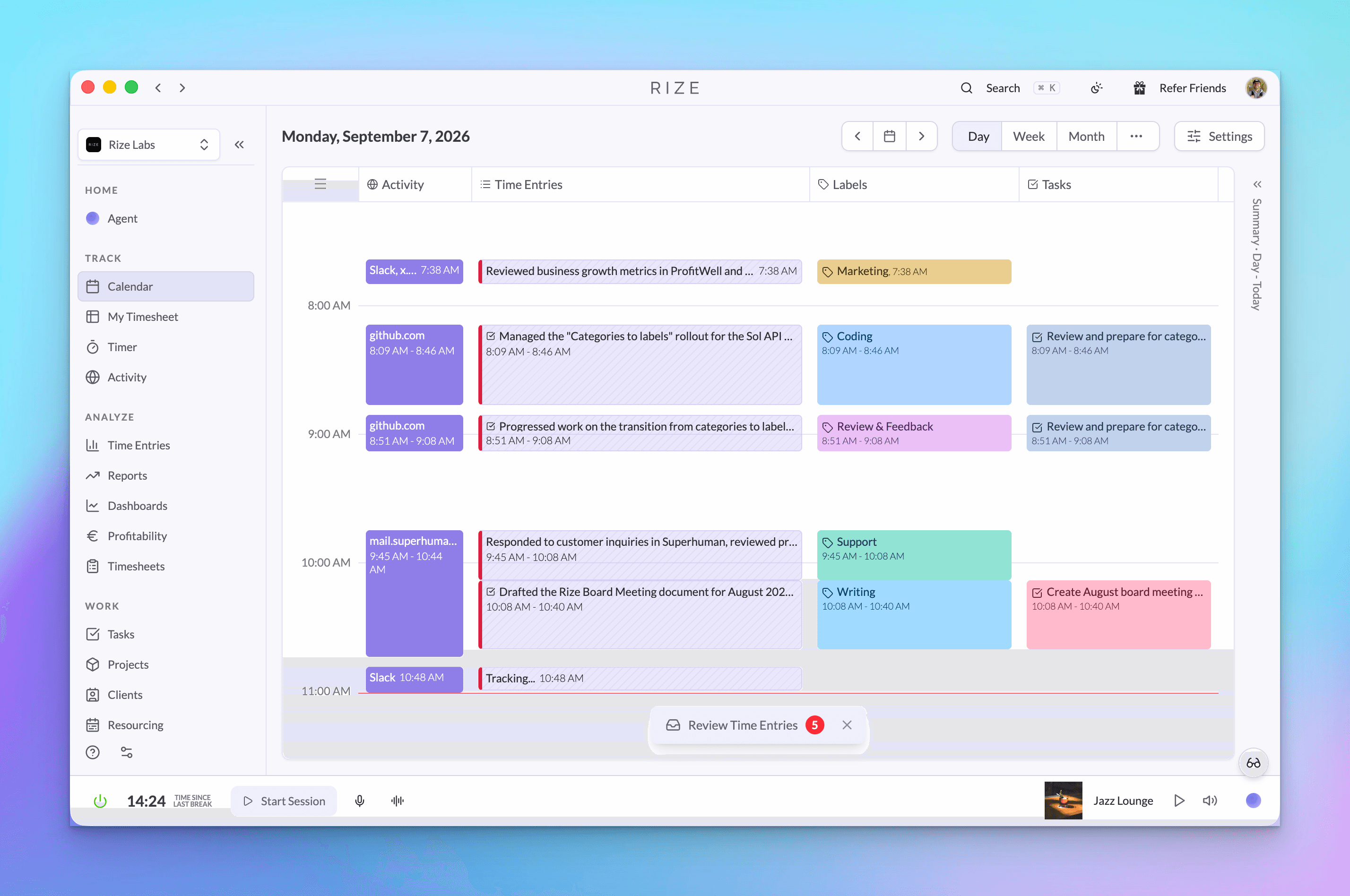
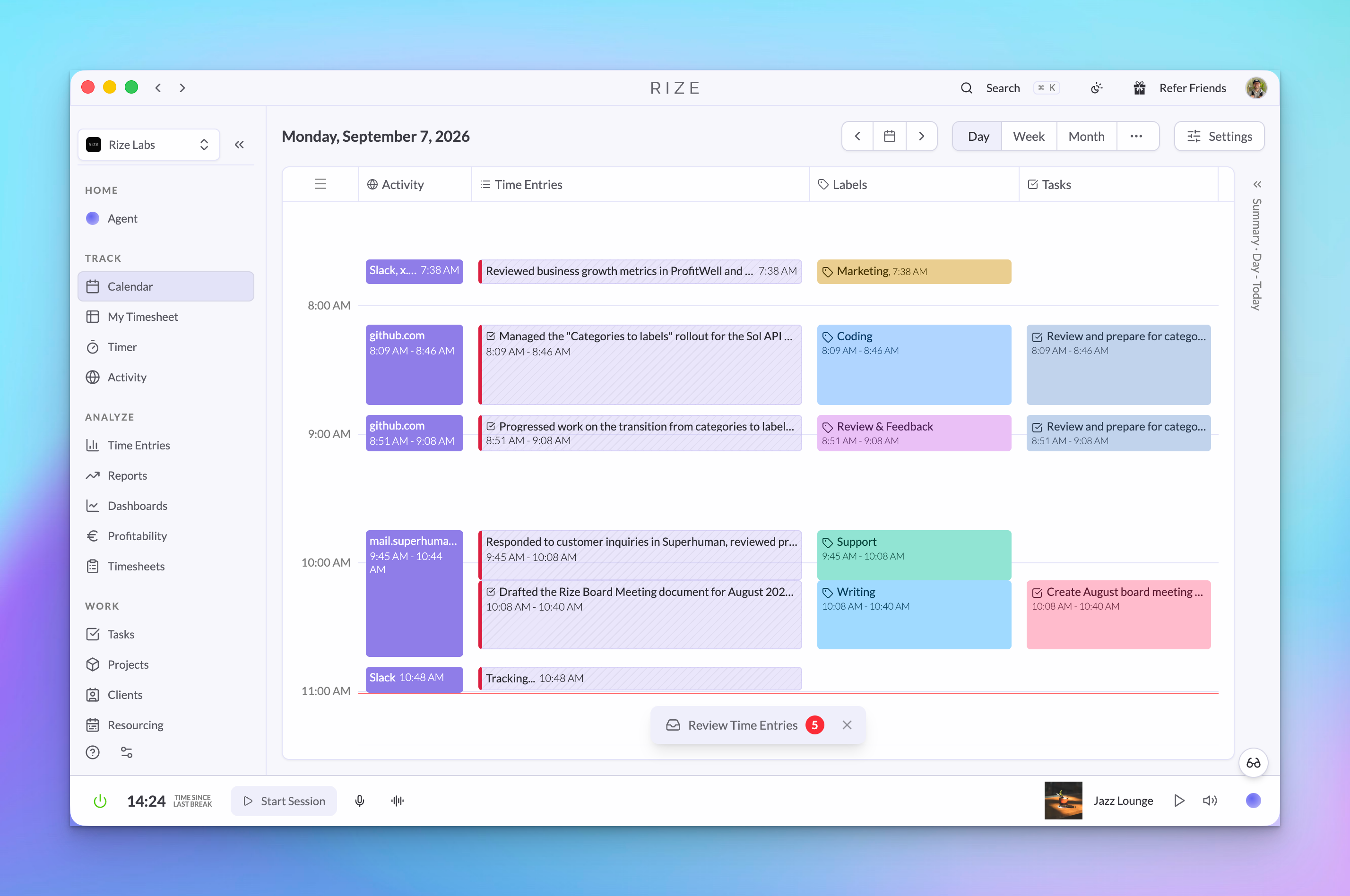
- The Labels timeline column. The Labels column turns on in your day view, directly after Time Entries, so you can see labels landing on entries as they finalize.
What does not carry over is the Categories settings page and the category picker on manual sessions. Goals and calendar rules that depended on a category are hidden. Report emails drop the categories section and show top apps and labels instead.
Where did each category setting go?
Every category setting has one new home, either on the label or on the app rule.
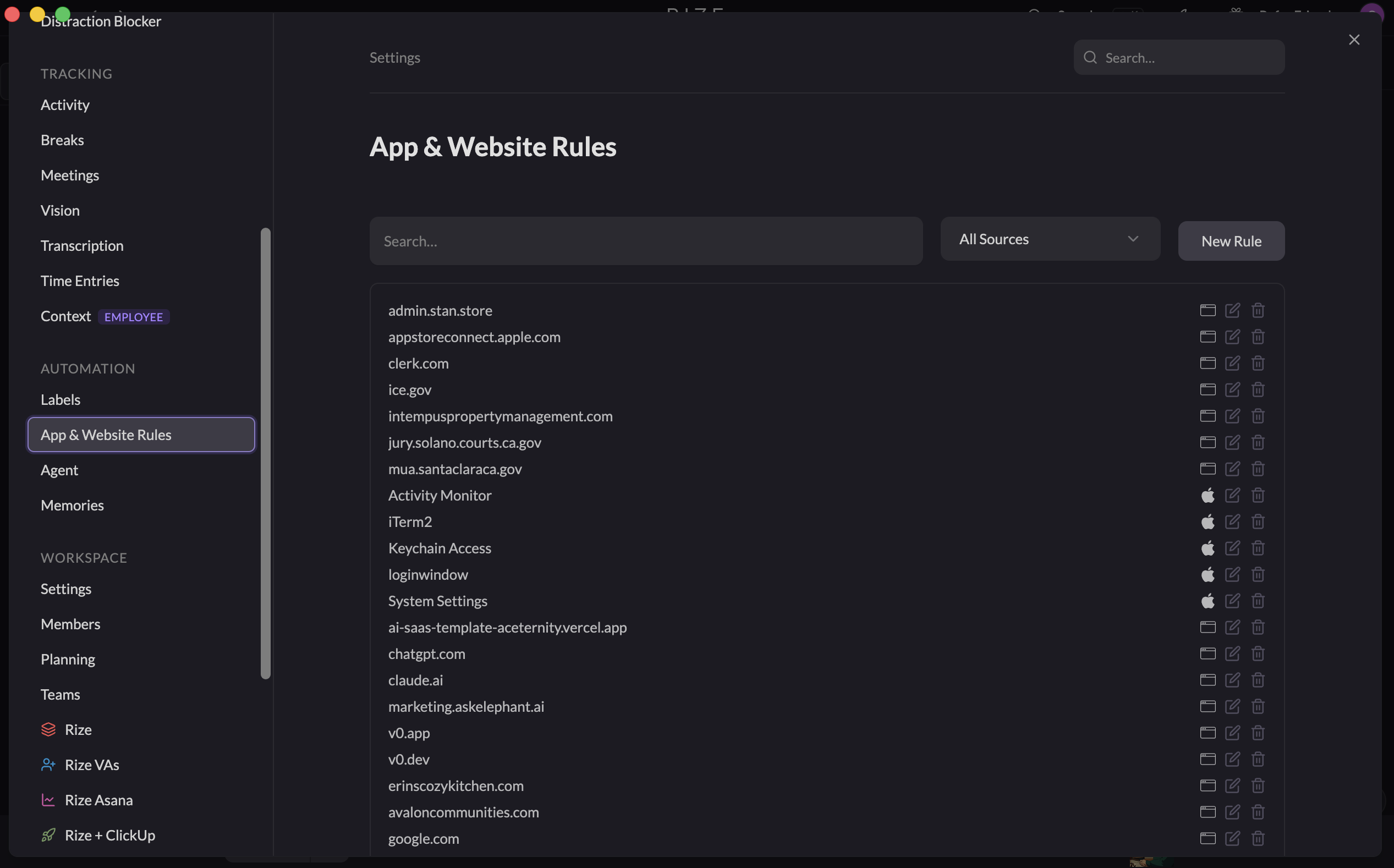
| Old category setting | New home | Where to find it | |---|---|---| | Category name on activity | Label on the time entry | Time entry review, Labels timeline column | | Focus Category | Focus on the app rule (on by default) | Settings, then App & Website Rules, under Sessions | | Work Category | Counts toward work hours on the label | Settings, then Labels, under Advanced | | Idle Detection | Detect Idle Time on the app rule (on by default) | Settings, then App & Website Rules, under Advanced | | Distraction Blocker | Distraction Blocker on the app rule | Settings, then Distraction Blocker, then Blocked Apps & Websites | | Meeting categories | Meeting on the app rule | Settings, then App & Website Rules, under Sessions | | Exclude from tracking | Do Not Track on the app rule | Settings, then App & Website Rules |
The split is the important part. Labels answer "what was this work." App rules answer "how should Rize treat this app." Work hours moved to labels because whether time counts as work depends on what you did, not which app you did it in. Idle detection stayed on the app because it is about the app's behavior, not the content.
How do I set up labels?
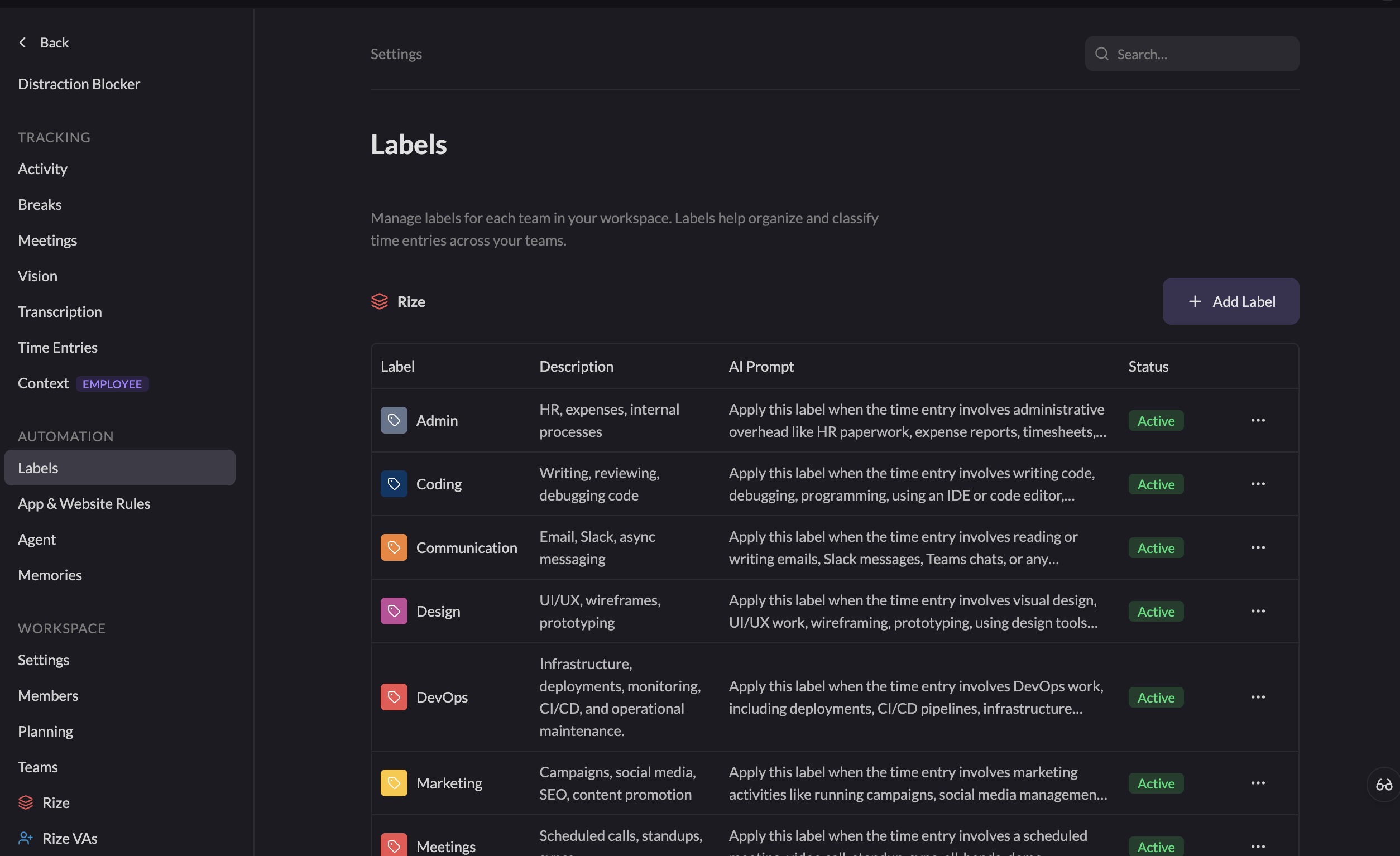
Open Settings, then Labels, read the defaults, and edit the prompts for the three or four labels that matter most to your reporting.
The generic defaults are Coding, Design, Writing, Research, Communication, Planning, Review & Feedback, Admin, Support, Training, Sales, Marketing, and Personal. If you picked a firm type during onboarding, your starter set has different labels for that work instead. Personal ships with Counts toward work hours switched off, so lunch, errands, and Shorts never inflate your Work Hours total. Every other label counts by default.
A good first pass takes four steps:
- Delete or archive what you will never use. A four-person design studio does not need Sales and Support cluttering the picker. Fewer labels means the AI has fewer near-misses to choose between.
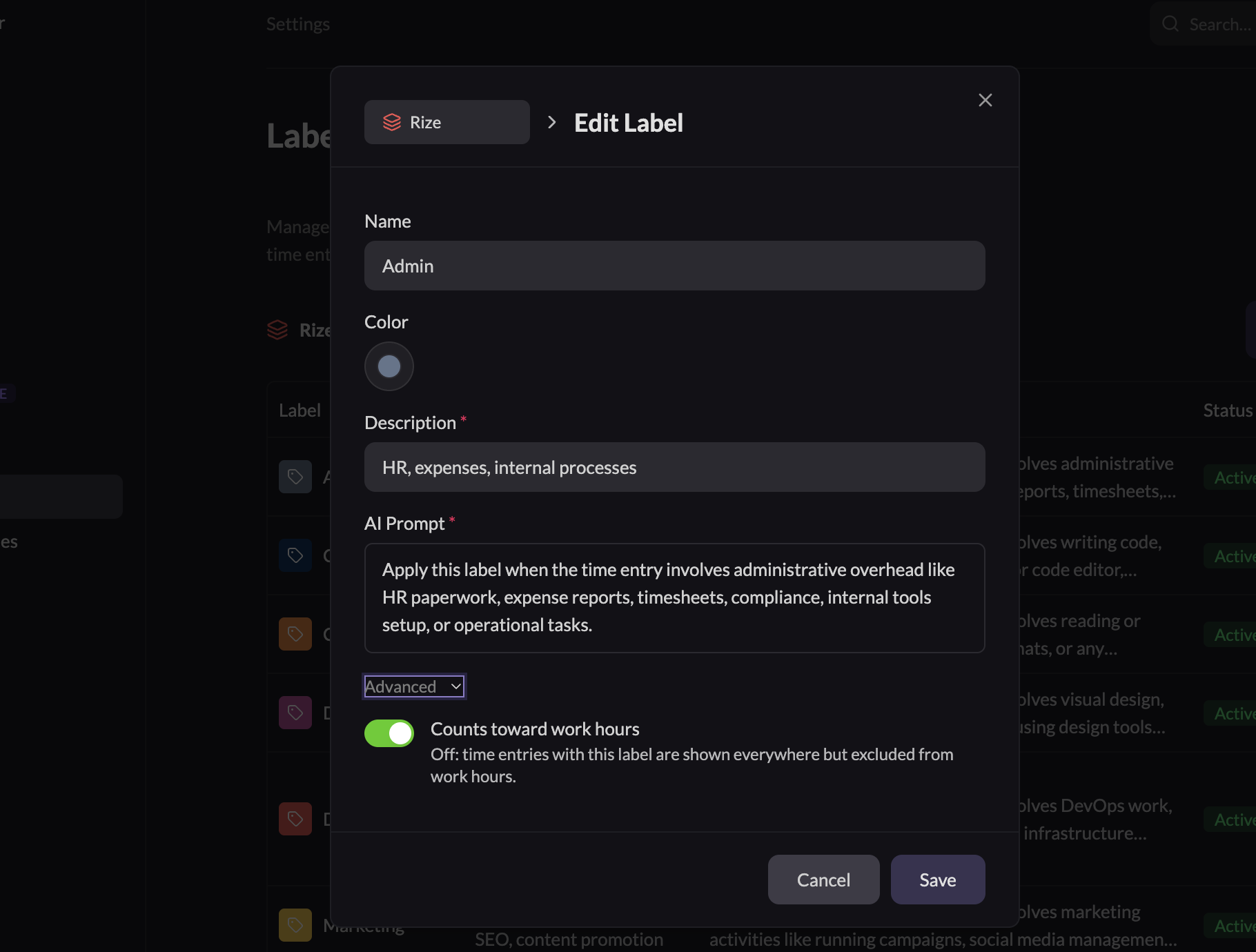
- Rewrite the prompts in your own words. Open a label and read its AI Prompt. Make it specific to your work. "Apply this label when the entry involves writing or reviewing code for the mobile app, including pull request reviews in GitHub" beats a generic description.
- Add the labels your reports need. If you bill retainer hours against "Strategy" and "Production", create those. A team can hold up to 30 labels, and each needs a name, a description, and a prompt.
- Check the work-hours switch. Any label that should not count toward Work Hours, such as Personal or a "Commute" label, gets the Counts toward work hours switch turned off under Advanced. Entries stay visible everywhere; they just leave the Work Hours total. The Labels docs cover every field on the label editor.
Labels are per team, not per person. A team admin manages them from the team's settings page, and every member's entries on that team draw from the same list. That is what makes label reports comparable across a team, which categories, being per user, never were.
If your workspace does not show a Labels page yet, a workspace admin can turn on Labels under Settings, then Workspace, then Manage Features. Workspaces still on categories have simply not been migrated yet.
How do I correct a label on a time entry?
Change it on the entry during review and save. The AI keeps using the label's prompt for future entries.
Open the entry in the time entry review view, pick a different label from the label control, and save. That fixes the one entry. If the same mistake keeps happening, the fix is the prompt, not the entry: open the label in Settings and add a line that names the case the AI is getting wrong.
One label per entry is deliberate. An entry that could be two things is usually two entries, and splitting it in review is a click. Changing the entry's team clears its label and re-runs classification against that team's labels.
Tune your labels in 20 minutes
Open Settings, then Labels. Archive what you will not use, rewrite three prompts in your own words, and check the work-hours switch on Personal.
Start Free TrialHow do I set app and website rules?
Click any app or website in your activity, choose Edit, and set how Rize should treat it. Every rule has the same five switches.
Click a block on the Activity timeline and Rize lists the apps and websites in that period. Expand any one to see the window titles or URLs behind it. Edit opens that app's rule:
- Do Not Track. Rize ignores this app or site entirely. Every other setting hides because nothing is recorded. Use it for password managers, banking, and anything personal.
- Focus (under Sessions). Time here counts toward focus time and can start a Focus Session. On by default for new apps. Turn it off for Slack, email, and social sites so a long afternoon of messages does not read as focus.
- Meeting (under Sessions). Spending 15 minutes or more here starts a Meeting Session. Focus is unavailable while Meeting is on, because an app cannot be both.
- Detect Idle Time (under Advanced). Hide time here when you step away. On by default. Turn it off for apps where you are present but not typing.
- Distraction Blocker. Block this app during Focus Sessions, during Breaks, during Meetings, or always.
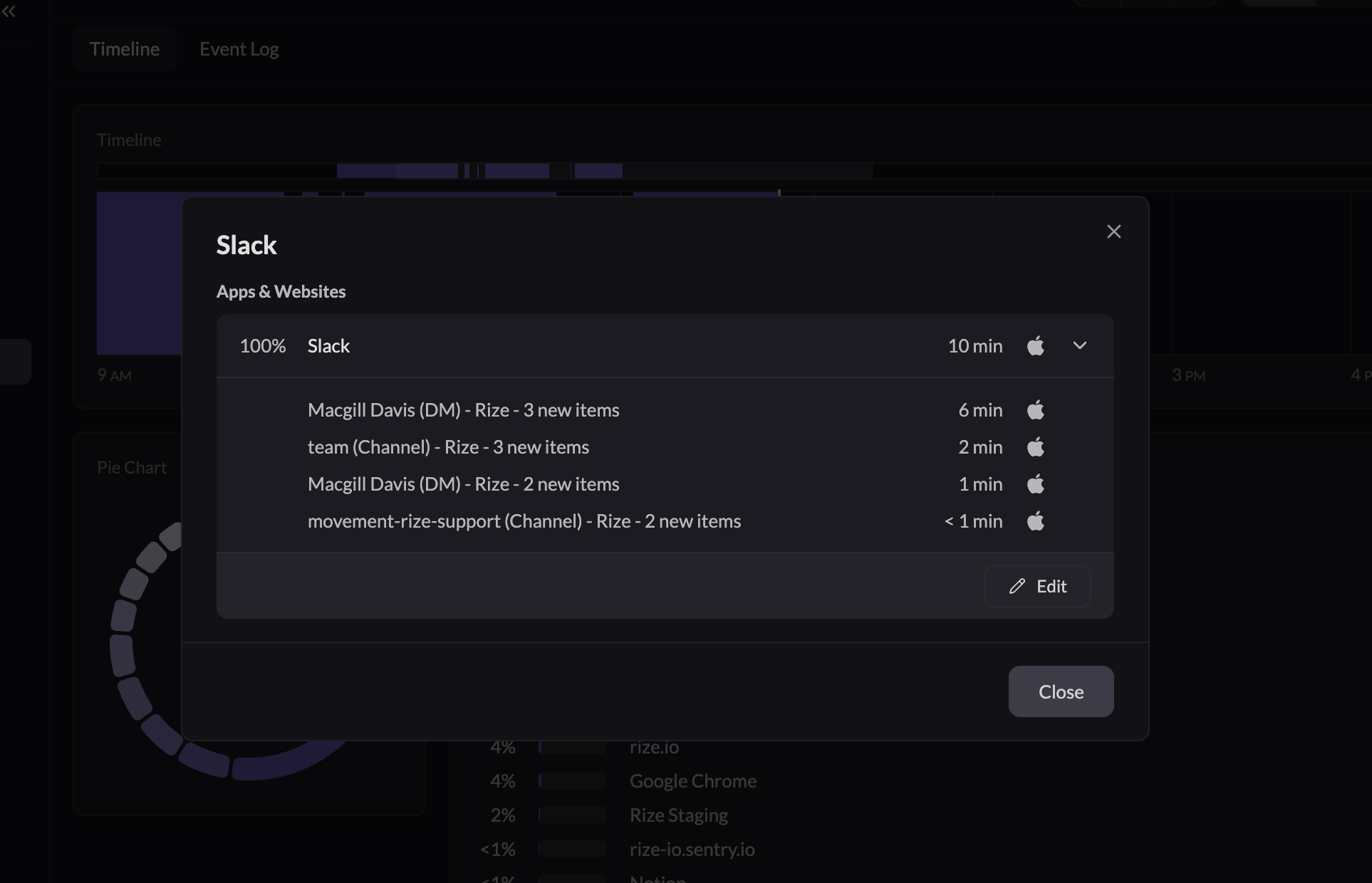
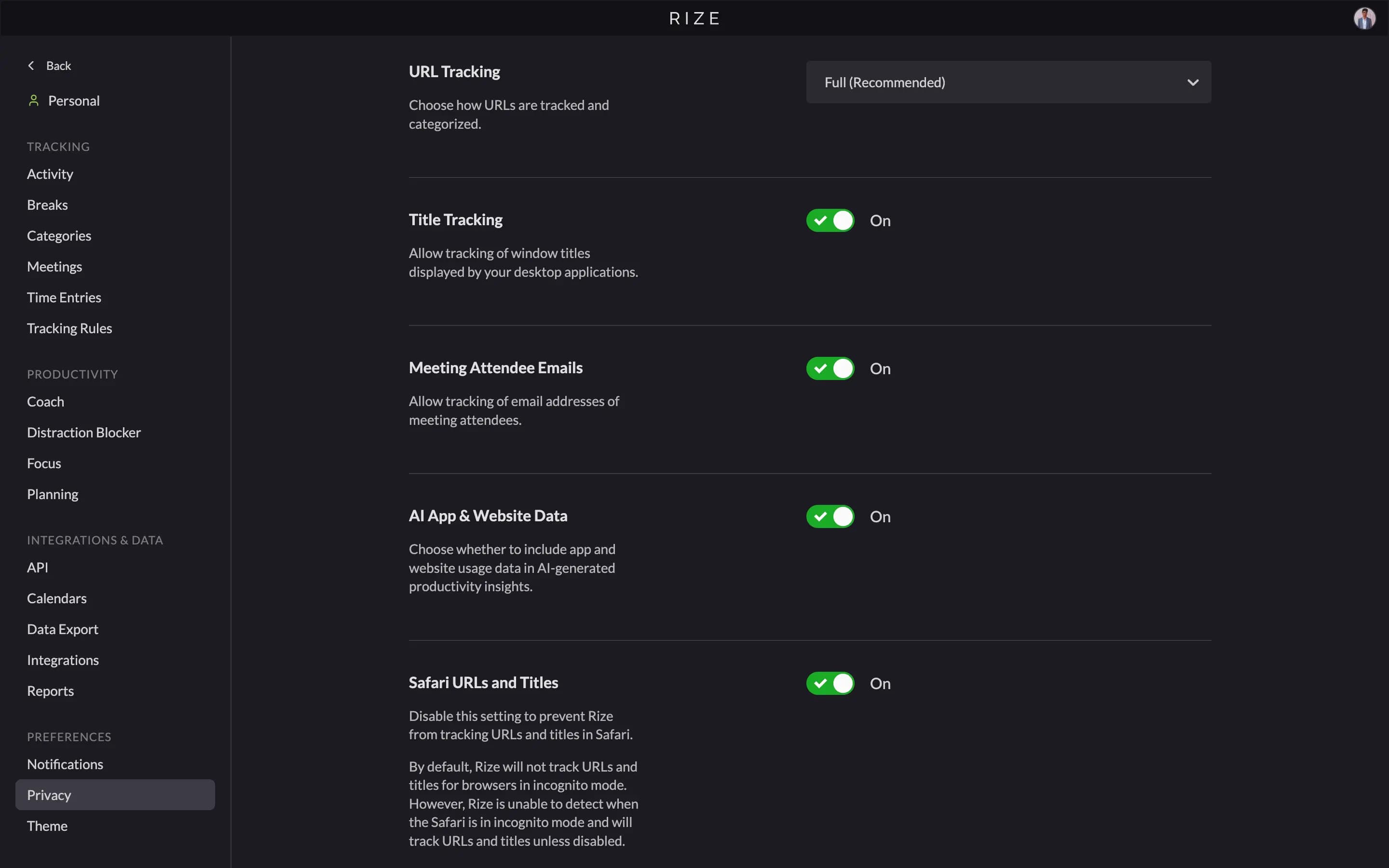
Under Advanced you also control what Rize records. Track Window Titles off means Rize stores the app name only. Website rules add Track Full URLs, which records the path such as drive.google.com/my-stuff instead of only the domain, and Do Not Track Any URLs. The how tracking works guide covers what Rize never records at all.
You can also drag on the Activity timeline to create a time entry for that range by hand, which is the fastest way to log a whiteboard session or a call that happened away from the keyboard.
What are the two settings to check first?
Idle detection on meeting and media apps, and focus on communication apps. These two account for most "Rize got this wrong" reports after a migration.
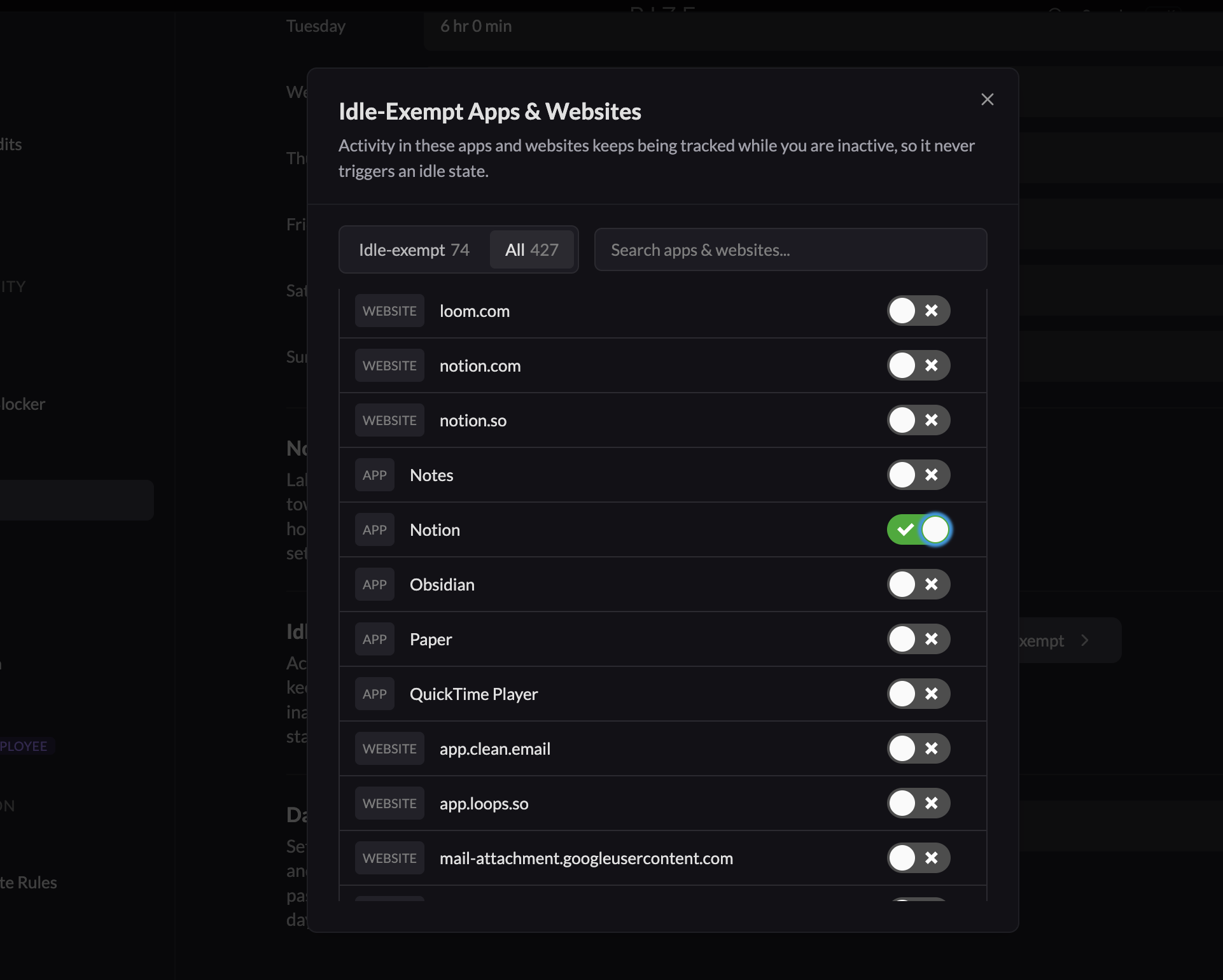
Idle detection. Rize hides time after five minutes without keyboard or mouse input, which is correct for a text editor and wrong for Zoom, Loom, Figma presentations, or a video you are studying. If a call or a screen share keeps disappearing from your day, click the app, choose Edit, and turn off Detect Idle Time. Rize then keeps tracking that app while you are hands-off. The same list lives under Settings, then Activity, then Idle-Exempt Apps & Websites, where you can toggle several apps at once.
Focus. New apps count as focus by default. That is the right default for creative and engineering tools and the wrong one for Slack, Gmail, X, and LinkedIn. Check Settings, then Focus, then Non-Focus Apps & Websites and move communication and social apps into the non-focus list. Focus Sessions still form the same way: roughly 75% of a 15-minute window in focus apps starts one, so getting this list right is what keeps your focus time honest.
Migrated rules keep their old category behavior, so an app you had in Entertainment or Video Conferencing already has idle detection off, and an app you had in Social Media is already non-focus. The checks above matter most for apps you started using after migration, which land on the defaults.
How do I create a rule for an app I have not used yet?
Open Settings, then App & Website Rules, click New Rule, and choose one of three starting points.
- From your activity. Pick an app or site you have already used, add an optional window-title keyword, set the switches, and save.
- From a custom URL. Enter a full or partial URL such as
https://x.com/messages, add optional window-title keywords, set the switches, and save. - From an app name. Choose macOS or Windows, type the name exactly as it appears in your activity, such as
Google Chrome, set the switches, and save.
More specific rules win. A rule for figma.com/project-alpha beats a rule for figma.com, so you can keep a client's Figma file as focus while leaving the Figma community pages out.
The App & Website Rules docs list every switch and the managed lists behind them.
To pause a rule without deleting it, edit it and turn on Do Not Track. To remove the custom behavior entirely, choose Delete from the rule's actions menu and the app returns to the defaults.
Where do labels show up after setup?
Labels flow to every surface that reads time entries: reports, the timeline, the Rize agent, and MCP clients.
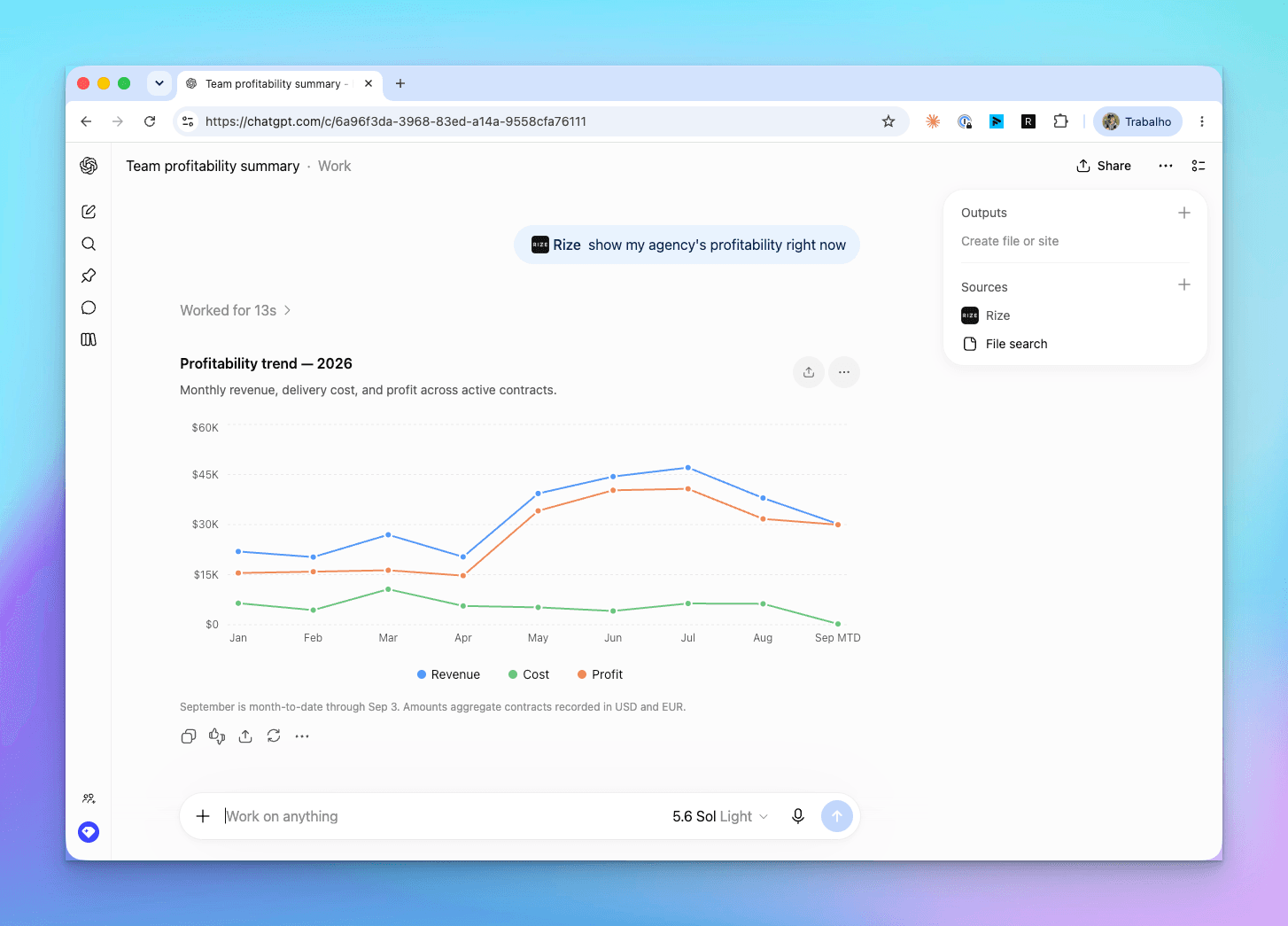
Labels on time entries are a property of the entry alongside client, project, and task, so anything that groups or filters entries can group or filter by label. The Labels timeline column shows them on your day view. Reports and exports can break time down by label. The Rize agent, and Claude or ChatGPT connected through Rize MCP, can answer "how much of my week was Review & Feedback" from the same data.
That is the practical payoff of the change. A category told you which app you were in. A label tells you what you were doing, and it tells every report and assistant the same thing.
What's next
We are migrating workspaces gradually and watching for behavior that looks wrong. If an app keeps going idle when it should not, or a label keeps landing on the wrong kind of entry, tell us through the support widget with the app or label involved. Those reports are how the defaults get better for the next workspace in the queue.