Rize is deprecating categories. As each workspace is migrated, labels on time entries take over what categories did for reporting, and App & Website Rules take over what categories did for focus, meeting, idle, and do-not-track behavior. Your tracked time does not change. What changes is how it is described and how you set the rules.
Categories have been in Rize since day one, six years ago, before LLMs existed. They were the easiest way we had to show you what you worked on: map an app or website to a bucket, then colour the day by bucket. They were also hard to set up, hard to add nuance to, and wrong more often than we liked.
Quick answer: Once your workspace is migrated, categories leave the activity view, reports, and settings. Labels describe your work and are applied to time entries by AI. Per-app rules control focus, meeting, idle detection, blocking, and do-not-track. Everything else keeps working. This post also covers three other changes shipping alongside: external task IDs in CSV exports, an admin-only team creation setting, and client billing details on invoices.
Why are categories going away?
Categories tie a single bucket to an app, and an app is not enough information to know what you were doing.
An hour on YouTube might be a tutorial for the framework you are shipping next week, or it might be Shorts. A category rule saw "youtube.com" and gave both the same answer. To fix that you had to build keyword rules and URL exceptions by hand, per app, per site, and keep them current. Most people set up a handful of rules in week one and never touched them again.
Categories also carried a lot of weight beyond reporting. Focus detection, meeting detection, idle detection, the Distraction Blocker, and do-not-track all ran through the category an app belonged to. That made a simple question like "why did Rize count this as a meeting" hard to answer, because the answer was three settings away.
What replaces categories?
Labels replace categories for describing your work, and App & Website Rules replace them for tracking behavior.
Labels
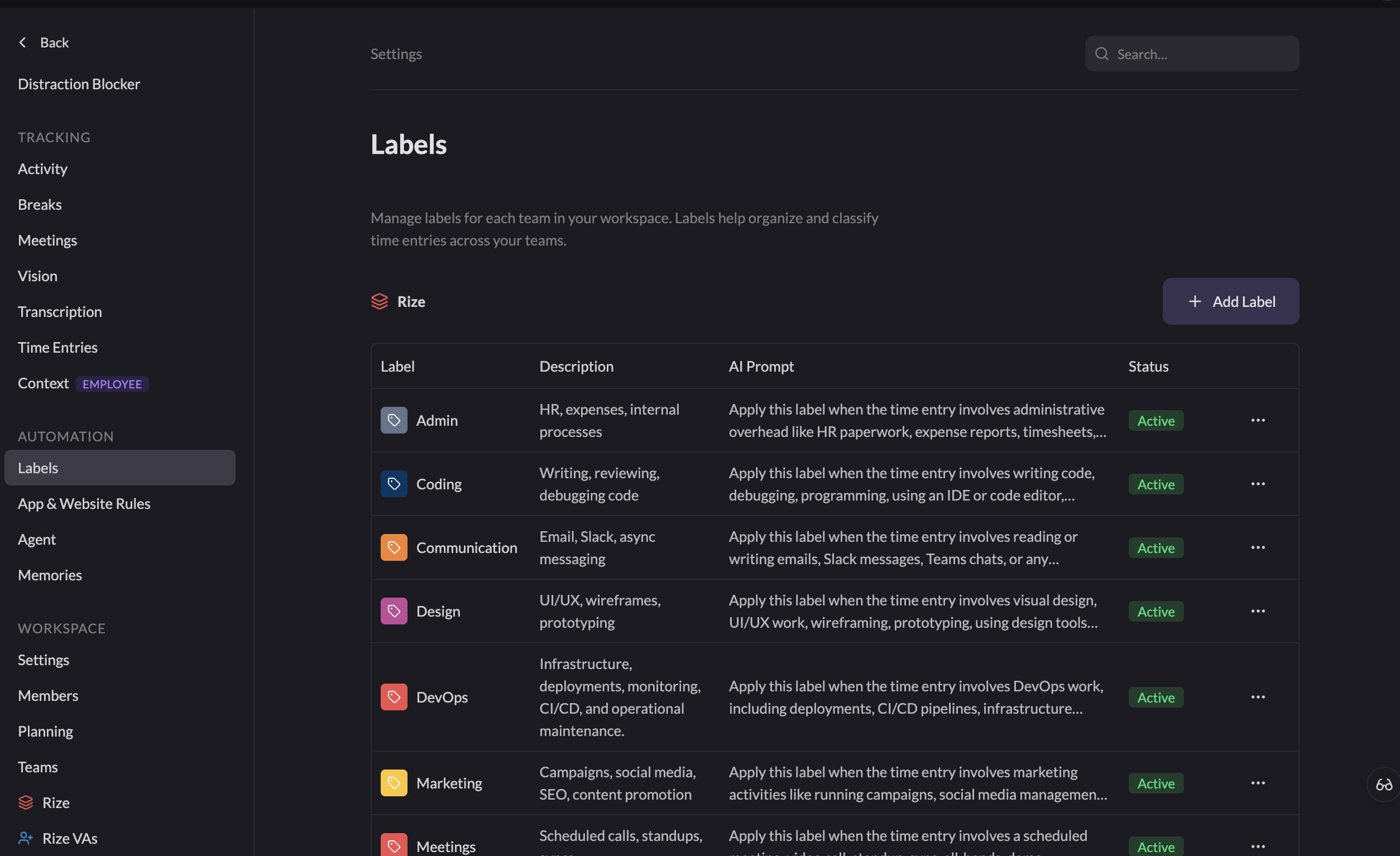
A label is a tag on a time entry, applied by an AI prompt you can read and edit under Settings, then Labels. Rize processes your activity, the apps and websites you used, into time entries with summaries. Labels are applied to those entries, so they read the summary, the window titles, and the project context rather than the app name alone. The YouTube tutorial gets Learning. The Shorts session gets Entertainment.
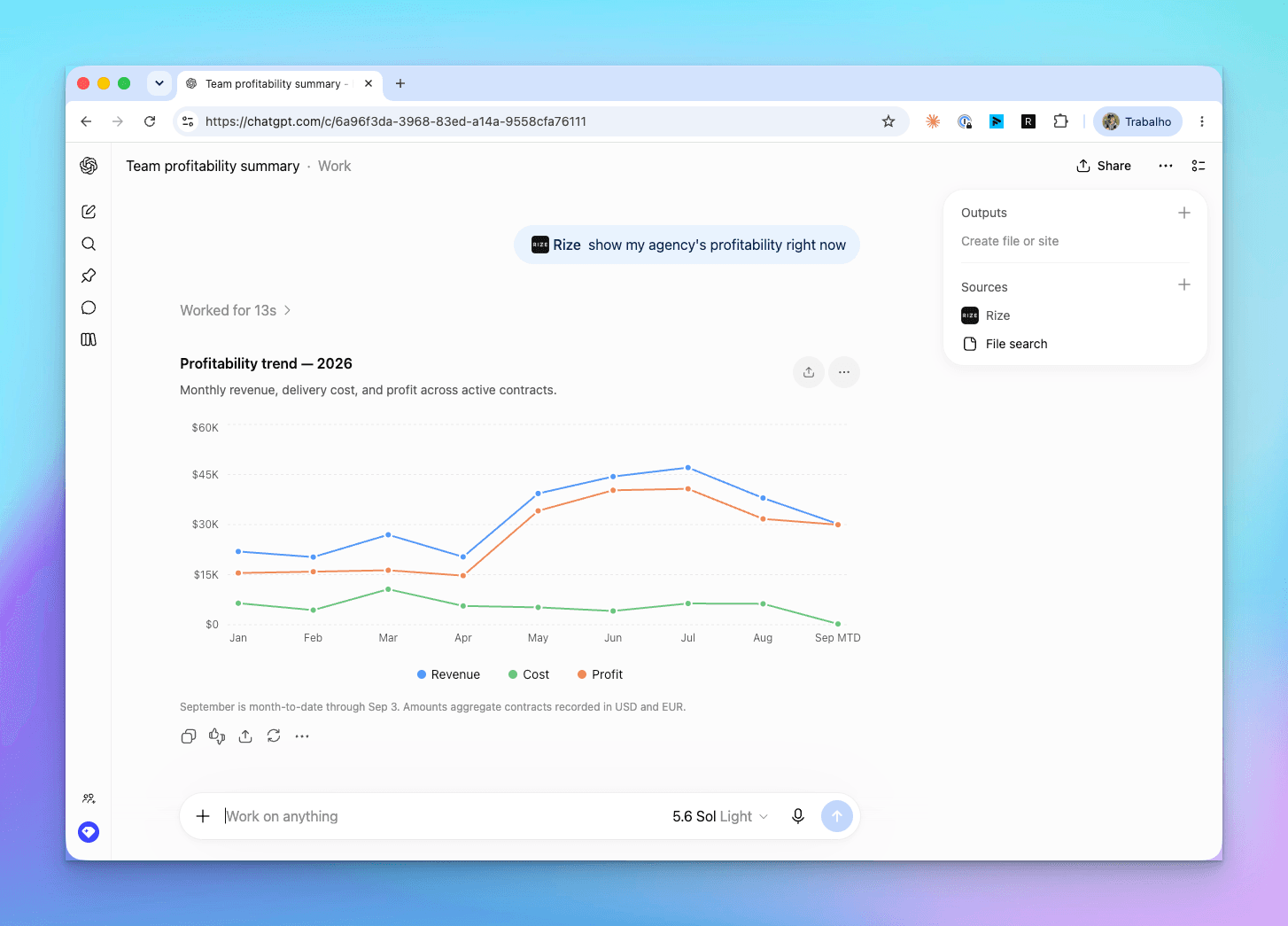
Because labels live on time entries, they also work with everything else that reads time entries: reports, the AI agent, MCP clients like Claude and ChatGPT, and timesheet review. A label is one property of the entry, alongside client, project, and task. Each label's prompt is editable in plain language. The full walkthrough is in the Labels docs, and labels show up wherever automatic time tracking produces an entry.
App & Website Rules
Everything categories did for tracking behavior now lives on the app or website itself. Click any app or site in your activity, or open Settings, then App & Website Rules, and you can set it as:
- Focus: counts toward focus time and focus sessions
- Meeting: counts as a meeting
- Idle detection: whether time in this app should be treated as idle after inactivity
- Do not track: Rize ignores this app or site entirely
- Blocked: the Distraction Blocker interrupts you here during focus sessions
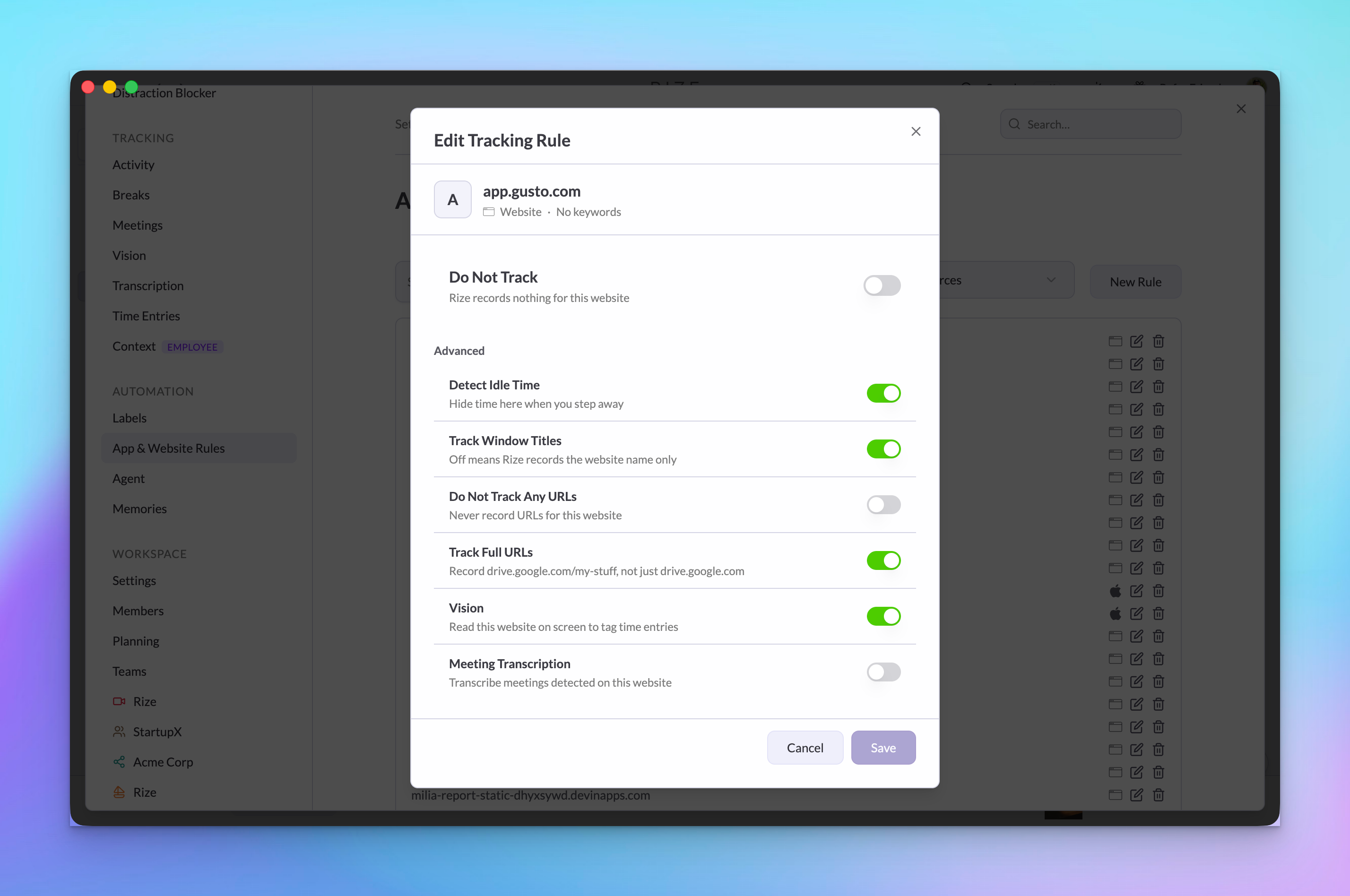
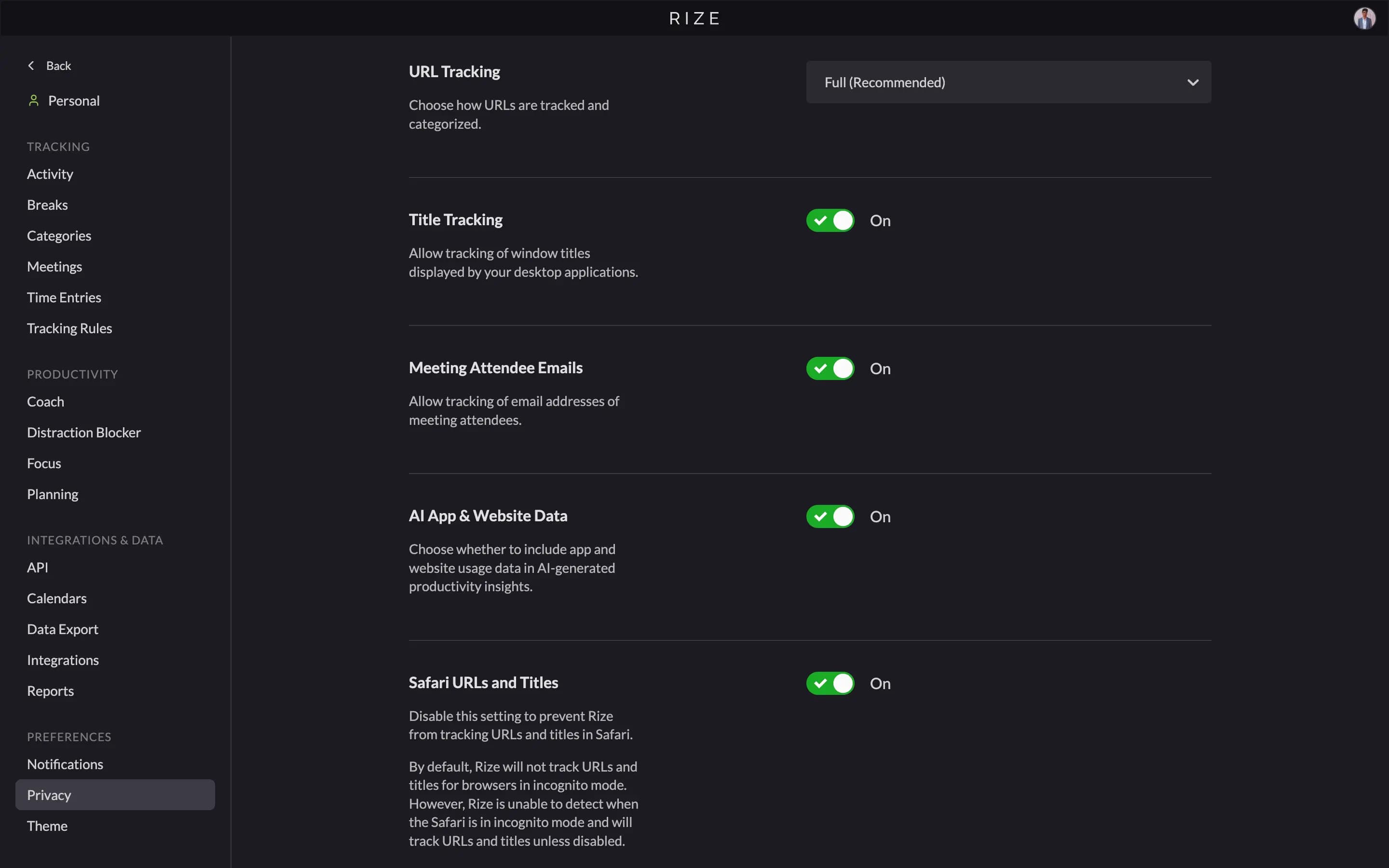
One rule per app, in one place. When Rize treats something as a meeting, you click the app and see why. Focus sessions still form the same way: roughly 75% of a 15-minute window in apps and websites that count as focus starts one. The App & Website Rules docs cover every setting, including window-title and URL tracking.
What you will notice in the app
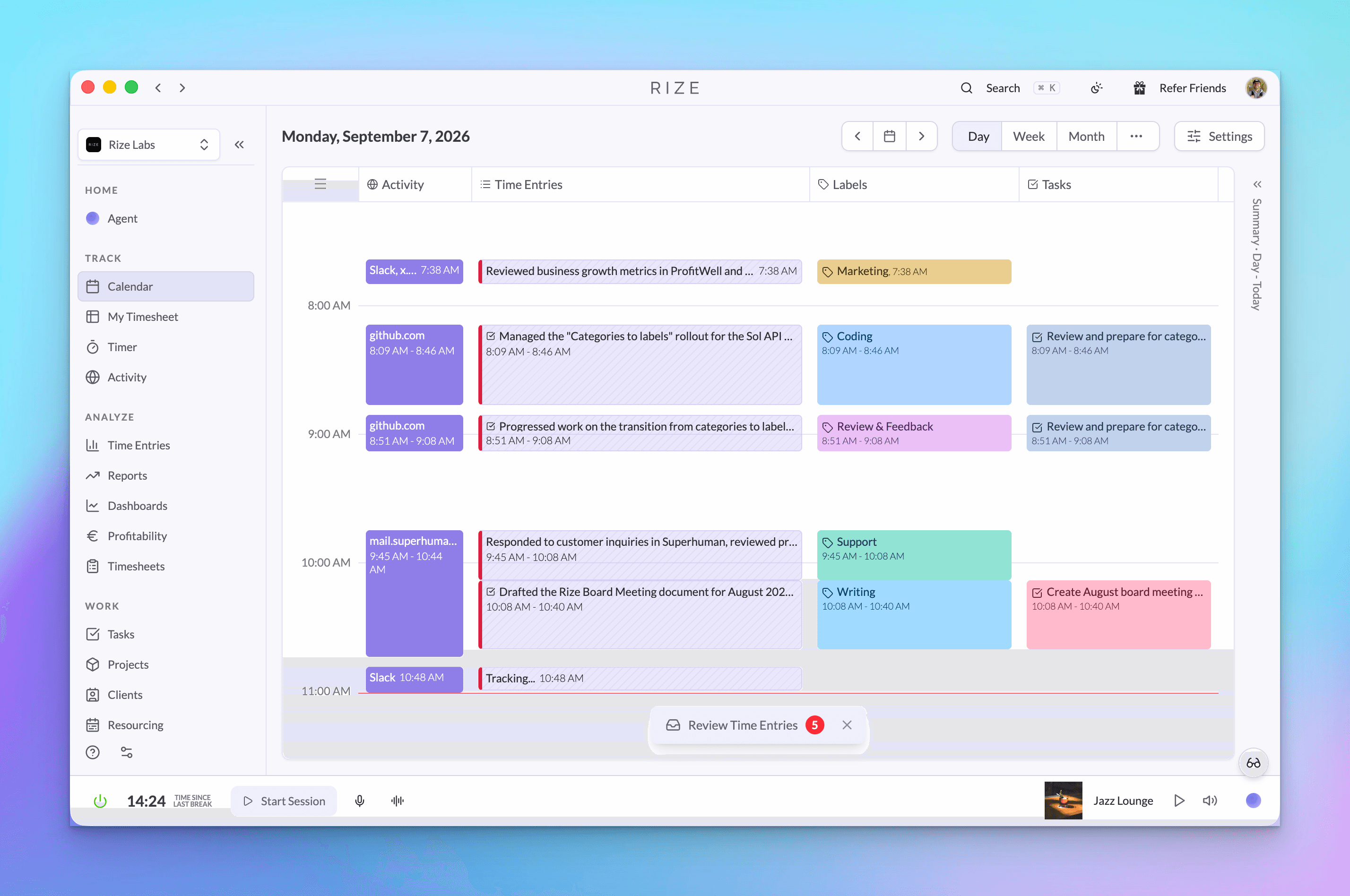
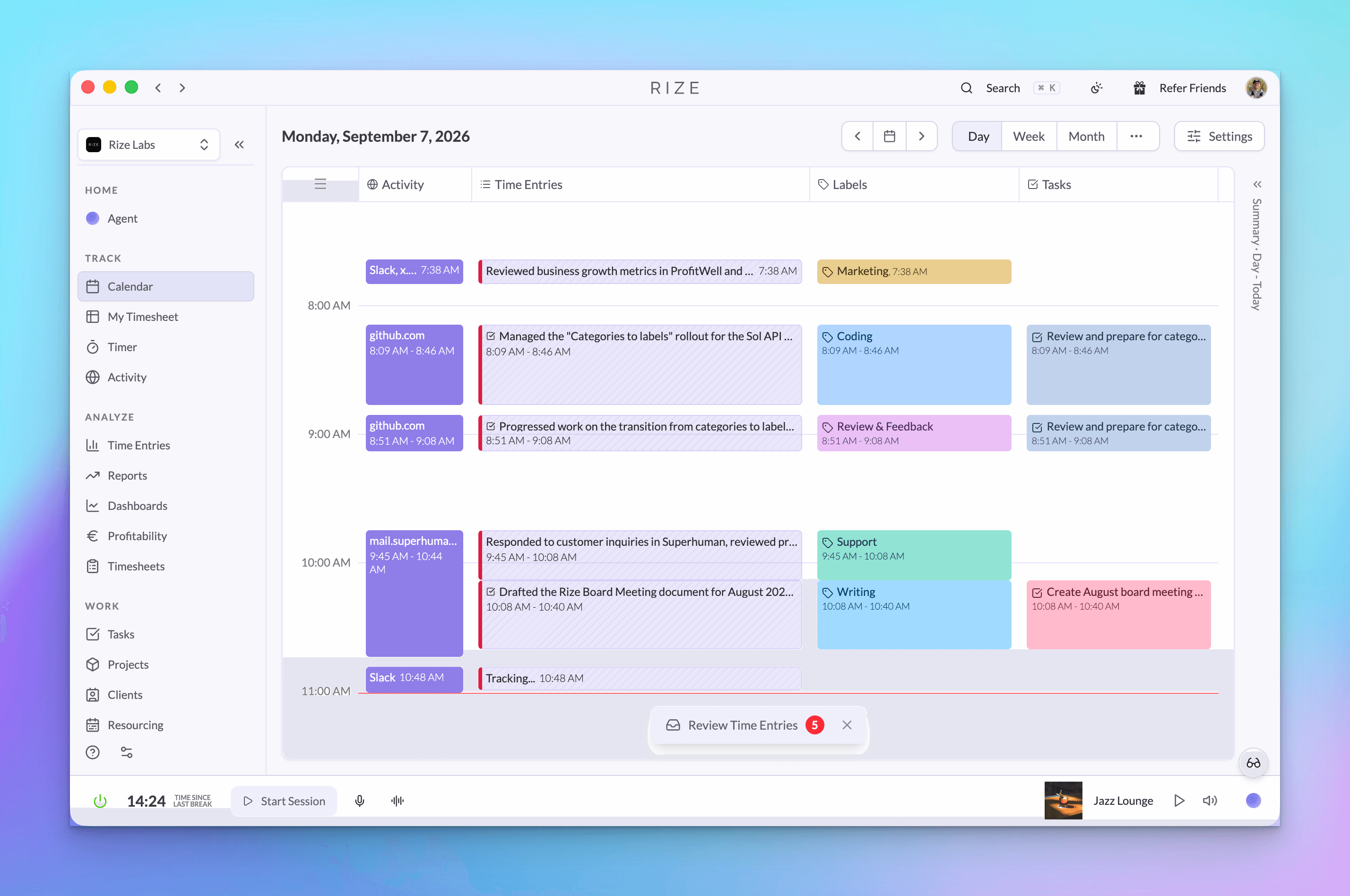
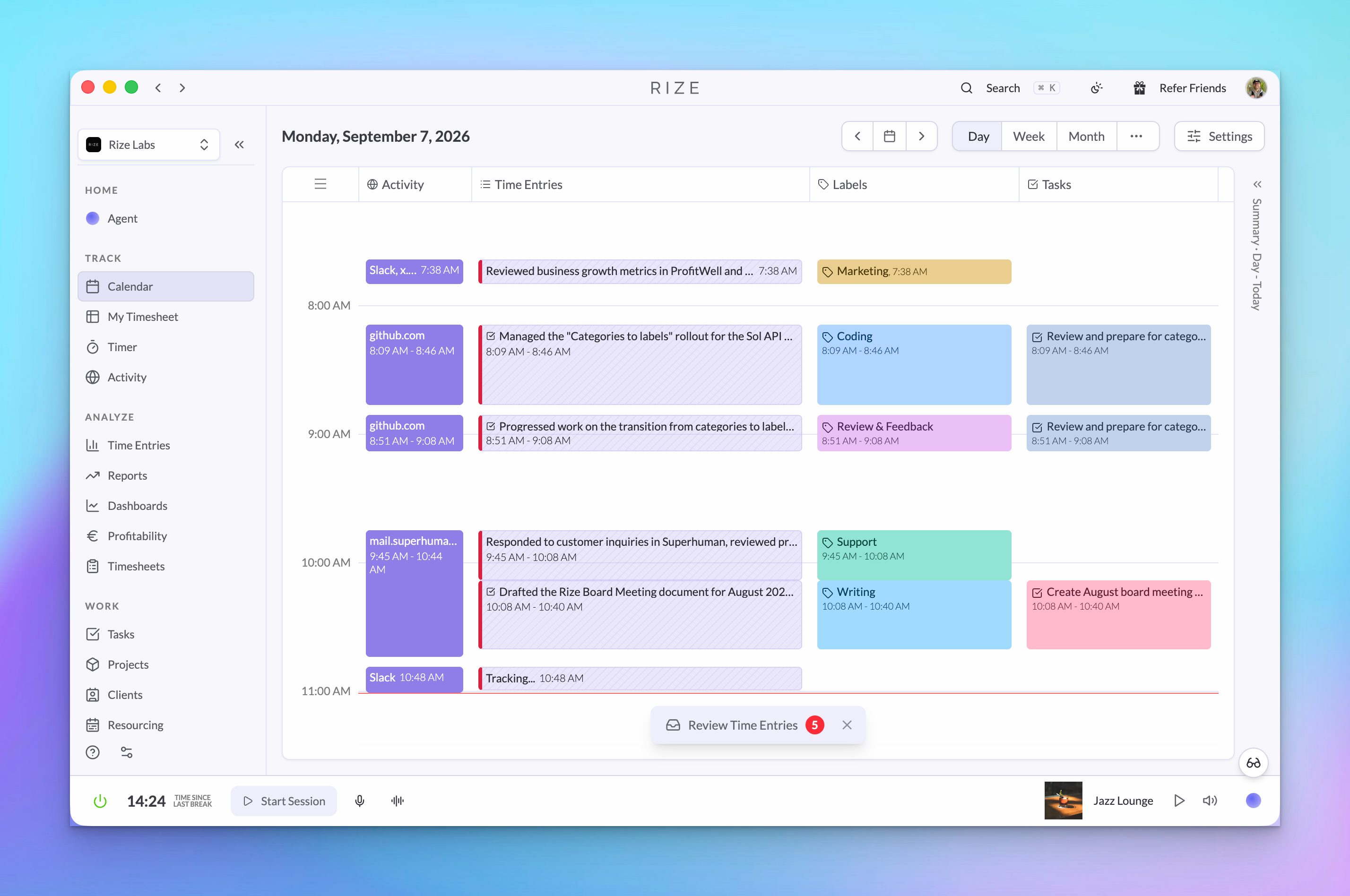
The activity view shows apps and websites instead of a category name. Everything below it flows from time entries and labels.
- Activity: the timeline lists the apps and websites you used. Hover an event and you see the site, not the bucket it was mapped to.
- Time entries: unchanged. Summaries, labels, client, project, and task stay where they were. This is what the AI reads and what you review and approve.
- Reports and emails: the categories section is gone from report emails and replaced with top apps and labels. Desktop toasts show your top apps and websites.
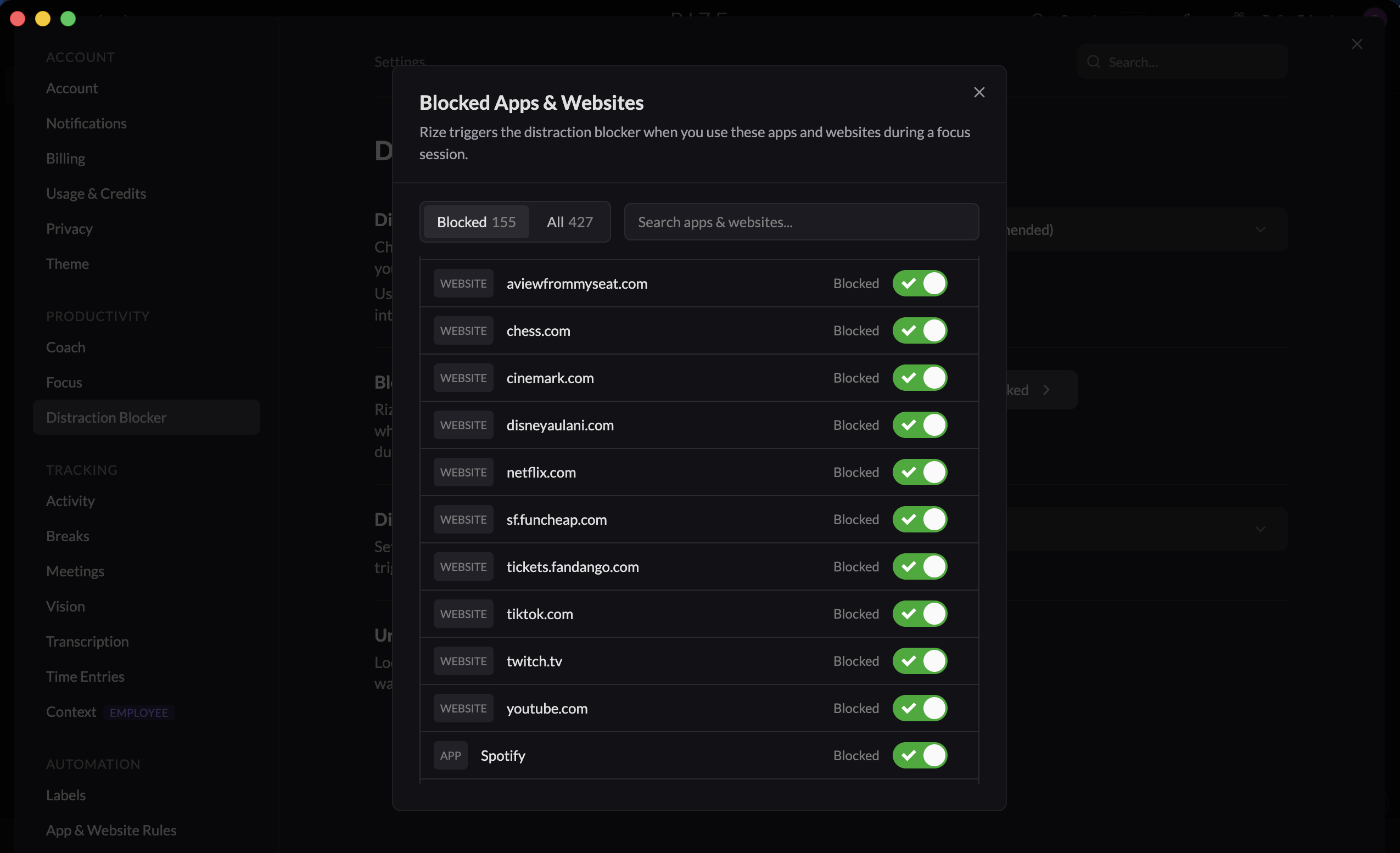
- Distraction Blocker: configured per app or website. Settings, then Distraction Blocker has a Blocked Apps & Websites list with a toggle for every blocked app or site.
- Settings: the Categories page is replaced by App & Website Rules. Goals and calendar rules that depended on categories are hidden.
- Manual sessions: created without a category picker.
We are rolling this out gradually. If your workspace has not switched yet, you will still see categories for now. If you hit something that looks wrong after the switch, tell us through the support widget with the app or site involved and we will fix it.
Set up your labels
Open Settings, then Labels, and read the prompts behind each one. Edit them in plain language and Rize applies them to every new time entry.
Start Free TrialAlso new: external task IDs in CSV exports
Time entry CSV exports now carry the IDs from your task tracker, so a ClickUp task ID is one column away from the hours logged against it.
Four new columns: Client External ID, Project External ID, Task External ID, and External Source. External Source reads ClickUp, Linear, or Asana depending on where the client, project, or task was synced from. If you reconcile Rize hours against ClickUp in a spreadsheet or a BI tool, join on Task External ID and skip the name matching. The IDs come straight from the synced data from ClickUp, Linear, or Asana, so they match what those tools show in their own exports. Exports work the same way as before; see the reports and exports guide and the ClickUp integration page.
Also new: restrict team creation to workspace admins
Workspace admins can now stop members from creating teams.
The setting is Team creation under Settings, then Workspace Settings, then Manage Features. When it is on, only workspace admins can create teams; members can still be added to existing teams. It is off by default, so nothing changes unless you turn it on. Setup steps are in the team configuration docs.
Also new: client billing details on invoices
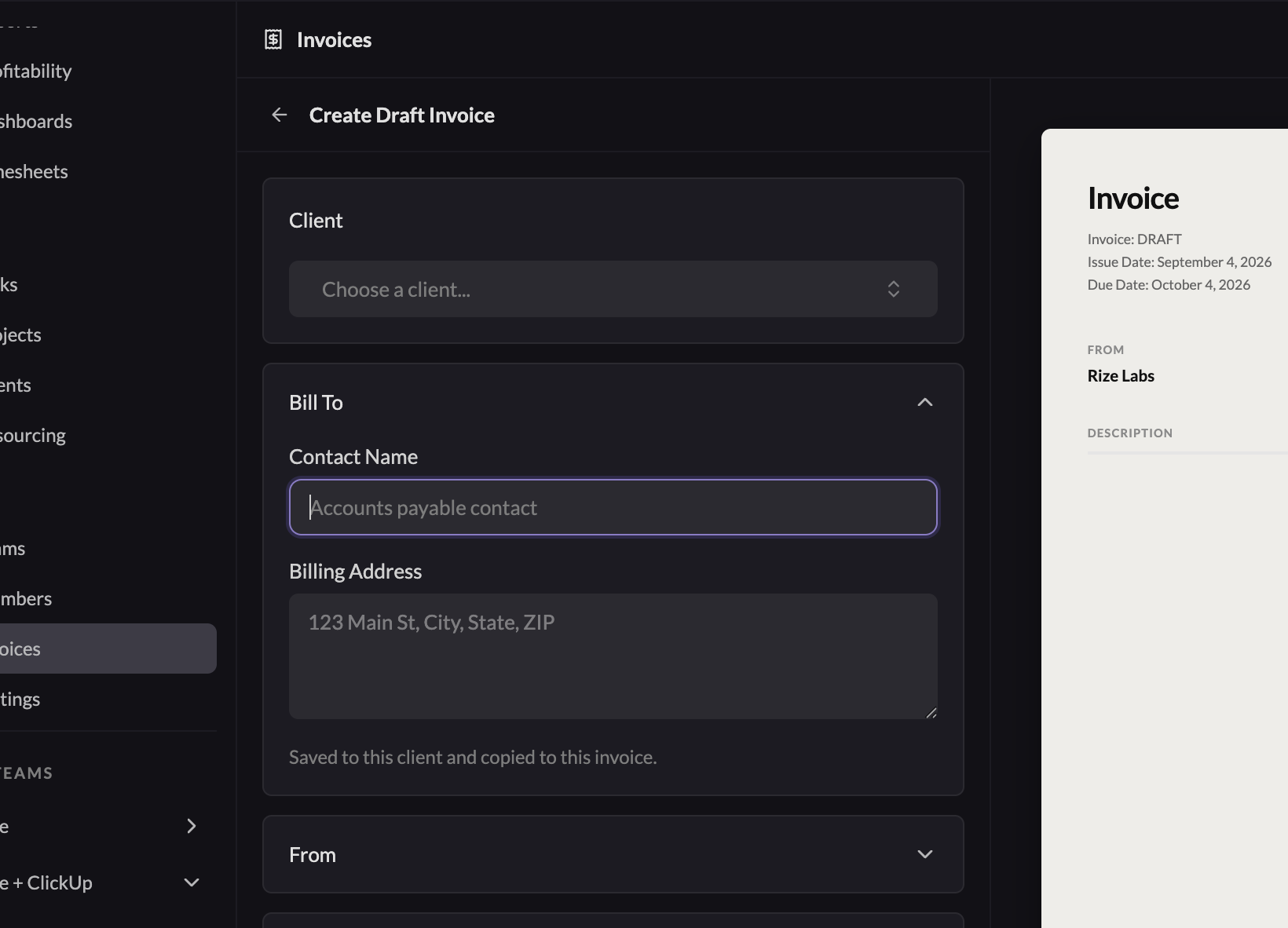
Invoices now carry a billing contact and address for the client, prefilled from the client and saved back to it.
When you create an invoice, the Bill To block prefills from the client's billing defaults. Edit it on a draft and both the invoice and the client's defaults update, so the next invoice starts correct. Once an invoice is sent, its billing details are frozen; changing the client later does not rewrite documents you have already delivered. The live preview, the downloaded PDF, and the emailed attachment all render the same snapshot, with multiline addresses preserved.
Other improvements and bug fixes
Smaller changes that shipped over the same period:
- Quick-add durations on the time entry form, and a Save and add another button for logging several entries in a row
- All-day calendar events now sit in their own row above the timeline grid instead of stretching across it
- Team search when inviting organization members, and a team switch in the batch time entry panel
- Timesheet quick add for assignments, with untagged groups kept visible and assignments scoped to the team you are viewing
- Host labels on timeline events so you can tell which site a browser event came from
- Fewer ClickUp API requests during sync, which keeps large workspaces under ClickUp's rate limits
- Summary generation retries when an AI request times out, instead of leaving the entry without a summary
- Archived clients are skipped during tracking, so activity no longer lands on a client you closed
- Fixed the onboarding workspace step renaming an organization the user had been invited into
- Fixed AI overage billing being enabled automatically on paid subscriptions
What's next
Time entries are the centre of Rize now: your computer activity and meetings feed them; the AI summarises and labels them; you review and approve; reports and analysis read from them. Removing categories takes one parallel system out of that path.
We will share more updates as the rollout continues. If something in this release broke a workflow you relied on, reply to the release email or use the support widget and tell us which one.