Rize is deprecating categories. Labels on time entries take over what categories did for reporting, and App & Website Rules take over what categories did for focus, meeting, idle, and do-not-track behavior. Your tracked time does not change.
WHAT IS IT?
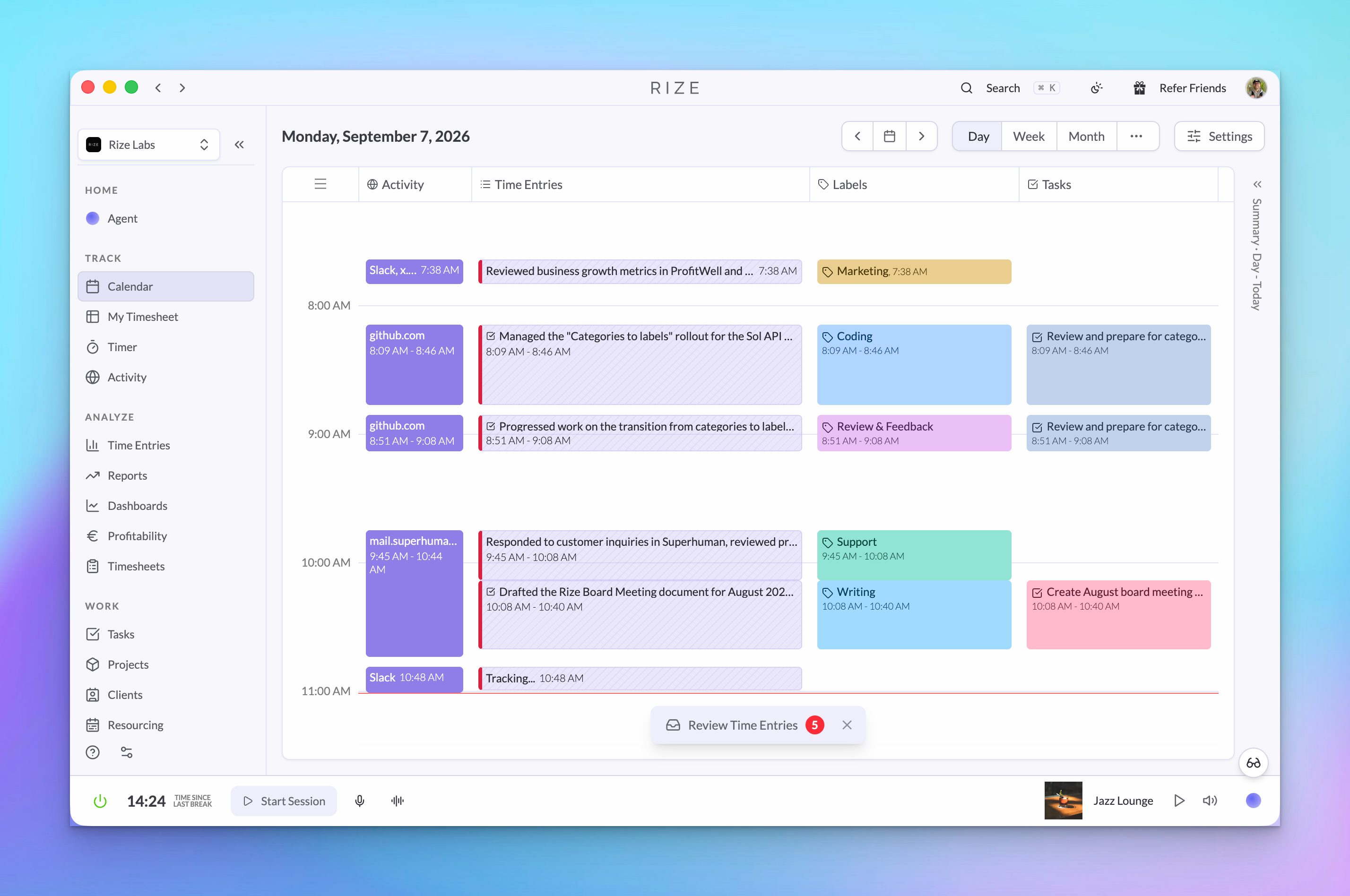
Categories mapped an app or website to a single bucket and drove focus detection, meeting detection, idle detection, the Distraction Blocker, and do-not-track. They were hard to set up and could not tell a YouTube tutorial from YouTube Shorts. Labels are applied to time entries by AI prompts you can edit under Settings, then Labels, so they read the context of the work. Tracking behavior moves onto the app or website itself under Settings, then App & Website Rules.
WHY IS IT IMPORTANT?
Time entries are where your activity and meetings come together, where the AI writes summaries, and where you review and approve. Labels live there too, so reports, the AI agent, and MCP clients all read one thing. Removing categories takes a parallel system out of that path and puts every tracking rule in one place: click the app, see why Rize treated it the way it did.
WHAT CHANGES
- Activity shows the apps and websites you used instead of a category name.
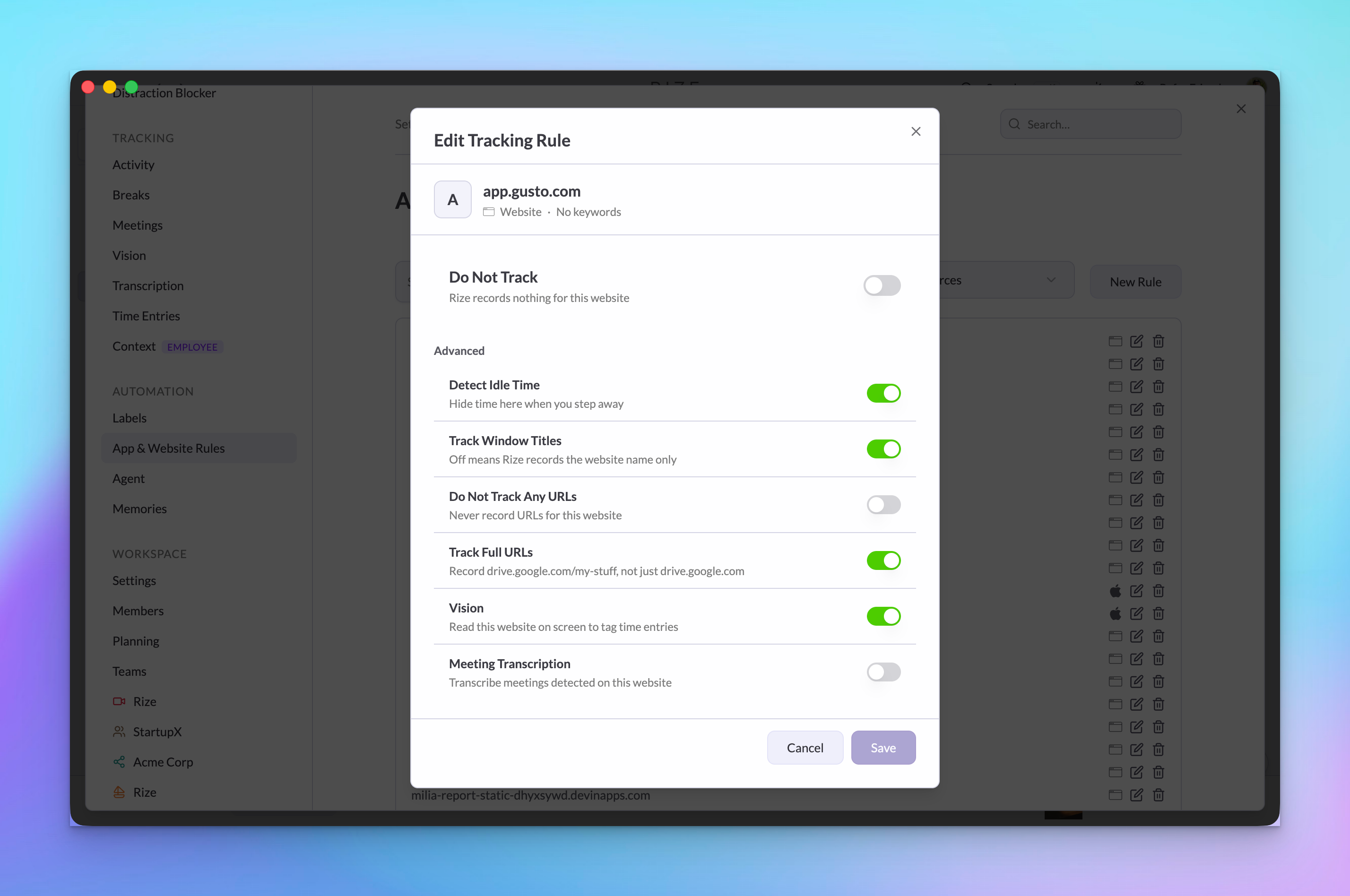
- App & Website Rules replaces the Categories settings page. Mark any app or site as focus, meeting, idle detection, do not track, or blocked.
- Distraction Blocker is configured per app or website. Settings, then Distraction Blocker, then Blocked Apps & Websites lists everything blocked.
- Report emails drop the categories section in favour of top apps and labels. Desktop toasts show top apps and websites.
- Manual sessions no longer have a category picker. Goals and calendar rules that depended on categories are hidden.
The rollout is gradual. If your workspace has not switched yet, you will still see categories for now.
ALSO NEW
External task IDs in CSV exports. Time entry exports gain Client External ID, Project External ID, Task External ID, and External Source columns. For ClickUp-synced work the Task External ID is the ClickUp task ID; Linear and Asana IDs are included the same way.
Restrict team creation to admins. Turn on Team creation under Settings, then Workspace Settings, then Manage Features, and only workspace admins can create teams. Members can still be added to existing teams. Off by default.
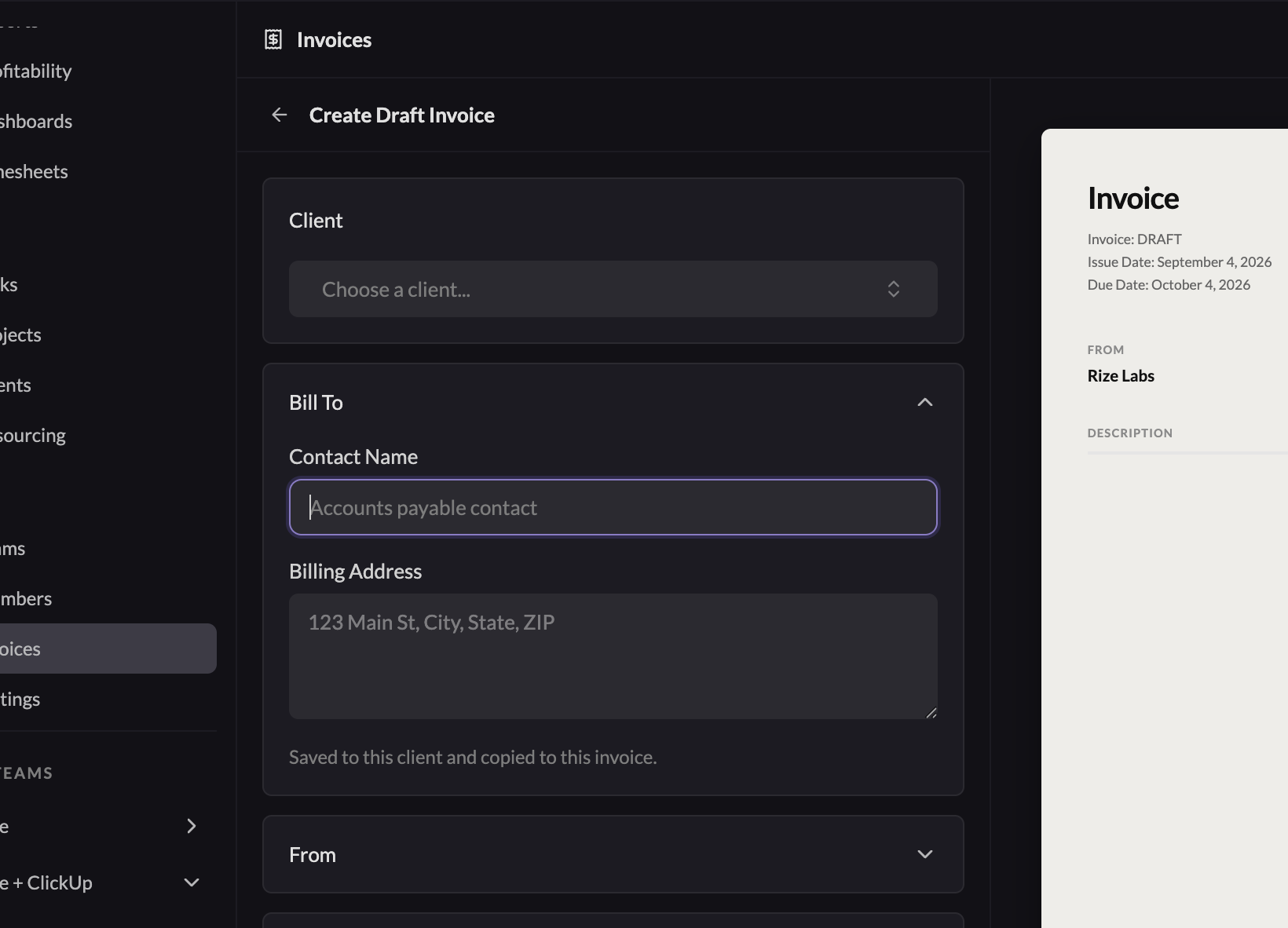
Client billing details on invoices. The Bill To block prefills from the client's billing contact and address and saves edits back to the client. Sent invoices keep a frozen snapshot, so changing a client later never rewrites a delivered PDF.
IMPROVEMENTS AND FIXES
- Quick-add durations and Save and add another on the time entry form
- All-day calendar events in their own row above the timeline grid
- Team search when inviting organization members; team switch in the batch time entry panel
- Timesheet assignment quick add, with untagged groups kept visible
- Host labels on timeline events
- Fewer ClickUp API requests during sync
- Summary generation retries on AI request timeouts
- Archived clients skipped during tracking
- Fixed onboarding renaming an organization the user was invited into
- Fixed AI overage billing auto-enabling on paid subscriptions