The week after the October release went to the follow-ups. Four new things shipped: an alert when Rize stops tracking, PTO days you can see and clear, a calmer Calendar timeline, and a Budgets tab in Resourcing. Display Language is open to everyone. The rest is fixes, most of them from your reports. App icons, the grouped Calendar, the new My Timesheet and the v3.0.149 desktop widget each have their own post.
Rize tells you when tracking has stopped
Sometimes the desktop app quits for an update or a restart and never comes back, and tracking stops without a word. Rize now checks three hours after your work start. If you tracked on desktop in the last two weeks and nothing has arrived today, you get a toast in the web app with an Open Rize button, a Slack message if your Slack is linked, and an email. Rize sends at most one alert a day, and never before noon, so an early auto-track start does not trigger it before you have begun work. Accounts with a 24/7 schedule, or no schedule, are checked three hours after 9am.
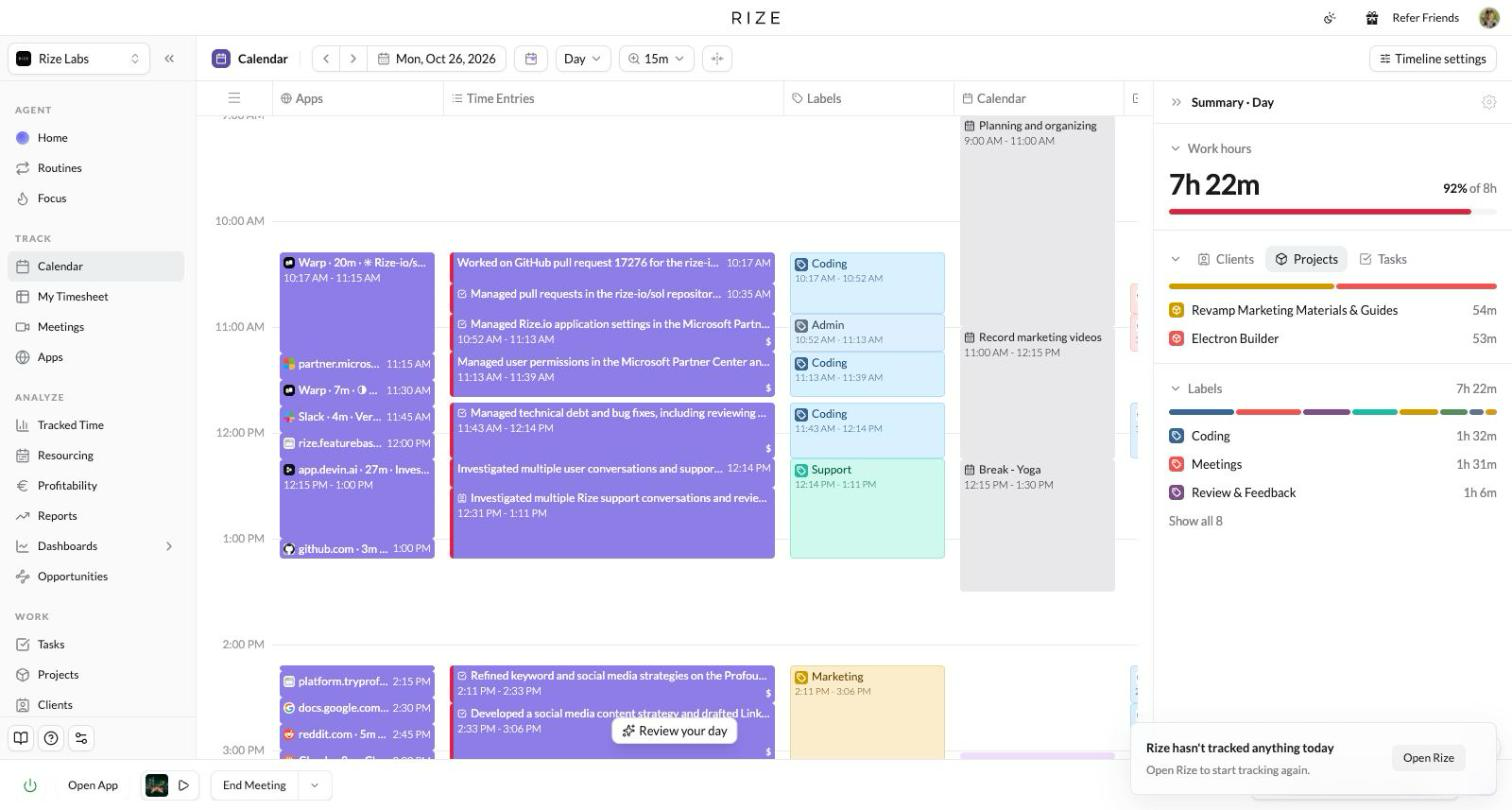
PTO days on Calendar and My Timesheet
When a calendar leave event marks a day as PTO, the Calendar day view and the My Timesheet day range now show it. An overlay covers the day with a Not PTO button that clears the flag and a View day button that lets you look at the day as it is. Before this, the only sign was a switch in the day settings modal, so a day could be marked PTO without you knowing, and Resourcing would shade it and refuse bookings on it.
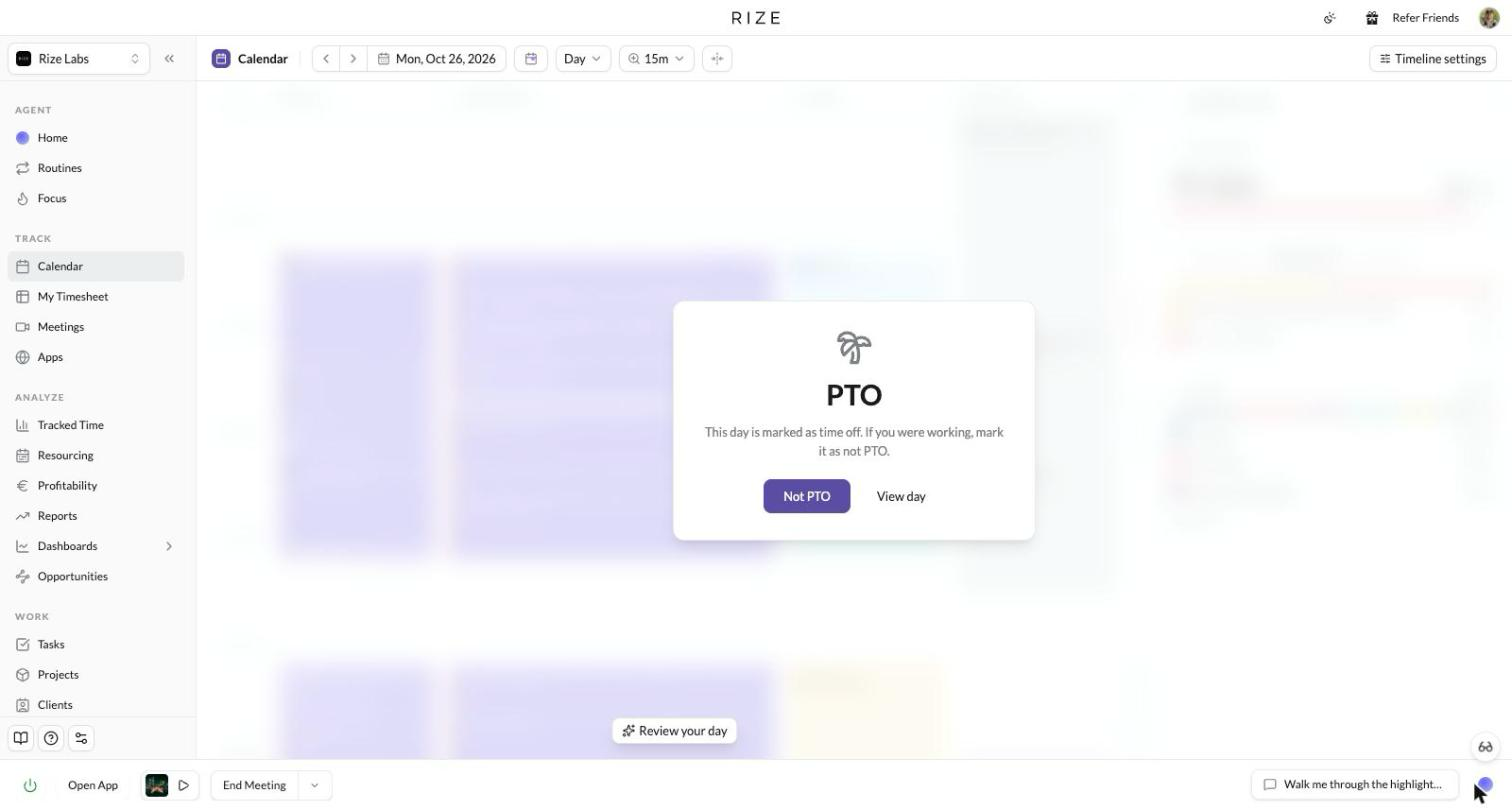
Detection is stricter too, after the overlay showed how often it was wrong:
- Only your own leave counts. A direct report's "OOO" invite on your calendar no longer marks your day. Rize trusts the organizer flag from Google and Outlook and falls back to the guest count only when it is missing.
- Only a full day counts. A recurring "Out of office" block for lunch or evenings no longer marks the whole day. A day is PTO when the leave is an all-day event or covers the full 9am to 5pm in your timezone.
- All-day leave stays on its dates. An all-day event for Friday no longer marks Thursday as well.
A calmer Calendar timeline
The Labels, Tasks, Projects and Clients columns on the Calendar day view now join back-to-back entries that share a tag into one block, so a run of Coding entries reads as one Coding block from 11:46 to 1:20. The entries stay separate underneath and in the Time Entries column. Drag the top edge of a joined block to move the first entry's start and the bottom edge to move the last entry's end. Change Label on a joined block relabels every entry in it. Open the review panel or select an entry and the columns split back into single entries so you can review them one at a time.
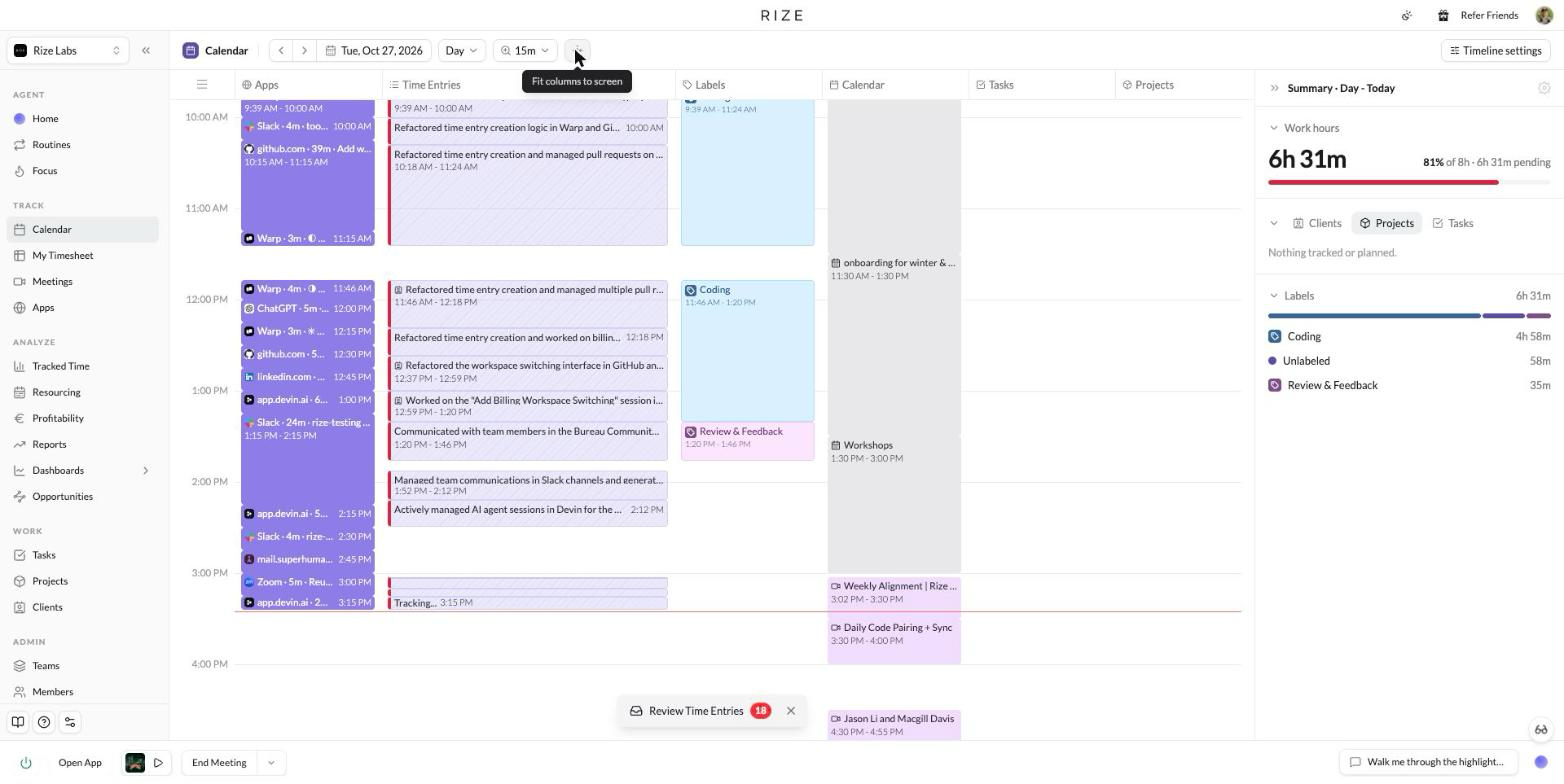
- Horizontal scroll is the default. Columns keep a fixed width and the timeline scrolls sideways, with the Time Entries column twice as wide as the others. Projects and Clients columns are on, and the Summary panel starts collapsed. If you had already set any of these, your choice is kept.
- A toggle next to the zoom switches between Fit columns to screen and Widen columns. It shows on Day view.
Hours budgets in one place
Resourcing has a Budgets tab next to Plan and Utilization. It lists every hours budget in scope in one grid: client, project and task time budgets, plus contract hours budgets for org admins. Each row shows a burn bar, the budget, hours used, hours remaining, the period, the type, the team and what the record belongs to. The default sort puts the most-used budgets first. Pills above the table narrow to Contracts, Clients, Projects or Tasks, with a count on each.
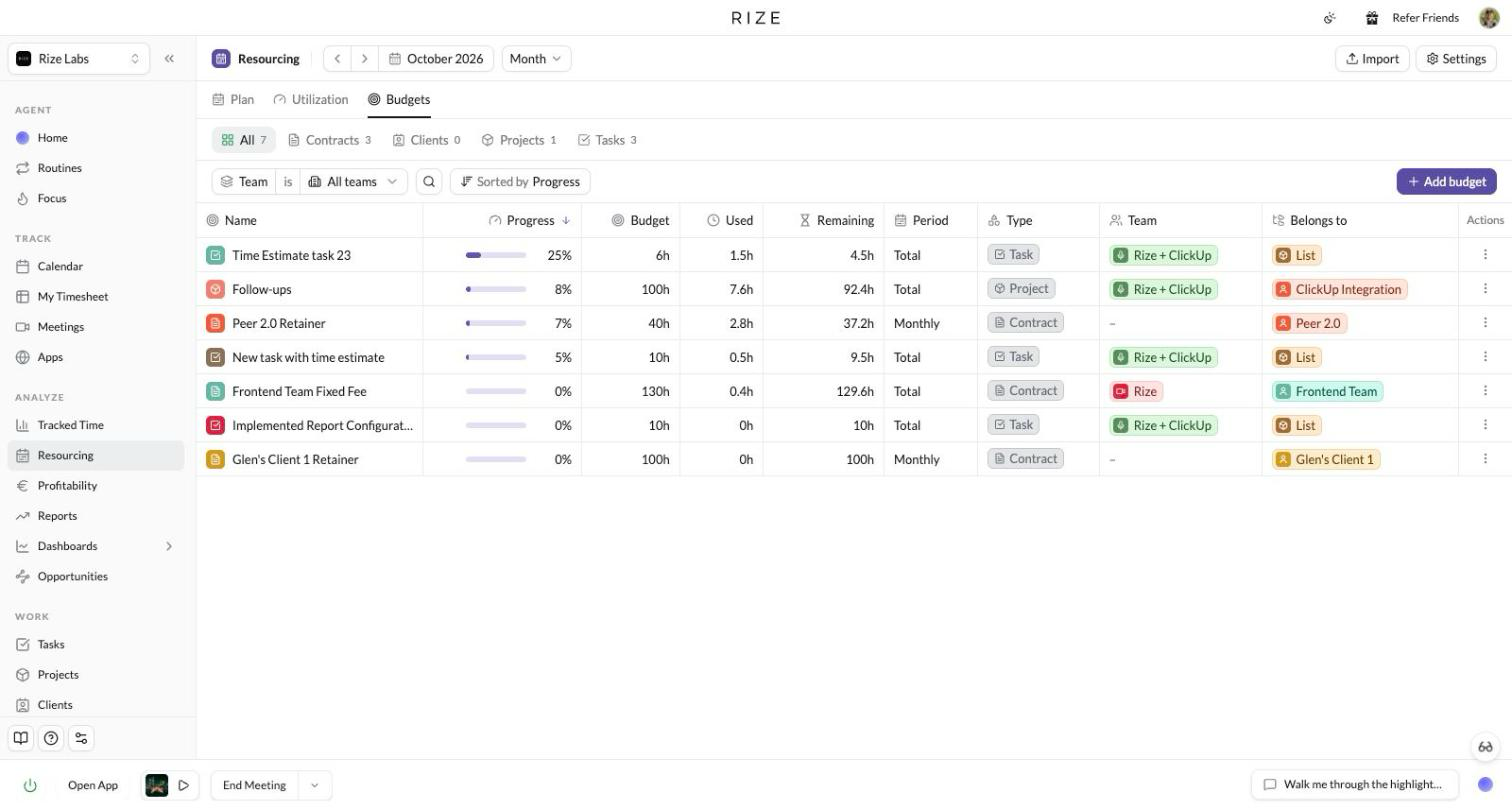
Add budget opens a dialog for a client, project or task with hours and a weekly, monthly or total period. Picking a record that already has a budget prefills it, and Remove budget clears it. Org admins, team admins and managers can edit; everyone else can look. Each Resourcing tab now has its own URL, so a link to budgets opens on budgets. Revenue and cost budgets stay on the Profitability pages.
Contracts and profitability
- Fixed fee in the client form. The billing pill on New Client and Edit Client offers Fixed fee beside No billing, Hourly, Retainer and Hybrid. It asks for a total and an end date.
- A client's first contract claims its history. Time tracked before a client had a contract now counts toward the first one, so a new contract no longer opens at 0 hours, $0 cost and 100% margin.
- A new contract becomes the client's default when the client has none. This covers contracts created through the API and the MCP, which used to sit at 0 hours until someone linked them by hand.
- Replacing a contract hands over the time it leaves uncovered. Time from dates the old contract's periods never covered moves to the new contract on its own. Time the old contract did cover stays put, and when some of it sits on an archived contract the new contract's page says how many hours are not counted, with a Move to this contract button. The MCP gets a move_time_to_contract tool.
- Archiving a default contract moves the client off it. If the client has one other active contract it becomes the default. Otherwise the default is cleared. Existing entries stay on the archived contract.
- Yearly and quarterly periods follow the contract's start date. A contract year that runs October to September is one period, not two pieces split at December 31 that each carry the full fee.
- Contract cards name their period. The header reads "Started Jan 2026" and each metric card is captioned with the selected period's dates, so a monthly figure no longer reads like a yearly total.
- The client profitability report lists every contract. The run page, PDF and CSV used to stop at ten, so the rows did not add up to the total. The email keeps the top ten and links to the rest.
- Billable follows the client. When an entry moves to a client set to No billing, the entry becomes non-billable. A billable choice you made by hand on the entry is kept.
- Review charts match their totals. The client, project and task review charts now use the same permission rule as the total beside them, so a team admin no longer sees an empty chart next to a non-zero number.
- Invoicing is a Pro feature. Basic workspaces could reach it by mistake. The Invoices page now shows an upgrade prompt on Free and Basic.
Tracked Time, dashboards and reports
- Copy or view a dashboard as JSON. The export menu on any dashboard and saved Tracked Time view has Copy as JSON and View JSON. It is the same payload reports, chat and the MCP read.
- Light or dark PDF exports. The Export to PDF dialog has a Theme toggle that defaults to your current theme. Every PDF used to render dark.
- Dashboards split by label return every column. A dashboard split by label stopped at eight labels, and the reports and chat answers built on it dropped the rest. The cap is now fifty, and a view past it says so.
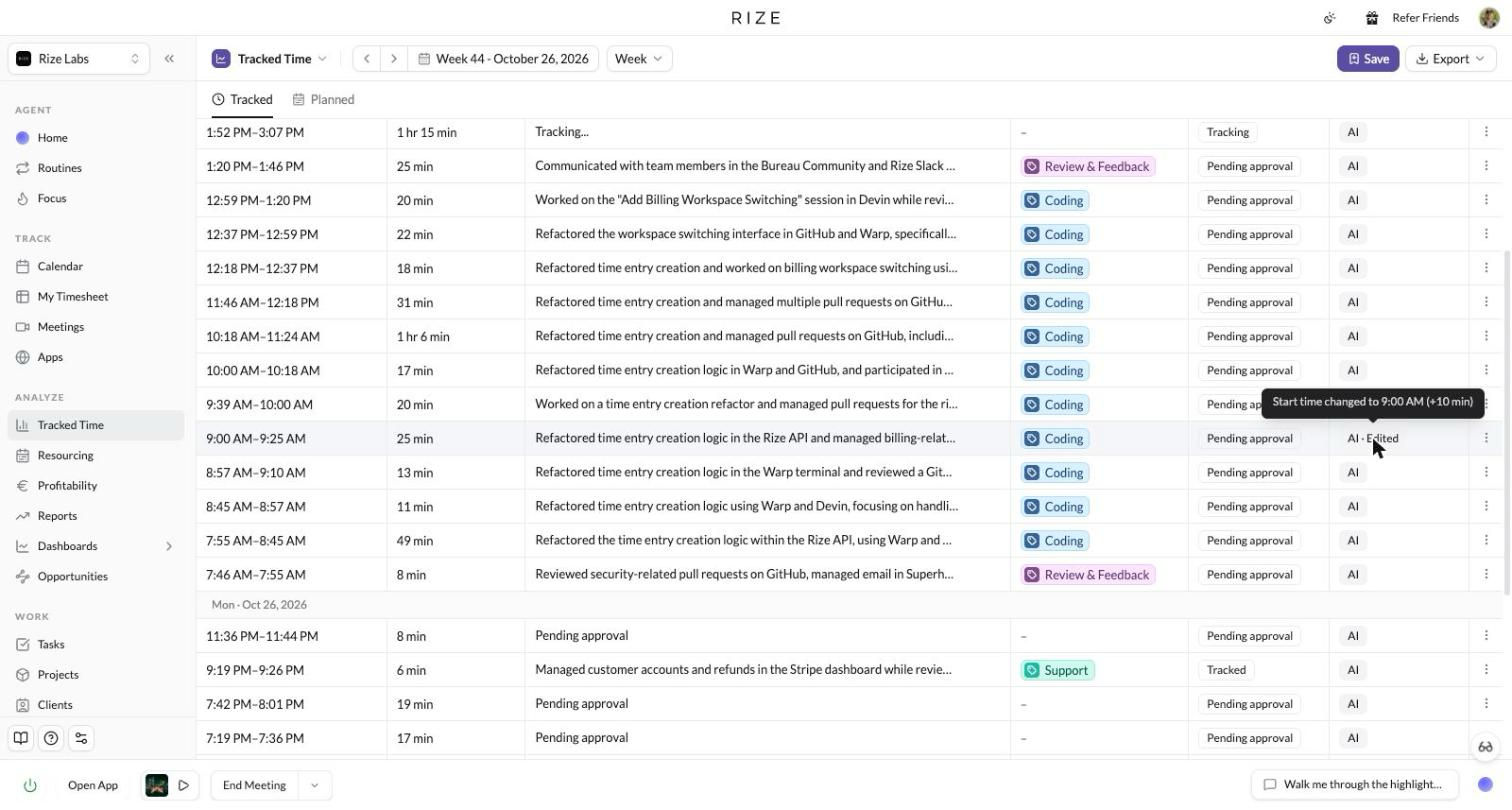
- See what the AI edited. Hover the "AI · Edited" badge in the Tracked Time log to see the change, for example "Start time changed to 12:15 PM (−10 min)" or "Description edited".
- Log rows are one line and clicking one opens the edit modal. Tracked Time, Resourcing and Profitability draw page-shaped loading states instead of a spinner.
Routines save as you go
The routine Settings tab has no Save or Cancel. Cadence, run time, day, delivery channels, icon and color save on change. The name, interval and prompt save after a short pause in typing or when you leave the field. The prompt toolbar shows Saving, then Saved, and Not saved with the error if a save fails. Invalid edits, such as an empty name or no delivery channel, show the problem under the field and do not save. Delete moved to a Danger zone section at the bottom. The report settings on a routine work the same way.
New accounts also get a daily summary report at 8pm again, and the first team admin to finish onboarding gets a weekly team overview on Friday afternoon. Both had stopped being set up for new users.
Calendar and time entries
- Open records from the day summary. Click a client, project or task in the Calendar's day summary to open its record sheet over the calendar, and step through that day's rows with prev and next.
- Processing time has its own row. The summary's Labels section no longer counts the in-progress "Tracking..." block as unlabeled. Today it shows as Processing; on past days, as No time entry.
- Date pickers start on your Start of the Week. Most pickers showed Sunday first whatever your setting said.
- Create Suggestion works over an idle gap. Dragging across a gap left by idle time next to an existing entry used to report success and create nothing.
- Merging around meetings. You can merge a meeting's entry with an unlinked neighbour and keep the meeting link, and merging entries from two meetings now keeps the meeting with the most time instead of failing with "Suggestions belong to different meetings".
- Editing a meeting from global search keeps its tags. It used to clear the client, project and task.
- Short blocks of real activity keep their entry. A block shorter than your minimum entry length but with at least five minutes of activity used to be dropped when Rize finalized it, leaving activity in the Calendar with no entry.
- Faster and steadier. Calendar entries load faster, activity refreshes when the timeline changes instead of every minute, day summaries no longer pile up when you page through days, and two people editing the same entry no longer hit a deadlock.
Focus
- Edit the running session from the timer. A pencil under the time opens the Current Session tab, where the goal, task, project and client live.
- A missed planned session stays startable until it ends. It shows as "Scheduled now" on the Focus page and "Now:" in the bottom bar, instead of disappearing the moment its start time passes.
- A clear message when you have no team. Start Focus used to close without a word. It now says you need a team to start a session.
- The timer ring fills in when a session starts, and the Focus sidebar's activity rows are tighter.
My Timesheet and Resourcing
- The Month range is back on My Timesheet, with the date shown in the time column, for checking a month against an invoice.
- Column headers sort like the Tasks grid. Click a header for Sort ascending or Sort descending instead of cycling through sorts.
- Deactivated members leave the Plan. Weeks after a member's deactivation no longer show their lane, unless they still have scheduled time that week. Past weeks keep them.
- Member load shows current members plus anyone with tracked or planned time in the range, and no longer lists rejected or deactivated people.
Teams, settings and account
- You can't delete your only team. Doing so left the account with nowhere to put tracked time, so tracking stopped until support restored the team. Rize now asks you to create another team first.
- Your default workspace follows you. After joining a new organization, tracking could keep landing in a workspace you had left, where the new admins could not see it. Rize now moves your default to a team in an organization you belong to.
- Display Language is open to everyone. Settings → Account → Display Language, tagged Beta, now offers German, Spanish, French, Portuguese, Japanese, Korean, Chinese (Simplified and Traditional), Russian and Polish alongside English. It changes the app, not the language of your AI time entry descriptions.
- Your workspace has a URL. Workspace Settings has a Workspace URL field, so links read /org/acme-studio instead of /org/1818. Rize fills it in from the workspace name, you can change it, and old numeric links keep working.
- Switch workspace is a submenu. When you belong to more than one workspace, the sidebar menu shows a Switch workspace submenu headed by your account email, with a check on the current one. With a single workspace the menu is just the actions. A view or admin seat in a second workspace, without moving your tracking, is available on request.
- Teams badges show the team's icon on the Members page, and team columns use the same icon as the sidebar.
- Deleting a task in ClickUp archives it for the whole team and removes its future Resourcing bookings. Before, only tasks owned by whoever connected ClickUp were archived, and their bookings stayed.
- Onboarding asks "With my team" or "For myself" again as its own step.
- Global keyboard shortcut settings are in Settings → Account. The Enable toggle and the recorder were only reachable through search.
- Connectors show provider logos for Notion, Linear, ClickUp and GitHub under Settings → Agent.
- Sign-in links no longer carry your email address in the URL.
- app.rize.io opens the Agent page. The root used to send you to the marketing site.
- Slack threads are per person. When two people talk to Rize in the same Slack thread, each gets their own conversation instead of an error.
Desktop
- Startup keeps going when a step fails. If the Mac slept during a sync at launch, the app could come up with no widget, no updater and no tracking, and say nothing. Each startup step now runs on its own, and a dialog names any that failed with Restart Rize and Continue. Request deadlines are reset after sleep.
- Updates install on quit. When an update has downloaded, a Restart to Update item appears at the top of the menu bar and tray menus instead of a dialog over whatever you were doing, and quitting Rize installs it. This is on devices that have moved to the new updater.
- Deep links are checked before they open anything. A rize:// link from a web page can only open https addresses, Rize's own links, or the Rize web app, and the app hands sign-in credentials to the Rize web app only.
- Receive Beta Updates. A checkbox in Rize → Device Settings puts that device on the beta update channel and checks for an update right away. It appears on devices that have moved to the new updater. Turning it off holds the device on its current build until stable catches up.
API and MCP
- Time entries from every team you belong to. The public timeEntries and timeAllocation queries, and the MCP list_my_time_entries and get_time_allocation tools, returned only your default team when no team was given. A member of four teams got one. They now return every team you can see, which matches the web app and the CSV export.
- list_my_time_entries with activity no longer fails on large pages. Activity is fetched in pages behind the scenes, so one call still returns up to 500 entries, and repeated keyword matches are grouped instead of listed per entry.
Restart the desktop app or check for updates to make sure you are on the latest version.