When you run Rize, or any AI product, across a team, getting the defaults right matters. If one person's minimum time entry is five minutes and another's is thirty, their reports do not line up, and every new hire has to be walked through the same settings. The Members page now has a Defaults tab that fixes this.
NEW
The Defaults tab
Open Members from the sidebar and click the Defaults tab. It has three sections. Preferences sets the language, the time entry size, and the minimum time entry size. Tracking sets the automatic tracking schedule, one row per weekday. Notifications switches break notifications, the distraction blocker, meeting notifications, and focus notifications on or off. Each section has its own Save button, so changing the tracking schedule does not touch anything else.
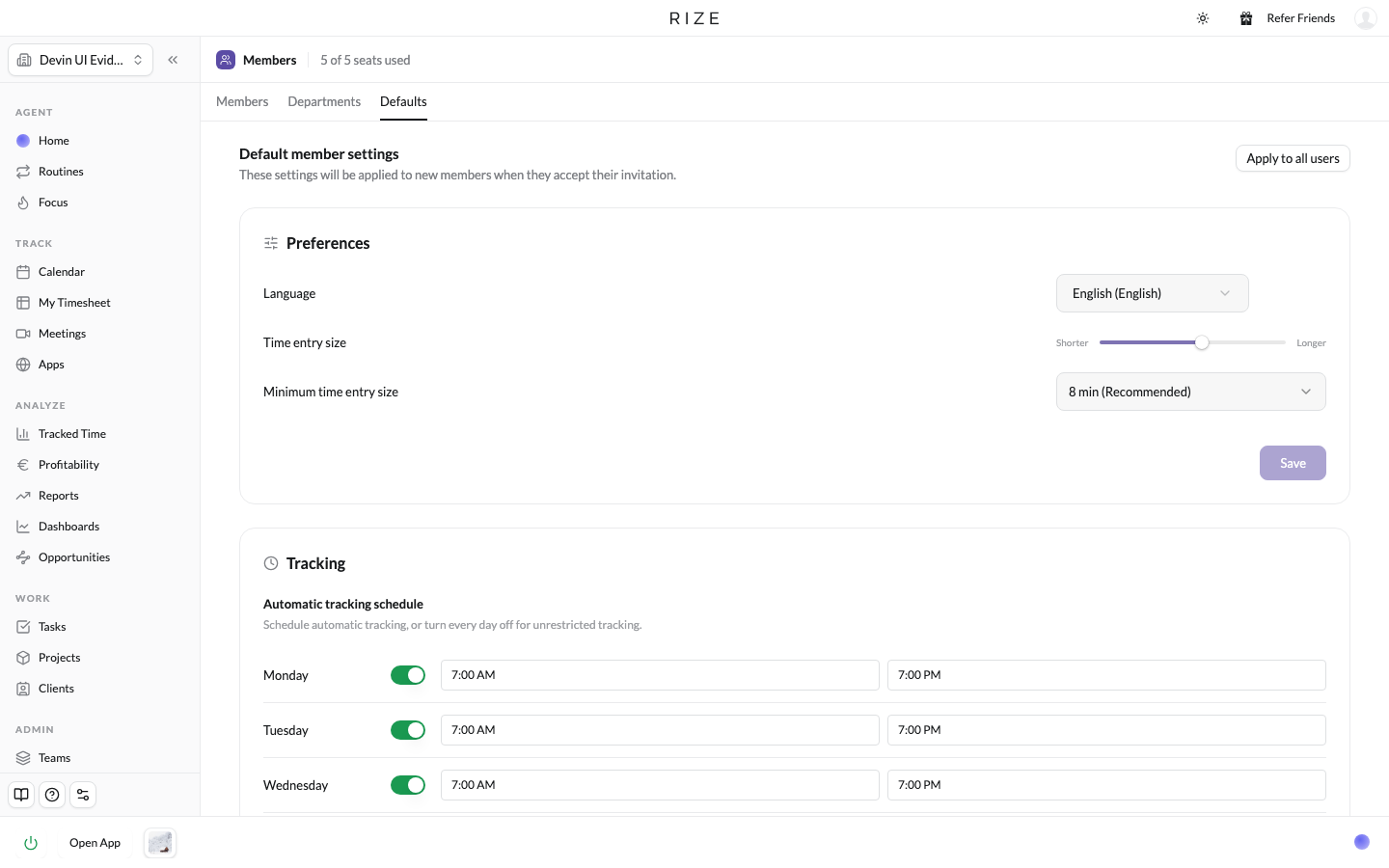
Apply to everyone, and to everyone who joins
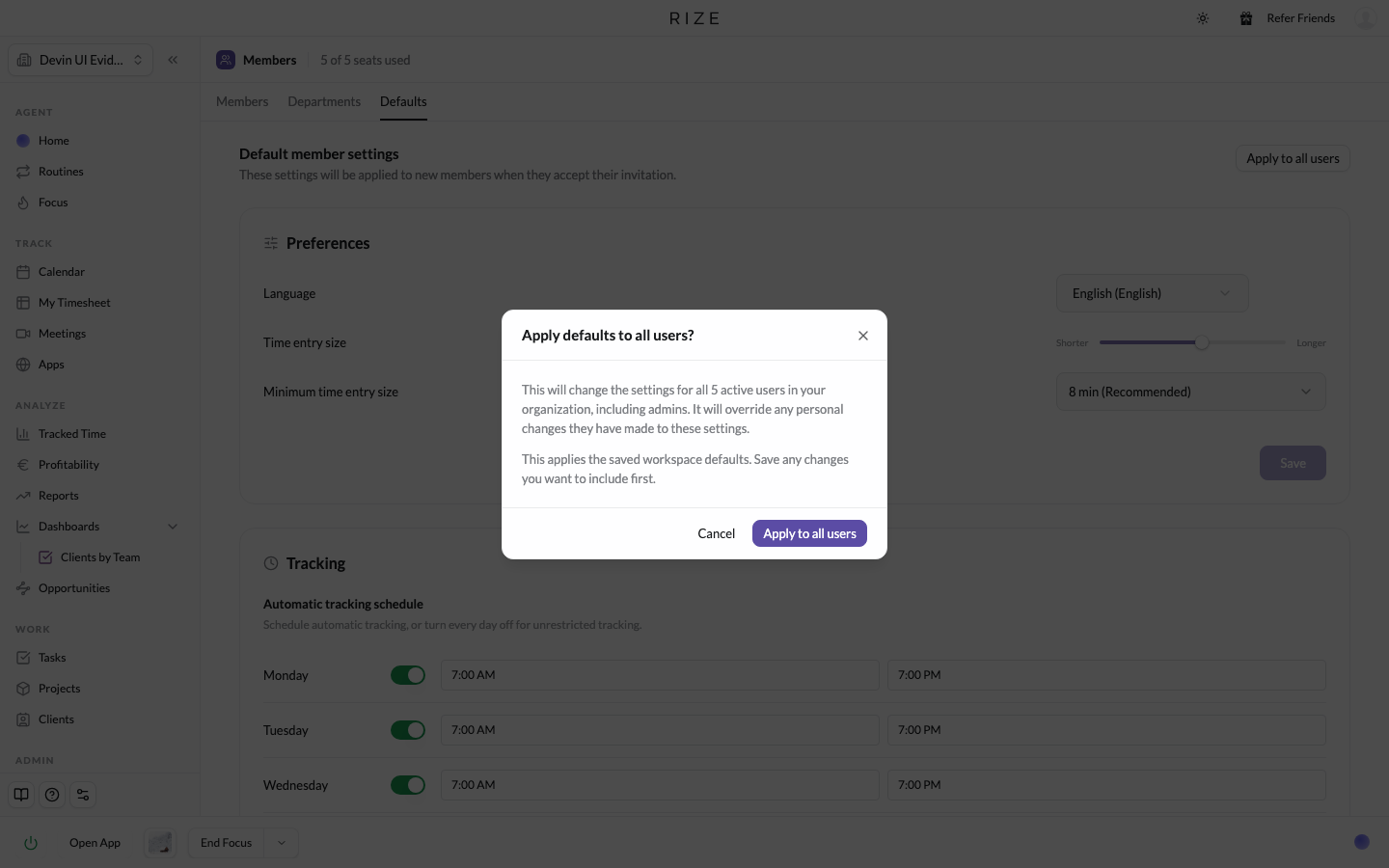
After saving, click Apply to all users to push the defaults to every active member, admins included. It overrides any personal changes they have made to those settings, so Rize asks you to confirm. Anyone who accepts an invitation from now on inherits the defaults automatically, so a new member is set up correctly before their first tracked hour.
Member settings and the members table
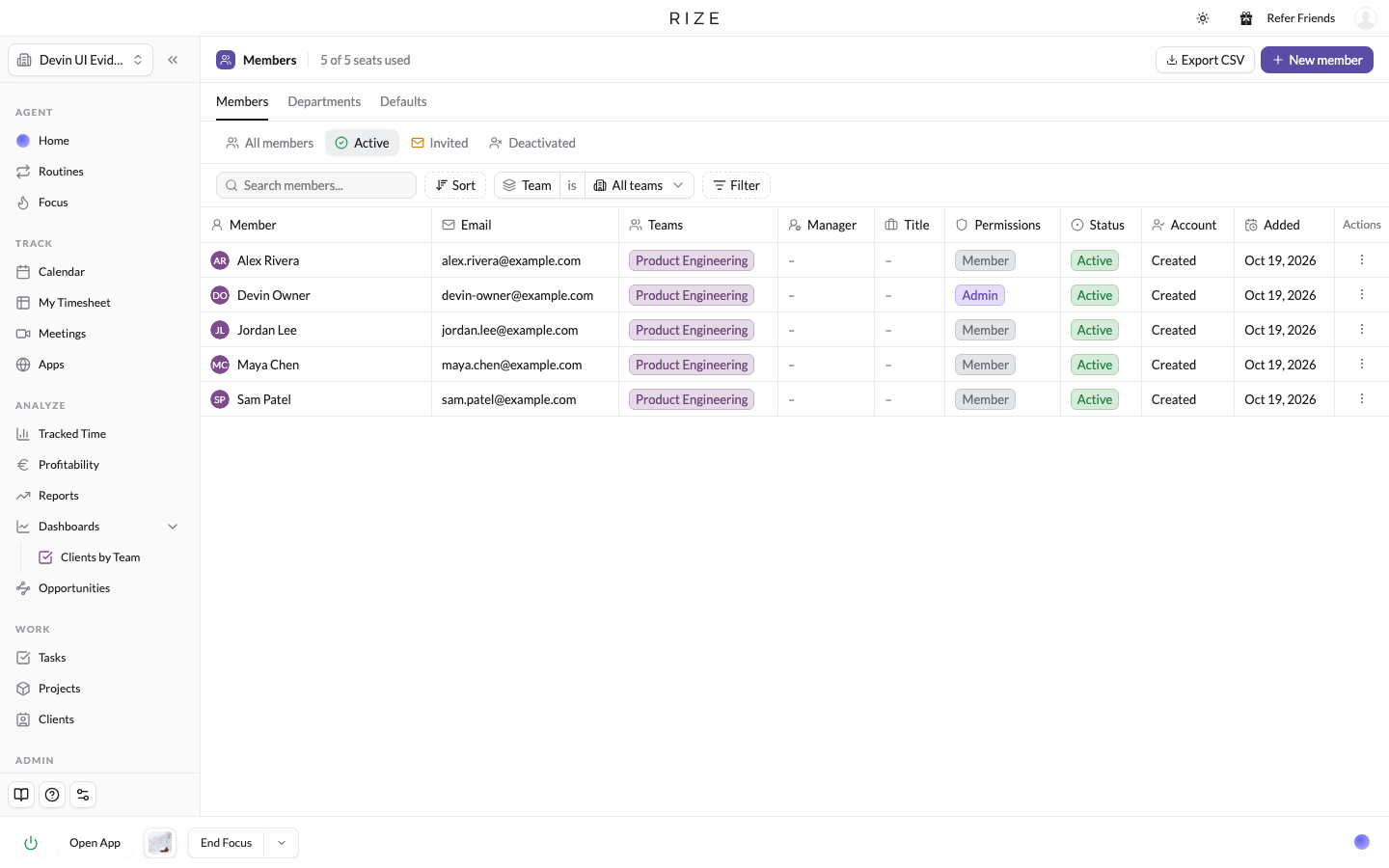
Each member's edit sheet has the same notification controls, so an admin can adjust one person without changing the defaults. The members table now shows each member's manager, and Export CSV next to New member downloads the roster with titles, departments, teams, and status. Titles and departments, which shipped last month, are the other half of this: organize people by department and title, then set the defaults once.
WHY IT MATTERS
Consistent settings mean consistent data. Defaults take the setup burden off each member and off whoever onboards them, which is most of the stress of rolling Rize out to a team.