Rize has had a focus timer, a break timer, automatic focus detection, and a built-in Distraction Blocker for a long time, and they are some of the most used parts of the app. The tab that held them was called Timer. It is now called Focus, and it has a new layout and a set of new controls.
NEW
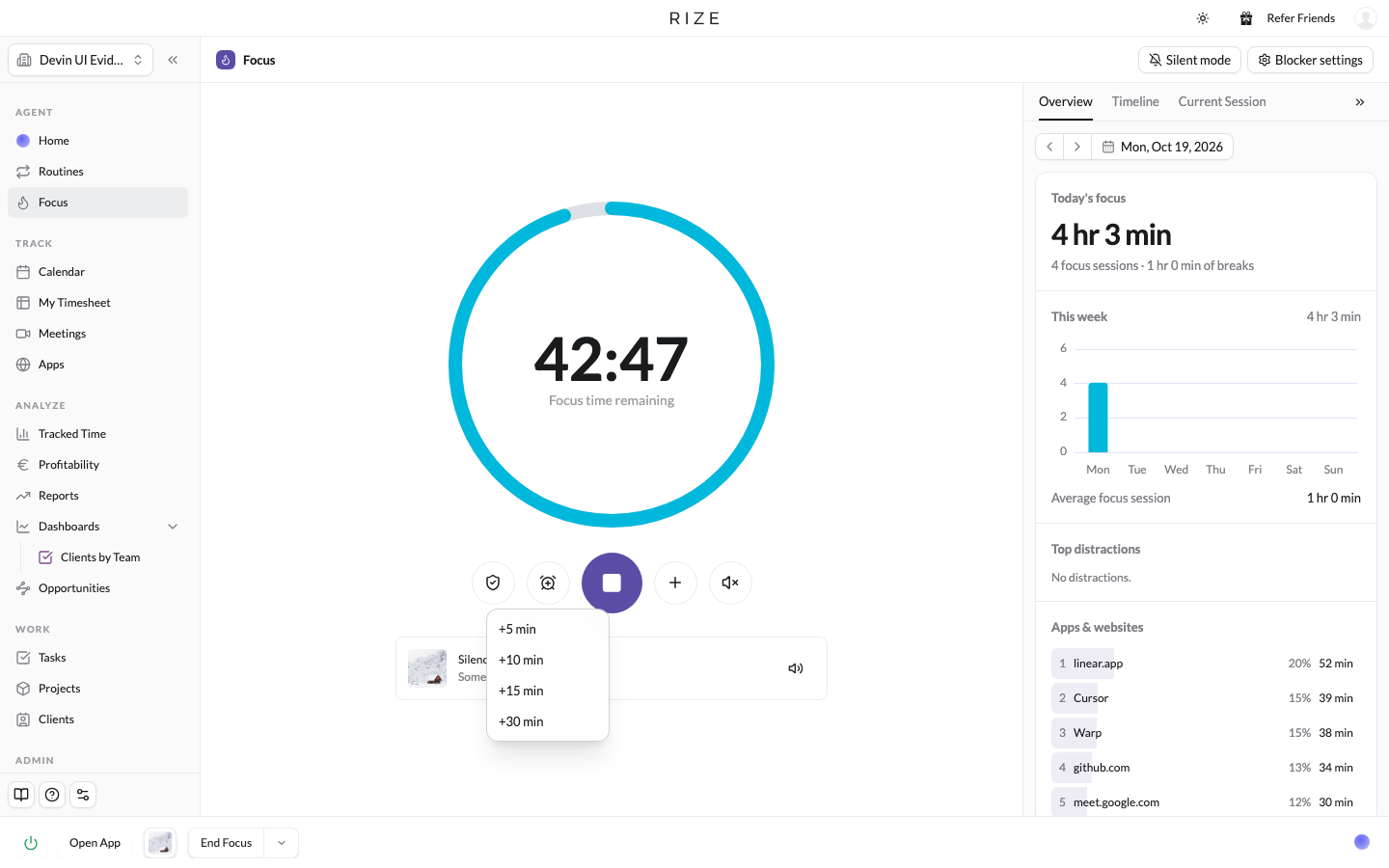
A large session timer with the controls under it
The timer fills the page, and its color changes with the session type: one color for Focus, one for Break, one for Meeting. Start Focus and Start Break sit directly under it. While a session is running, extend it by 5, 10, 15, or 30 minutes from the same spot, or start a different session type from the menu.
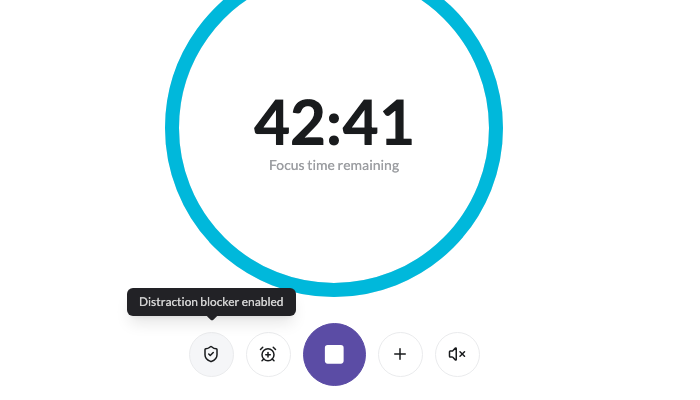
One-click Distraction Blocker
The Distraction Blocker is a compact icon beside the session controls. Click it to enable or disable blocking, and hover for its status. Blocker settings in the title row opens the full settings page.
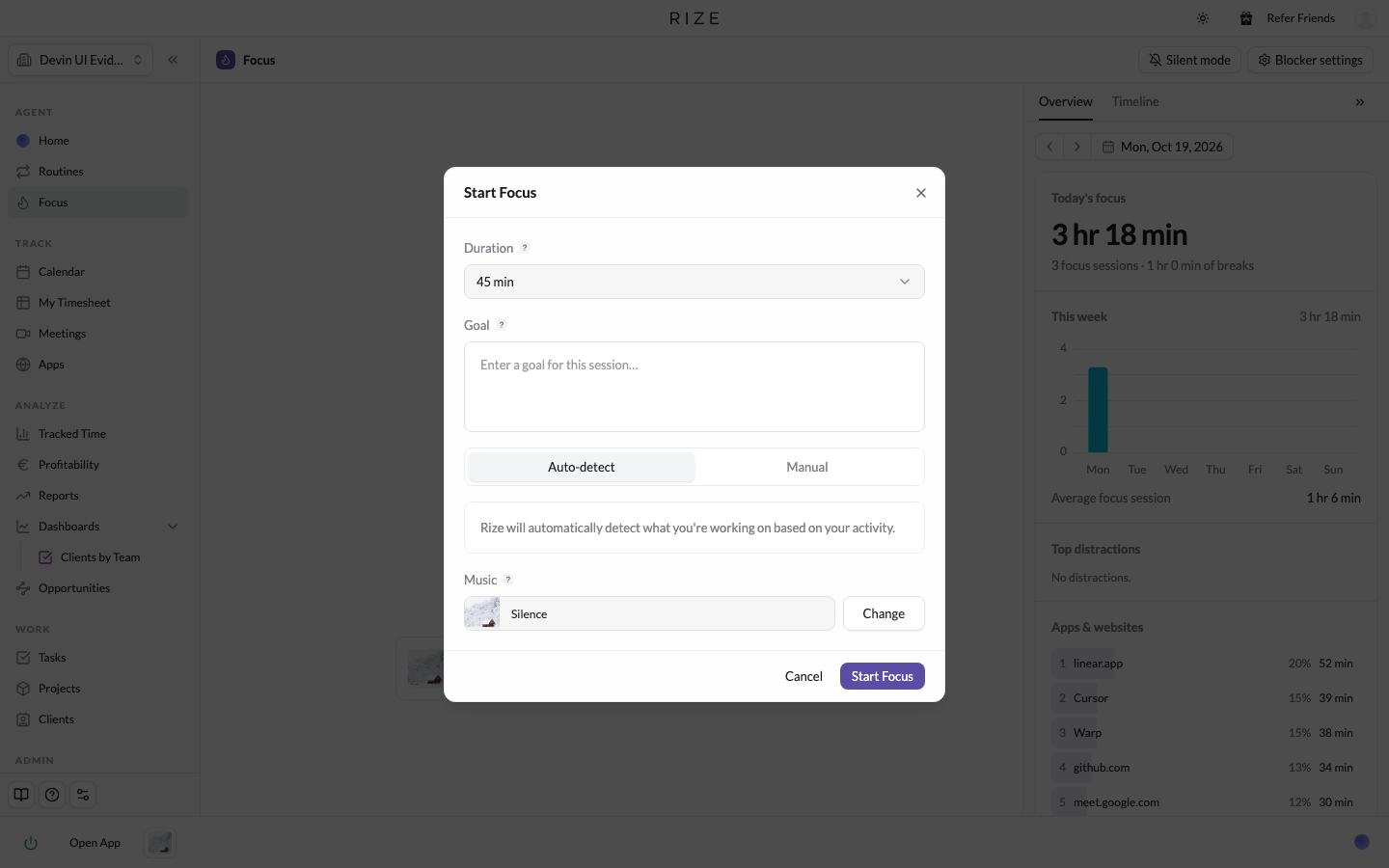
Auto-detect or Manual when starting a session
The Focus and Meeting dialogs open with two tabs. Auto-detect, the default and the one we recommend, lets Rize work out the client, project, and task from your activity. Manual shows the pickers for when you want to set them yourself. Rize remembers which tab you used last.
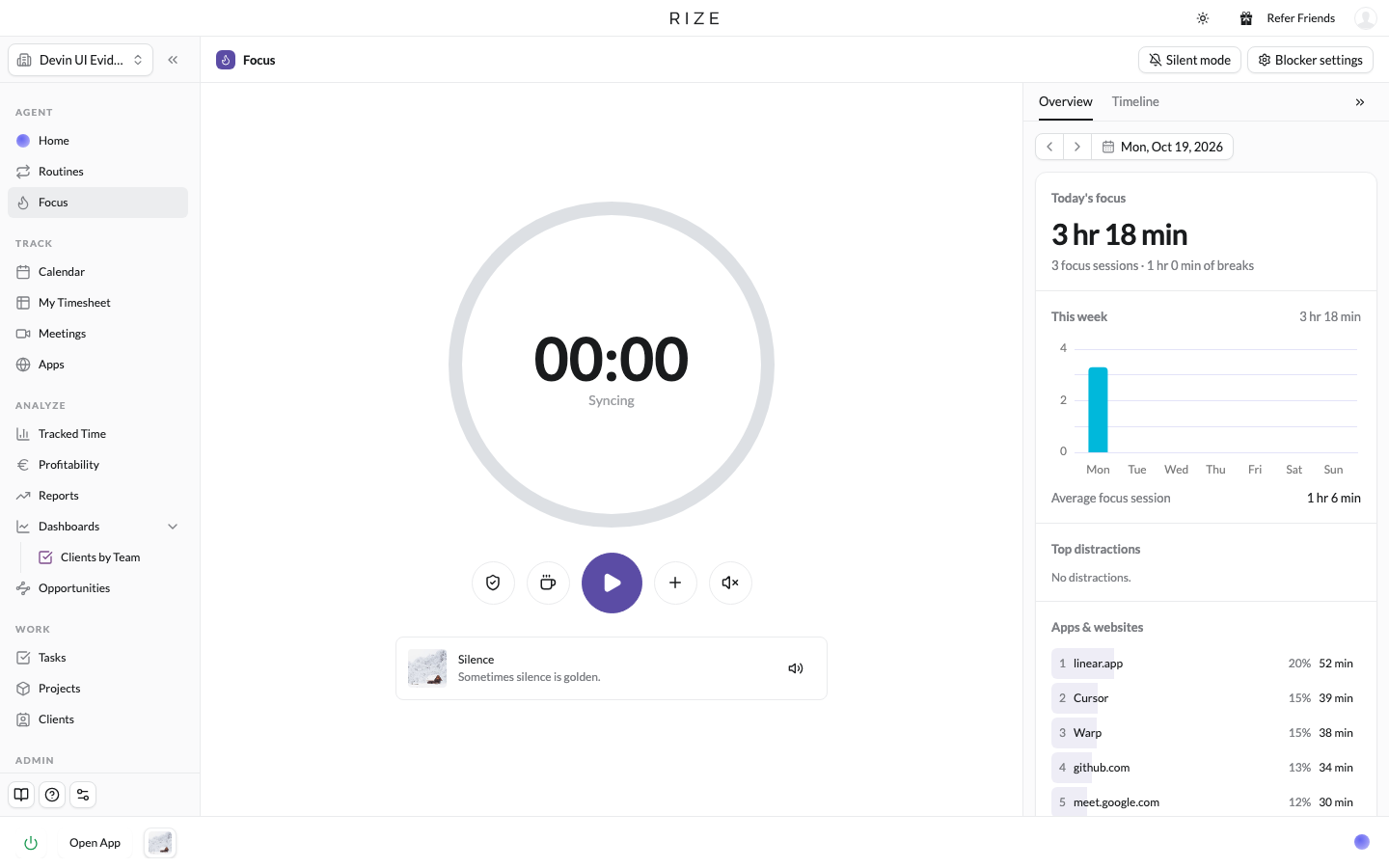
A sidebar you can collapse
The sidebar has three tabs and a date picker, so you can look back at any day.
- Overview shows your focus time through the week and your top distractions and apps and websites. Click one to mark it as not a distraction, or edit its tracking rule right there, and the rule updates everywhere.
- Timeline is a compact view of the day's meetings and sessions.
- Current Session shows what you are working on now and the task, project, and client Rize has attached to it. During a break it shows break suggestions.
Upcoming sessions as a floating card
When a session is scheduled, a small card appears near the timer with the session name and a Start now button. Dismiss it if you are not ready.
SILENT MODE
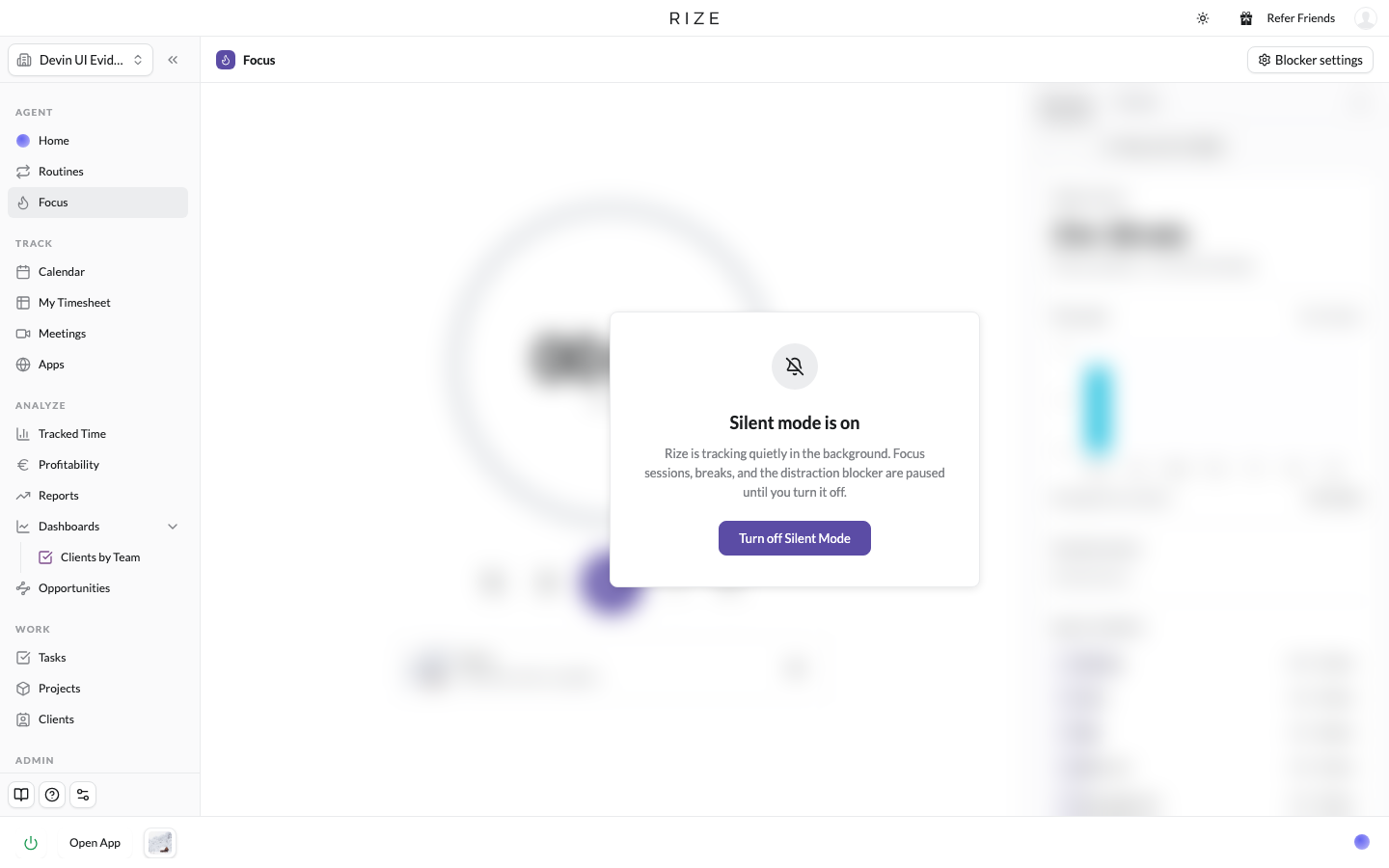
Silent mode is new. Click Silent mode in the Focus title row, or turn it on under Settings, then Notifications. While it is on, Rize pauses focus sessions, break reminders, the Distraction Blocker, and coaching notifications. Automatic focus and break detection stop, planned focus and break sessions do not start, and the session controls hide. Time tracking, work hours, and meeting notifications keep working.
Use it two ways. Leave it on if you want Rize to run quietly and only look at the data. Or turn it on for an afternoon, then turn it off and start sessions again whenever you want. Your focus settings are kept while it is on, so turning it off restores them. It can be switched on in the middle of a running session without ending it, and new accounts are offered it during onboarding.
A SIMPLER BOTTOM BAR
The bottom bar across the rest of the app was pared down to match. Its controls are a row of compact cards: the timer, the music player, and the session controls. Clicking the timer opens the Focus page. The music card shows artwork with Play and Pause, and hides its controls when Silence is selected. When a session is coming up, a pill beside the session controls starts it in one click. Minimized chats dock in the same row.
Record Meeting and Add Note have left the bottom bar. Add Note now lives in the Calendar Time Entries column menu and keeps its keyboard shortcut. Two settings under Settings, then Focus control what the bar shows on this device: Show Music Player in Bottom Bar, on by default, and Show Start Session in Bottom Bar, off by default.

IMPROVEMENTS AND FIXES
- The Start Focus pickers can switch teams
- Planned sessions can start early without moving their schedule
- Upcoming session reminders only show within five minutes of the start
- Shorter rows in Apps & Websites and consistent spacing across timer controls, menus, and cards
- Removed the redundant Focus heading and Jump to Now from the compact timeline