You can now set a team member's tracking schedule and agent preferences from the Members page. The updated member dialog brings profile details, permissions, AI instructions, and tracking settings into four tabs.
WHAT IS IT?
Member settings bring profile details, team assignments, permissions, agent preferences, and tracking schedules into one editor. Workspace admins and team admins can configure the members they manage directly from the Members page.
WHY IS IT IMPORTANT?
Onboarding someone or changing how their time is recorded shouldn't require walking them through every setting. Admins can now set tracking hours for a member's time zone and tailor AI instructions to their client work. This makes it easier to keep time entry conventions consistent across a team while allowing different schedules and responsibilities.
NEW
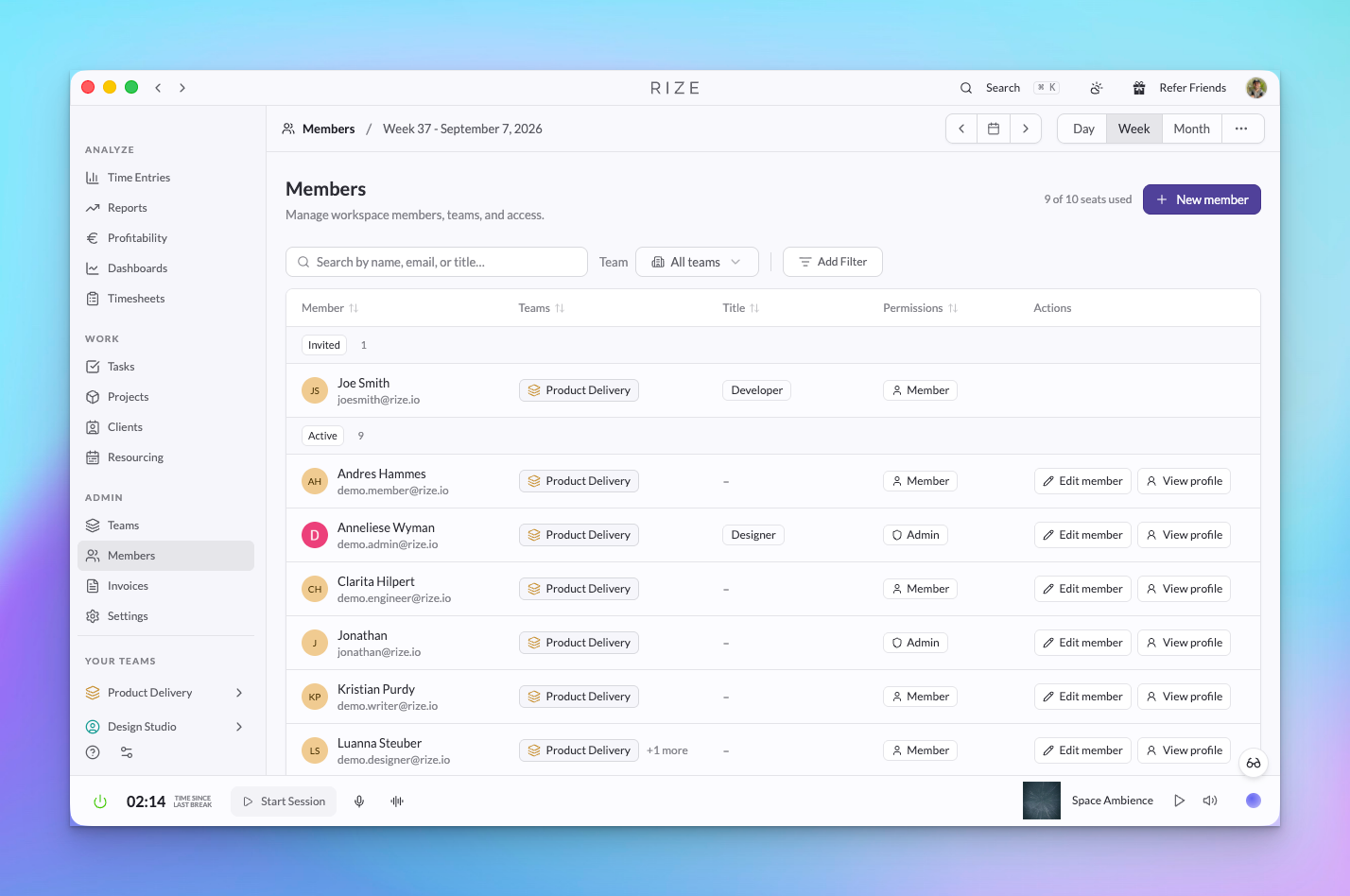
Find and manage members
Search by name, email, or title and filter your roster by team, role, or status. Active members have separate Edit member and View profile actions. Workspace admins can reactivate deactivated members directly from the list, while invited and rejected members no longer show edit or profile actions.
Profile and team settings in one place
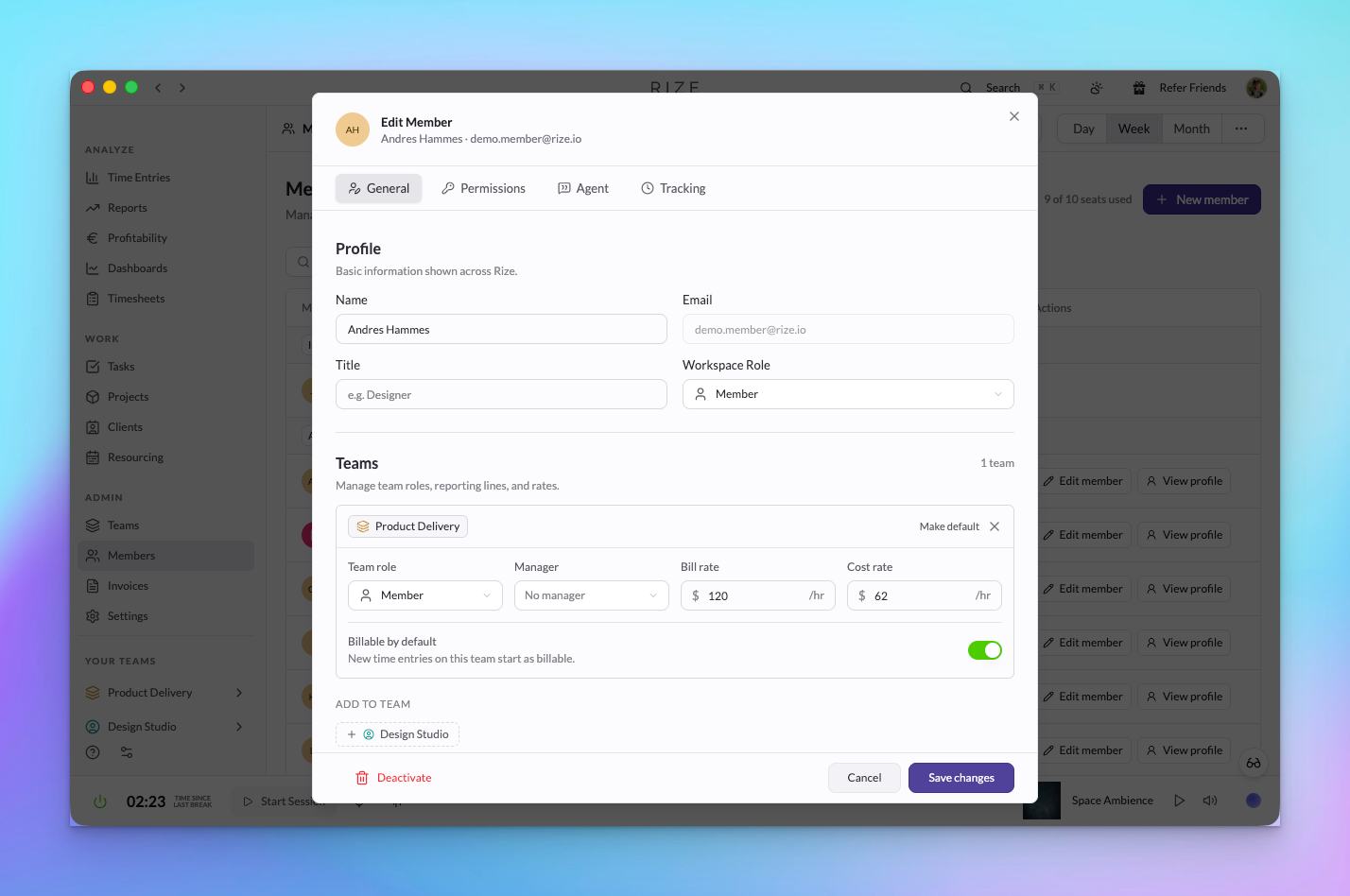
The General tab brings together profile details and team assignments:
- Profile: Workspace admins can update a member's name, job title, and workspace role.
- Teams: Add or remove team assignments, set a team role, and assign a manager. Team admins can manage assignments for their own teams.
- Billing defaults: Set whether new entries on a team start as billable. Workspace admins can also update bill and cost rates and choose a default team.
Manage permissions
The Permissions tab separates workspace access from team-specific grants. Workspace admins can change the Admin or Member role and grant finance access across the workspace. Team resourcing grants control capacity planning and editing other members' time on that team; team admins manage these grants for their teams.
Configure agent preferences for each member
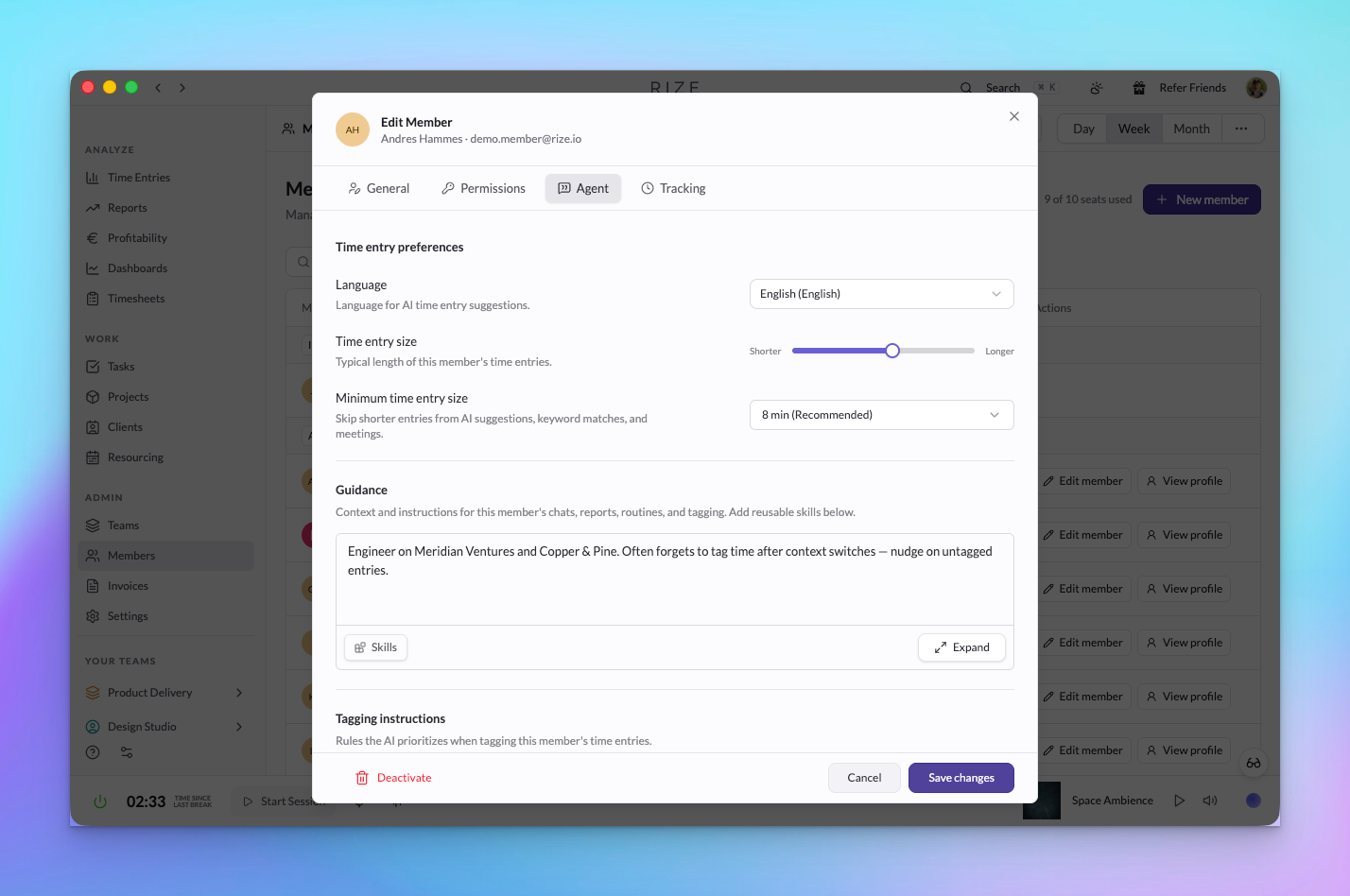
Workspace admins and admins of a member's active team can customize each section of the Agent tab:
- Time entry preferences: Choose the language, typical entry size, and minimum entry duration for generated time entries.
- Guidance: Add context for the member's chats, reports, routines, and tagging, such as the clients they work with and how they describe their work.
- Tagging instructions: Set rules the AI prioritizes when assigning tags to the member's time entries.
- Activity summaries: Specify how Rize should write entry titles and descriptions.
Use Skills to add reusable instructions, or Expand to open a larger editor.
Set tracking hours and time zones
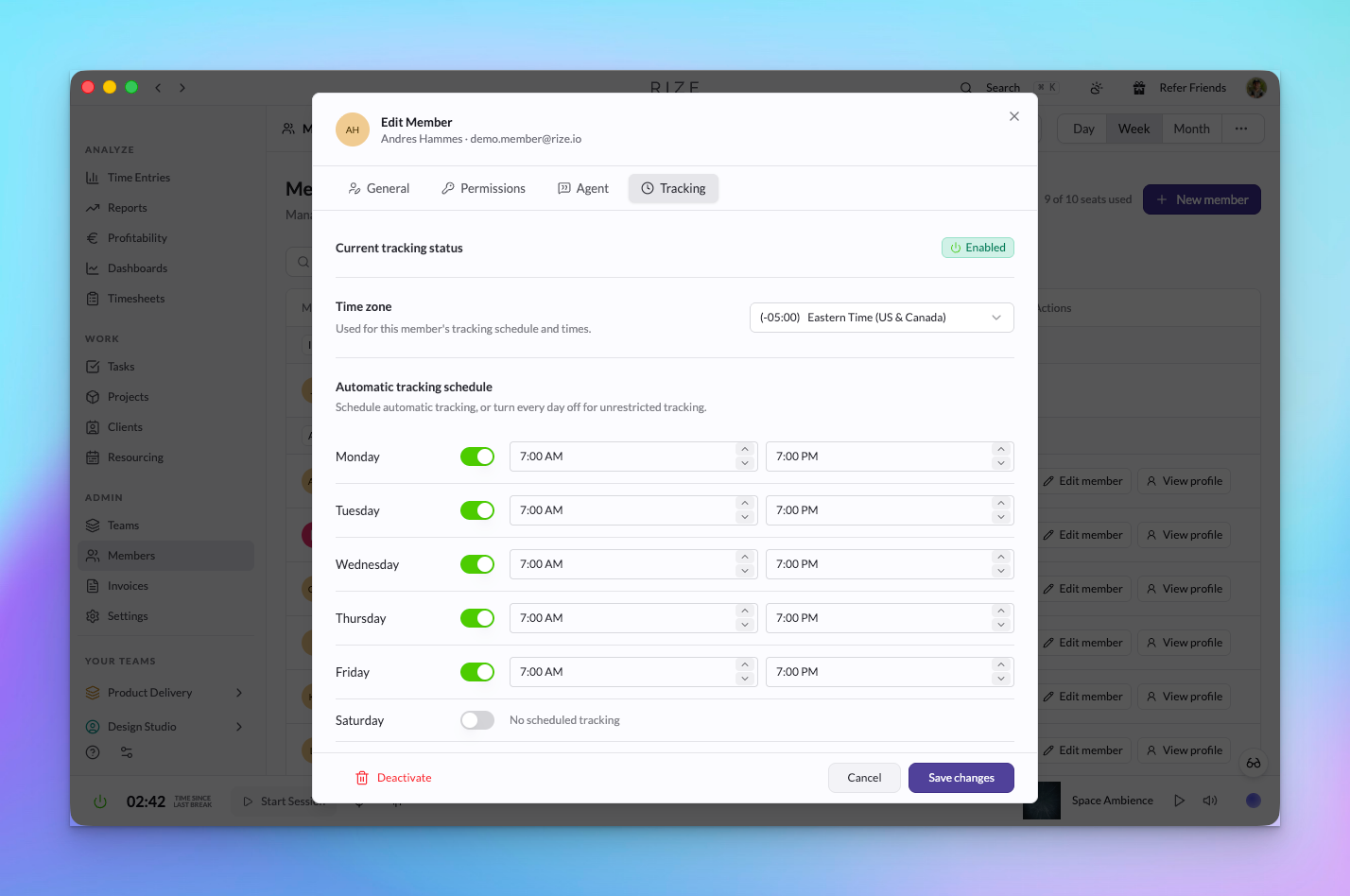
The Tracking tab lets workspace admins and admins of a member's active team set that member's time zone and daily start and end times. It also shows whether tracking is enabled or paused. These settings apply to the member's account, and members can still manually override their schedule.
Open Members and choose Edit member to get started. Click Save changes when you're done; closing the dialog with unsaved edits now prompts you to keep editing or discard them.
Read the member management guide for details on each setting and who can change it.