The Asana integration launched in beta in March. It is now generally available, and the part teams asked for most, time tracked in Rize appearing on the Asana task, is on by default for every connected workspace, with a two-way sync toggle in the integration settings if you want task sync only.
WHAT IS IT?
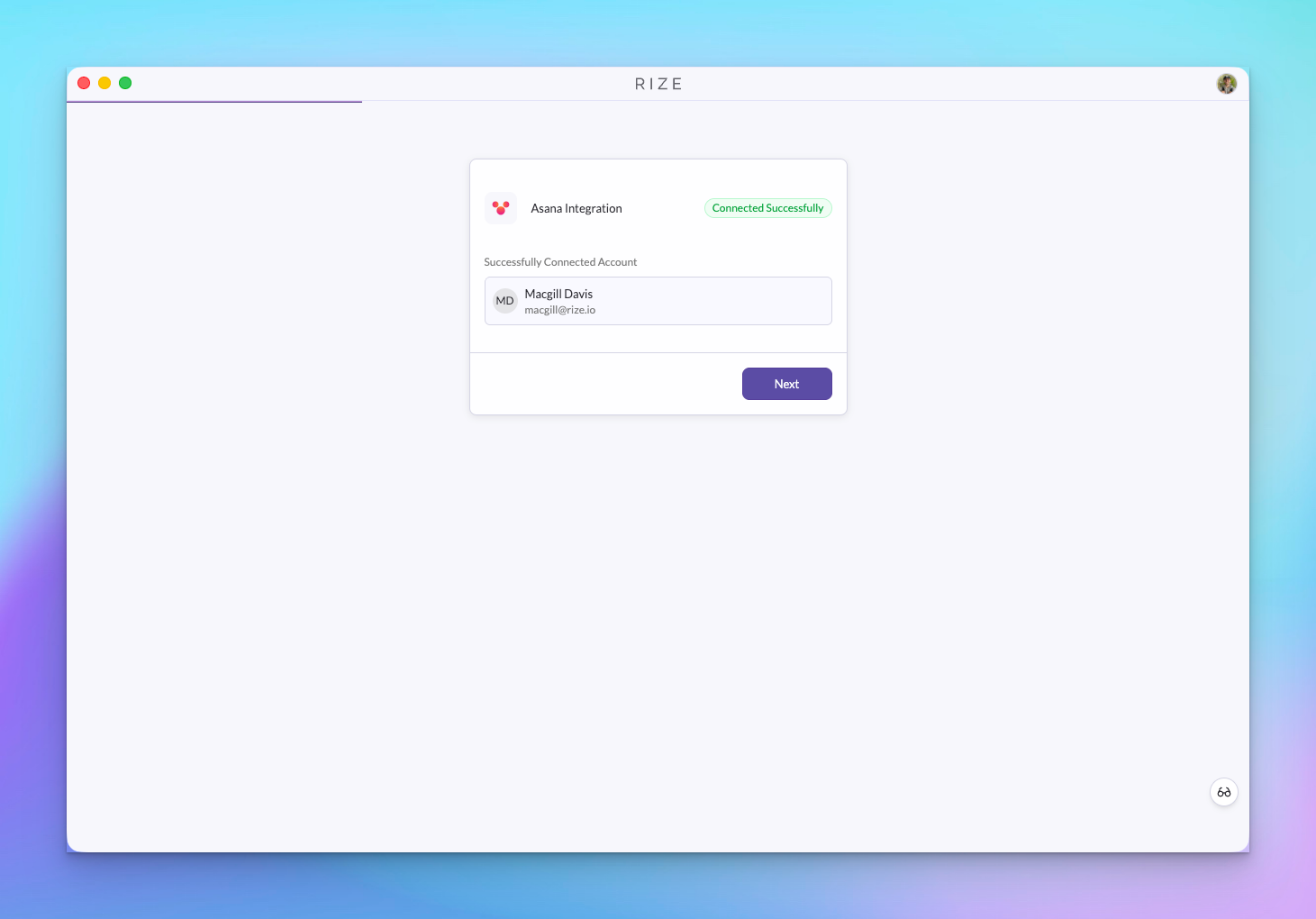
Connect an Asana workspace to a Rize team and Rize pulls in tasks with their projects, sections, and assignees. When Rize tags tracked time to one of those tasks, it writes a time tracking entry on the Asana task, updates it when the entry changes, and removes it when the entry is deleted.
WHY IS IT IMPORTANT?
Agencies that run delivery in Asana want hours on the task, not in a separate tool. Until now that meant someone logging time in Asana by hand, which is the step that gets skipped. Rize captures the work, tags it to the task, and Asana gets the hours without anyone typing them.
WHAT'S INCLUDED
Task sync
Choose which Asana workspaces, projects, and members to sync. Tasks arrive with project, section, and assignee, and name and status changes in Asana reach Rize through webhooks.
Time entries written to Asana
Each Rize time entry tagged to an Asana task becomes a time tracking entry on that task with its duration and date. Editing the entry in Rize updates it in Asana. Deleting it or moving it to a different task removes the old entry and creates the new one.
Better AI tagging from Asana context
Task status from Asana feeds Rize's tagging, so time is more likely to land on the task that is actually in progress rather than one that closed last month.
Time entries linked from search
Global search shows the Asana task and project on each time entry with the provider logo, so you can confirm where an entry was synced from without opening it.
USE IT FOR
- Hours on the Asana task for client reporting and billing
- Delivery teams that plan in Asana and bill from Rize
- Replacing manual time logging in Asana
- Keeping Rize profitability and Asana project tracking on the same tasks
The Asana integration is available on the Professional plan and above from Settings → Integrations. See the Asana integration guide for setup.