Rize Quick Demo: Automatic Time Tracking, AI Reports & Team Insights
A 15-minute walkthrough of Rize from co-founder Macgill Davis: automatic time tracking, AI-generated time entries, timesheet review, team capacity reports, scheduled AI reports, and connecting Rize to ChatGPT and Claude with MCP.
Full Transcript
Hey everybody, my name is Macgill and I'm a co-founder of Rize. I wanted to record a short demo walking through how Rize works and how to get it configured correctly, covering all the basics. If you have any questions, shoot me an email. We'll be releasing a lot more videos that dive deeper on these topics; this is a high-level overview.
I'm going to start the demo on the Calendar tab. If you're tracking time, this is where you'll spend a lot of your time, and it gives a good visual representation of how Rize tracks. First and foremost, Rize is a very privacy-first automatic time tracker. Rize is a macOS and Windows app that you install, and once tracking is enabled it automatically tracks the metadata of the active window. We never track the content of the window and we don't use screenshots; it's not invasive at all. It's only the metadata: app name, window title, and URL. So we never track anything high-risk like passwords, client information, or health information. In the calendar view you can see that live event stream in the front column and hover to see the details. That data is never shared at the team level.
That data is passed into our algorithm, which creates what we call time entry suggestions. These are what you would fill out if you were manually tracking your time: a start time, an end time, a short description automatically written by AI, and tags. They're just suggestions, so you can merge them, split them, regenerate them, and edit the description. If everything looks good, including the tag recommendations, you hit accept. You can tweak an entry and then accept it, or reject it. If you reject it, that time is never shared. Time entries stay pending at the team level for 24 hours max and are then approved automatically. We recommend letting Rize track in the background, then checking your entries a few times throughout the day or once at the end of the day.
The tags are also really important. Tasks in Rize are like project management tasks: they have assignees and due dates, and they're great if you integrate with ClickUp, Linear, or any task tracker. Projects are one level higher, and tasks can belong to them. Clients can be linked on top of projects. You can disable any of these levels depending on what you want to track: a lot of accounting firms just want to track clients, some dev firms just want to track projects, and if you've integrated with ClickUp and don't care about the project and client setup, you can disable those and just track tasks.
The fourth tag is labels. Labels are the type of work being done. Every time entry gets one, and they're really accurate. A label has a title, a color, and a description; they're higher-level types of work that never have a due date, and they're unique per team. In team settings you can see all your labels. Labels are all done by prompts, so you can get really nuanced and specific: we pass all the labels to the AI and every time entry gets tagged accordingly. You can work with our AI agent or through the MCP to create labels custom to your type of work. Law firms, accounting firms, and agencies all want slightly different labels.
Tasks, projects, and clients work a bit differently: they use a combination of keywords and prompts. On a project you'll see a keyword section and a prompt section, and it's the same for tasks and clients. The AI updates these as you tag time. You can put anything specific to that client, project, or task in the keywords: the project name, the ID of a ClickUp task, or a Google Workspace. You can also describe to the AI when you want it tagged. Keywords are used more for splitting up the timeline, and prompts are used more for the actual tagging. Configured correctly, it's really accurate. When the AI is confident it will automatically tag the project or client; when it's less confident you might see a recommendation with 80% confidence that you can click to apply. Review your time at least a minute or two every day, especially at the beginning, because approving and correcting entries gives learning signals to the AI.
On the Calendar tab there's a settings panel with a lot of settings, but the main ones I like to call out are time entry size: if entries are being created too big, drag the slider to the left for shorter entries, or to the right for longer ones. The other is custom tagging instructions, which are passed to the AI for how it tags your time. These can get really nuanced, and the AI should automatically update them as it learns from you. It's a full AI prompt, and you can embed Skills from your organization.
If you're reporting timesheets, the My Timesheet page is really nice. You can group by project and see all your time entries, click on one and drag it to a different project to recategorize it, and the recent projects you've worked on are listed right there. You can also accept all pending time entries really easily from this page.
The time entries tab is great if you're managing a team. If you're a member, you'll only see your own data, but admins and org admins see everyone's. You can see the breakdown by member, label, and client, add additional charts, and use the pivot table at the bottom to quickly see labels across team members. Pop a row open to see details for the time period, start a chat with our AI agent right from there, or jump to a member's profile to see their breakdown by label, compare it to the team or their own previous period, and see their timeline. Every metric can be split in the pivot table. The timesheets view shows the team by time, with filters by client, project, label, or task, so you understand who's working on what and what their capacity looks like. We also have dashboards, which are getting a facelift pretty soon.
Rize has a full-featured API and MCP. If you want to connect Rize to Claude or ChatGPT, you can do that super easily, and anything you can do in the UI, you can do through the MCP. We're very much an agentic-first platform.
These agentic features include AI Reports. You can create a report like a weekly team overview with a prompt built in and run it on a schedule, so the AI runs the analysis for you. The output is fully AI-generated and really rich: hover over clients to see if they're active, hover over projects to see the tasks, and over specific members and labels. You can export reports to PDF, and you can chat with them if you want to ask questions or dig deeper. We have templates to get started for agencies, accounting firms, product firms, and more.
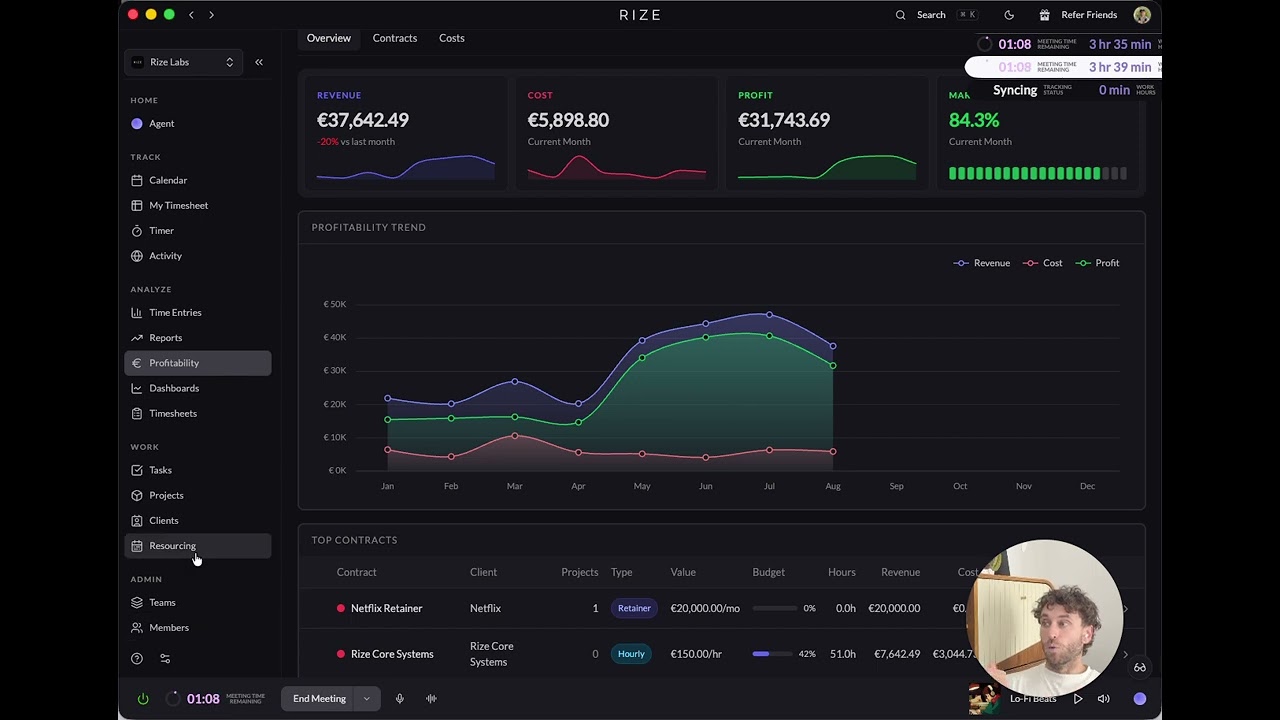
One other view that's really popular with agencies and accounting firms is the profitability dashboard. For every client you can upload a contract, hourly or retainer-based, set hourly cost rates for your team members and yourself, and get live profitability reporting immediately across your whole agency. Most agencies and teams are only getting this at the end of the month, if that. Now you can get it live.
When you run reports, you'll see briefs you can jump into or dismiss, and you can see your chat history. We have a really rich chat that I recommend. We have shared Skills you can create across the org and team, and what's really nice is that as you update them, everybody gets access to the change. You can use the Rize Agent, or the MCP chat works too.
Routines are sort of similar to reports, but they run from your perspective, with a slightly different model under the hood. You can do start-of-day and end-of-day routines that tell you how to plan your day or what you worked on, and they can run tagging analysis. Lots of exciting updates coming there.
If you head to Prompts, you can do a lot of customization on the Rize Agent. You can add personal guidance: context on how you work, what you're working on, and how you want to use Rize. It makes the AI more accurate, and you can even generate the prompt itself. You can also set up custom tagging instructions, and do this at the team and workspace level too. We have a lot of additional features coming out; let me know if you have any questions, and thank you so much for using Rize.