Every list of activity in Rize now shows the icon of the app or website next to its name. Your Calendar groups that activity into blocks by app and title, so a glance tells you what you were in. And My Timesheet gets an Apps column of its own, plus grouping pills and a Status filter that replace the old status tabs.
App and website icons everywhere
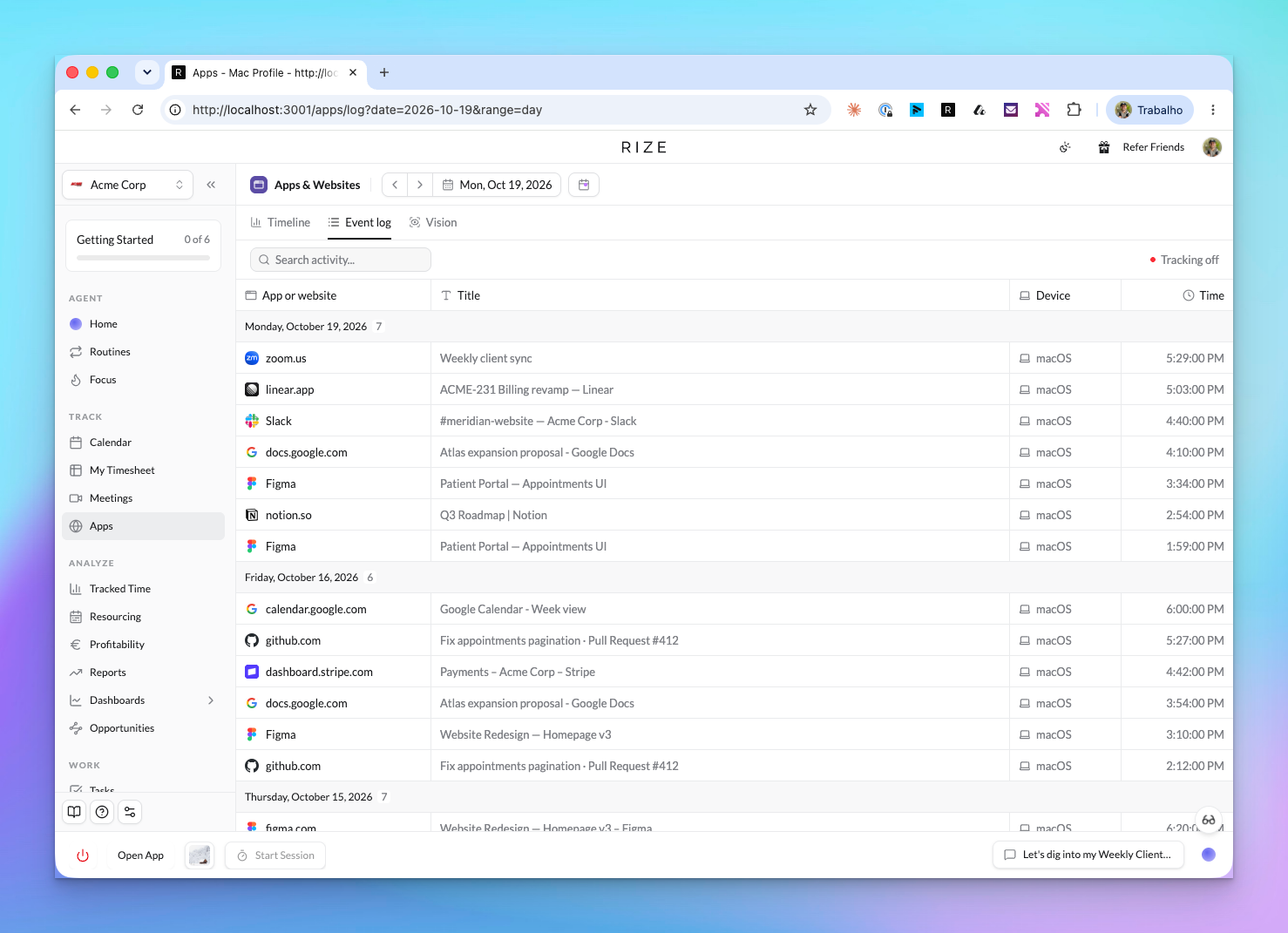
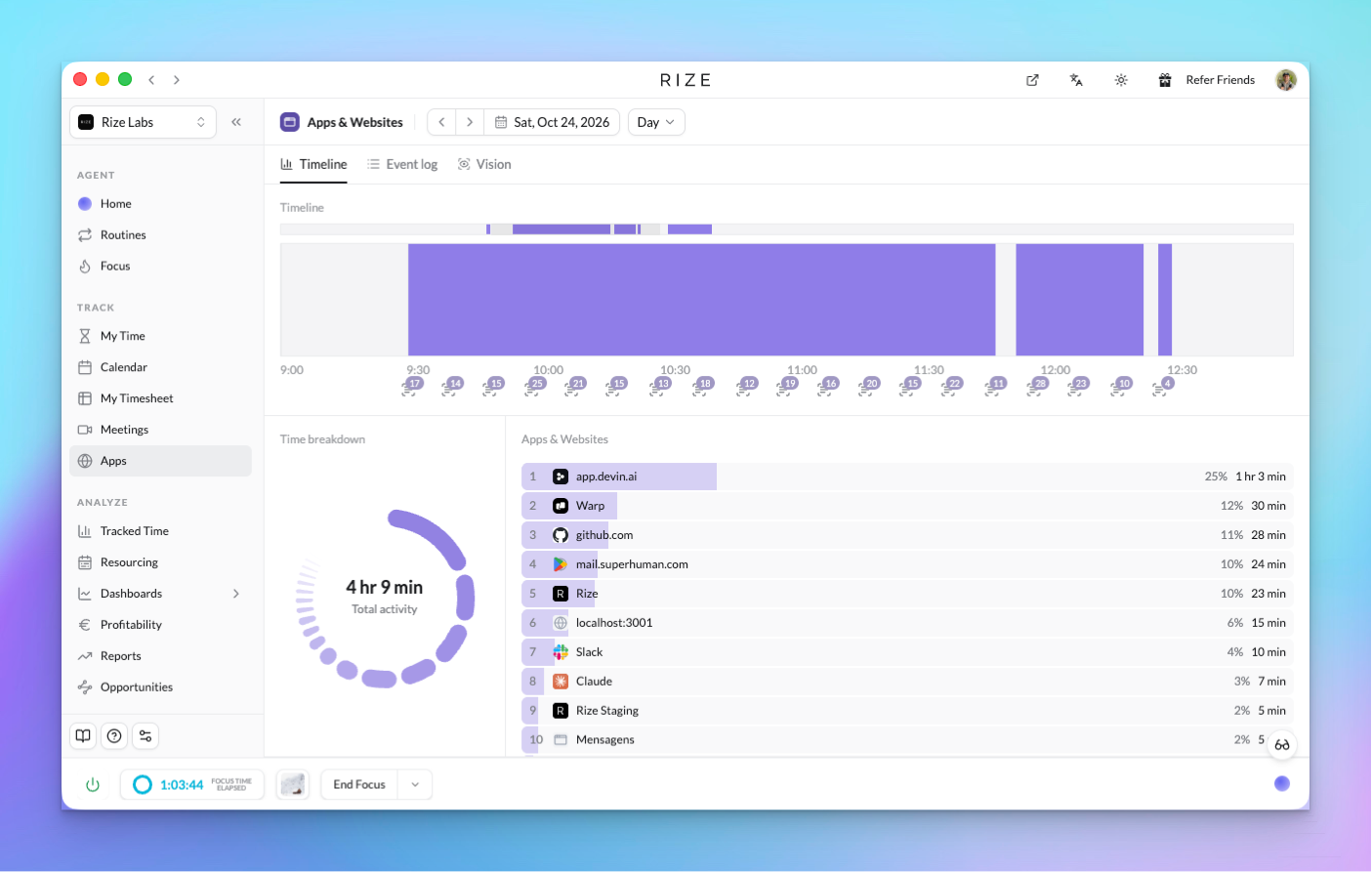
You will see icons in the Calendar Apps column and its hover tooltip, the Apps & Websites ranked list and timeline, the Event log, Vision, Settings → App & Website Rules, the Titles, Apps, Event log, and Screen text tabs of the time entry panel, and Year in Review. Figma looks like Figma, Slack looks like Slack, and github.com gets the GitHub mark instead of a generic globe.
Calendar activity grouped by app
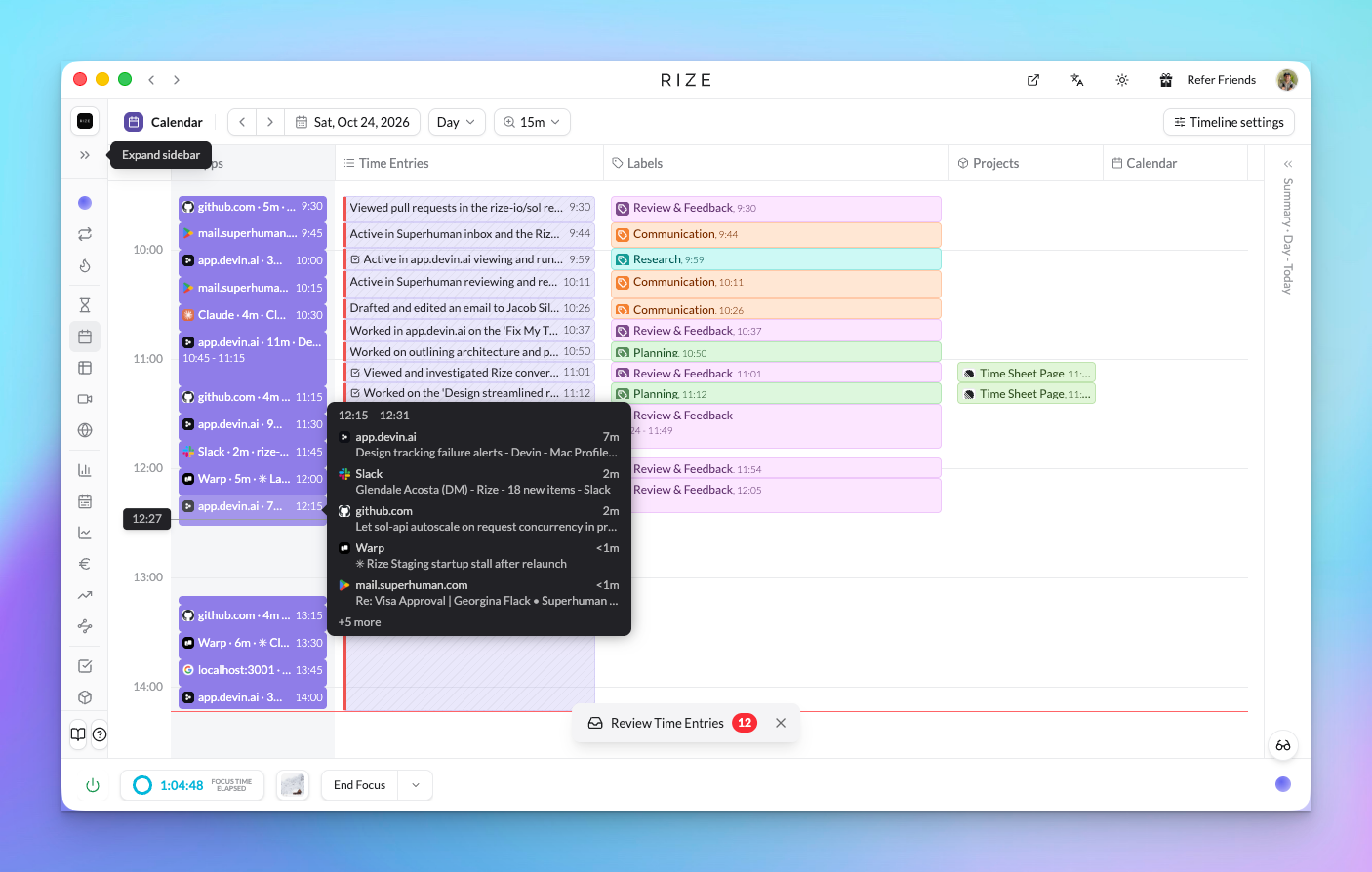
The Calendar's Apps column now merges consecutive activity in the same app into one block, labelled with the icon, the app, the time, and the window title you spent longest in: "Figma · 35m · Homepage v3". Hover a block to see the time range, the top five apps in it with their busiest title and duration, and a "+N more" count for the rest.
- Zoom from 1 minute to 1 hour. A zoom select sits next to the Day picker on Day view, and Cmd + and Cmd - step through the same levels. Rize remembers your choice.
- Icon-only blocks when the column is narrow. Shrink the Apps column and each block keeps its icon instead of turning into an empty bar.
- View Apps lists per-app titles. Open View Apps on any range to see each app's total time and the titles behind it.
An Apps column in My Timesheet
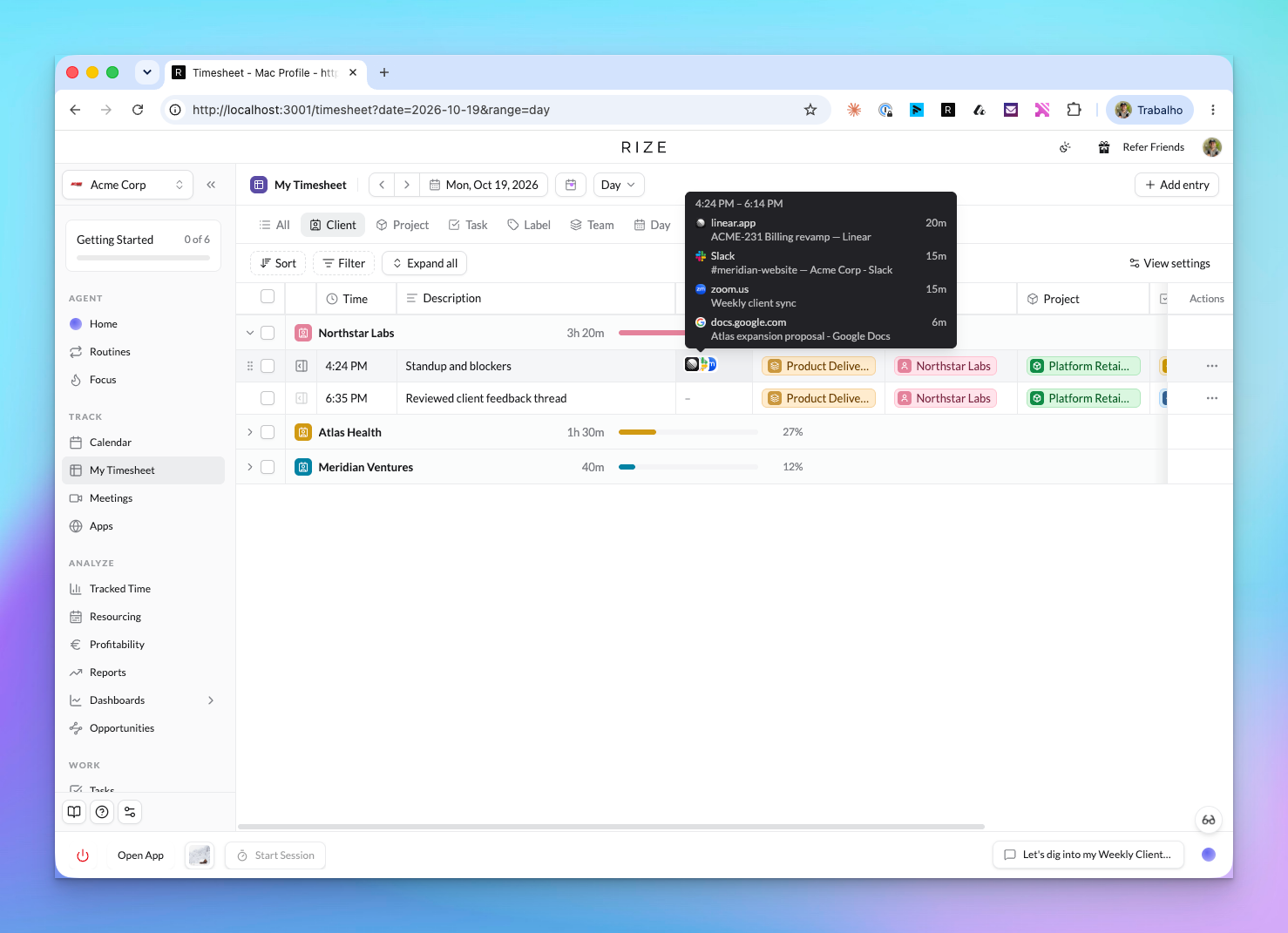
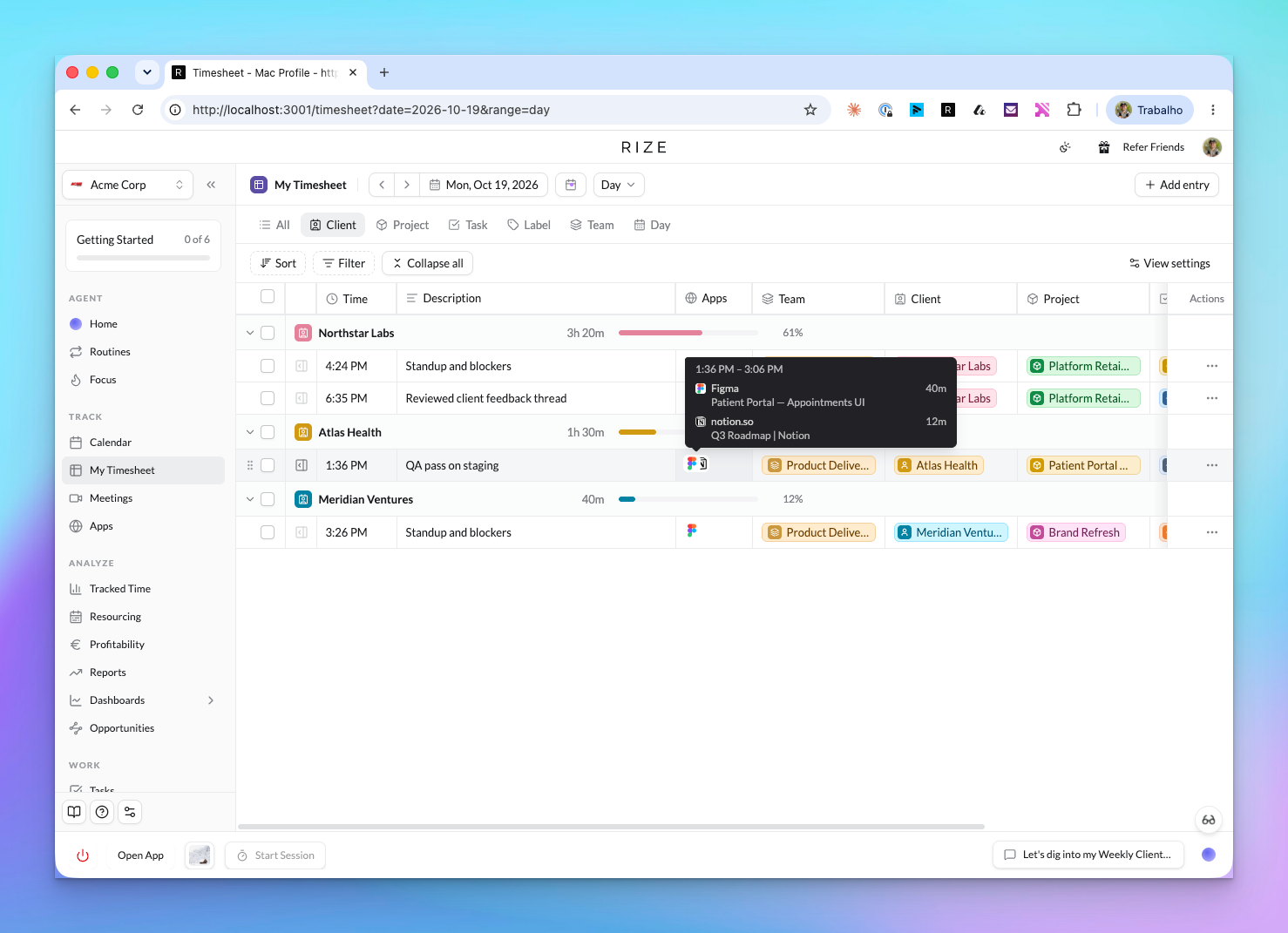
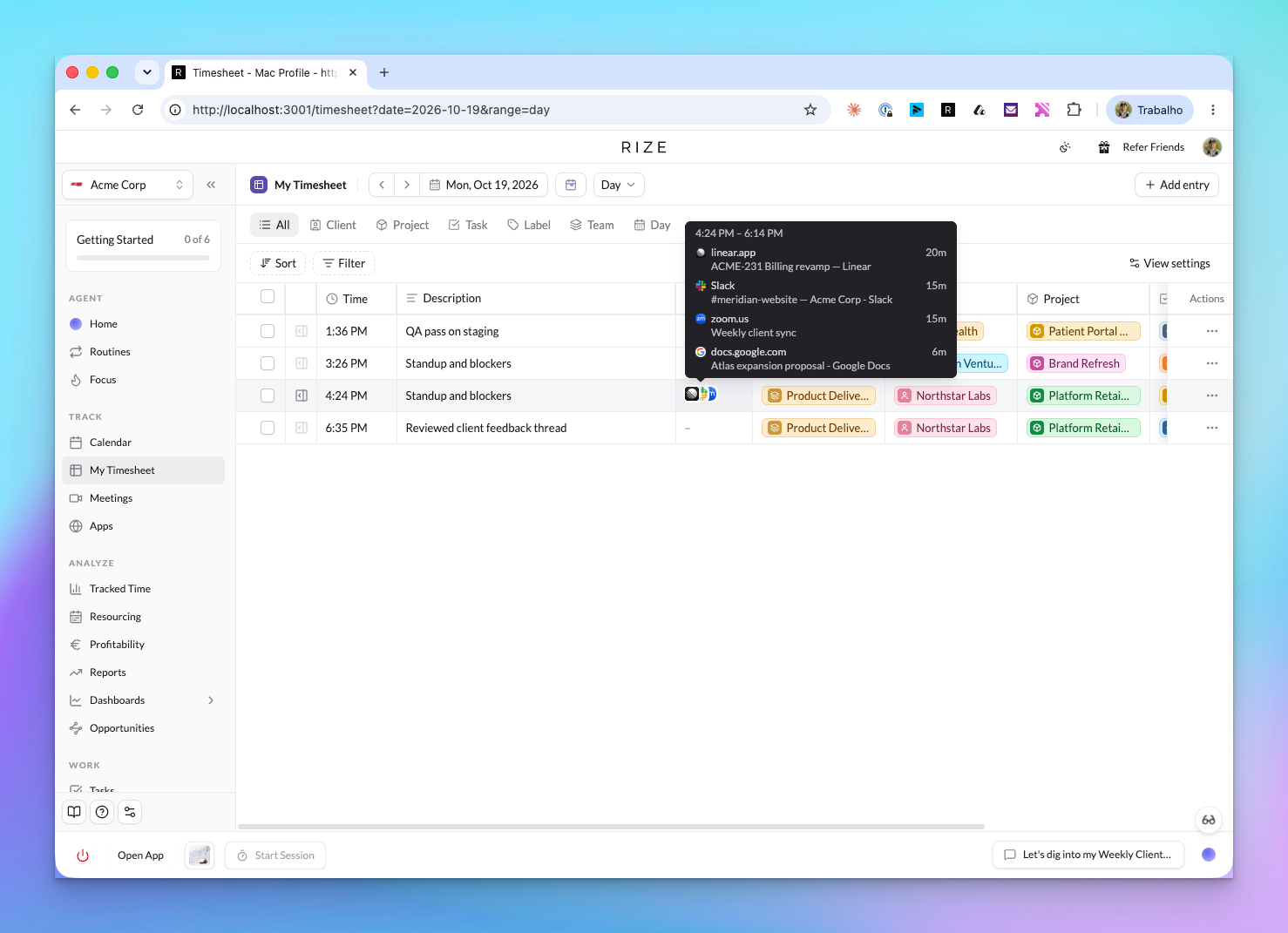
Each entry on My Timesheet now shows the first three app icons from its time range, stacked with the busiest app on top. Hover to see the same breakdown as the Calendar: the time range, the top five apps with their busiest title and duration, and "+N more". Click the stack to open the Apps & Websites dialog for that entry. Entries with no tracked activity show a dash, and you can hide the column from View settings like any other column.
Group My Timesheet with pills, filter by status
The status tabs across the top of My Timesheet are gone. In their place is a row of grouping pills: All, Client, Project, Task, Label, Team when you are on more than one team, and Day. Status moved into the Filter menu as a checklist, and the statuses you pick show as a chip. The pending count lives on the Review button.
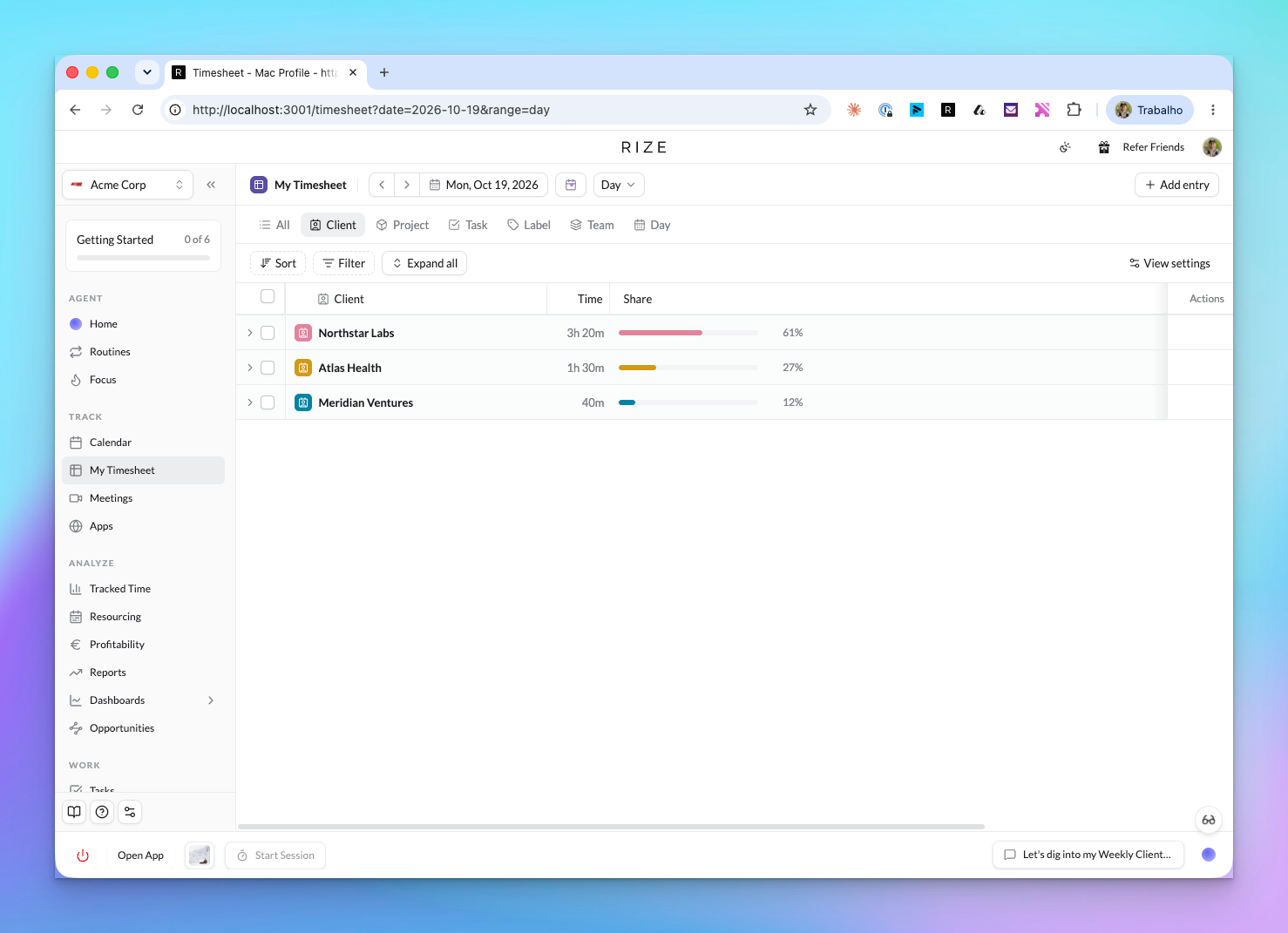
- Group rows read as bands. Each group shows its total, a share meter, and its percentage of the period, lined up across groups. While every group is collapsed the header names those columns (Client | Time | Share) and switches back to the entry columns as soon as you open one.
- Expand all and Collapse all in the toolbar, with the open state remembered per grouping.
- The date and range live on the URL, so a reload or a shared link lands on the same week.
- Agent edits show up live. When the Rize Agent or an API client edits an entry, the timesheet refreshes without a reload.
With these changes My Timesheet and Calendar are the two places to review your own time. The short-lived My Time page has been removed.
Also shipped
- Vision uses the Event log table. Screen text captures appear as rows with app, summary, device, and time. Hour and app groups collapse, app groups show the app icon, and clicking a row opens the capture.
- The Event log loads with skeleton rows instead of a spinner.
- Icon fallbacks are visible in light mode. An app without a stored icon shows a grey tile instead of a blank gap.