We're excited to introduce CSV Import & Export - a powerful new way to bulk manage your clients, projects, tasks, and team members in Rize.
What You Can Do
- Import clients, projects, tasks, and team members - Quickly onboard large amounts of data from spreadsheets or other tools
- Batch update existing records - Make bulk changes by exporting, editing, and re-uploading your CSV
- Download pre-populated templates - Get CSV templates with your existing data already filled in
- Fast bulk changes - Export your data, make edits in your favorite spreadsheet app, and re-upload
How It Works
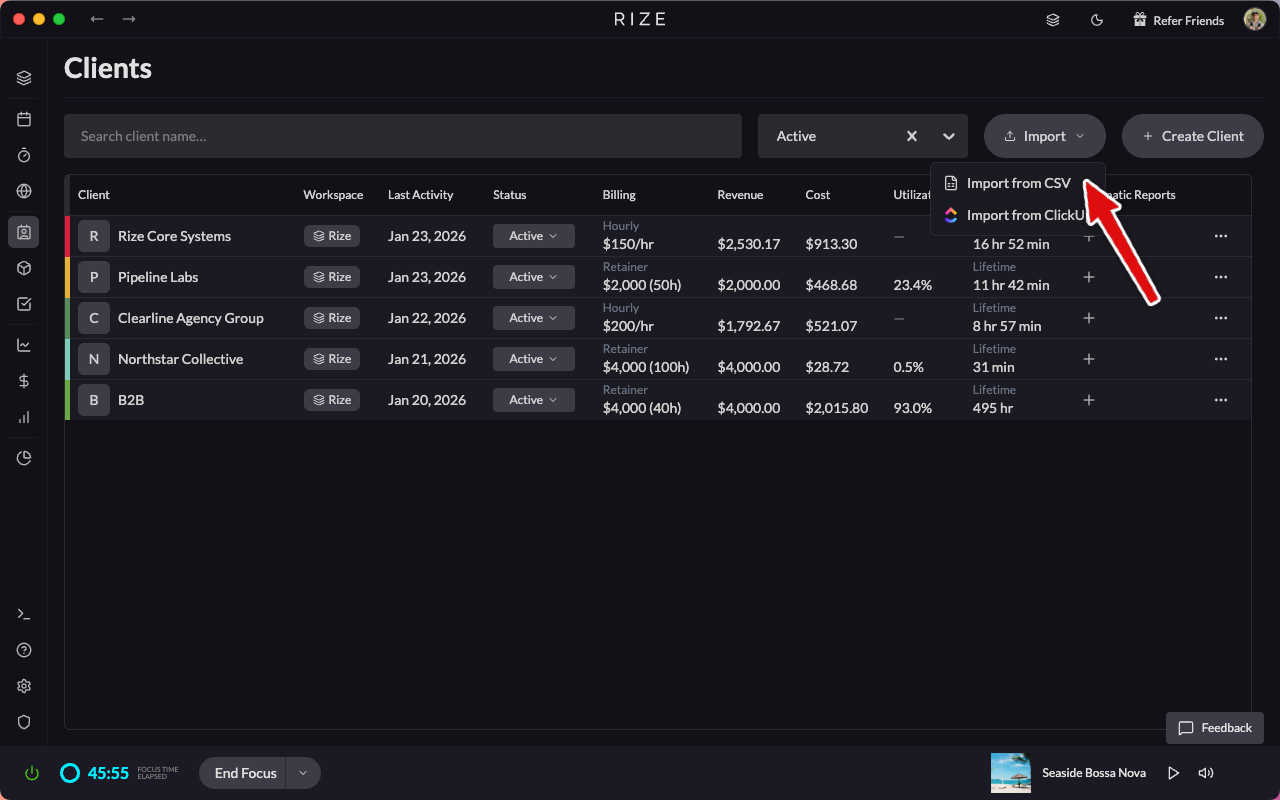
1. Navigate to Import
Go to your Clients, Projects, Tasks, or Team Members page and click the Import button in the top right.
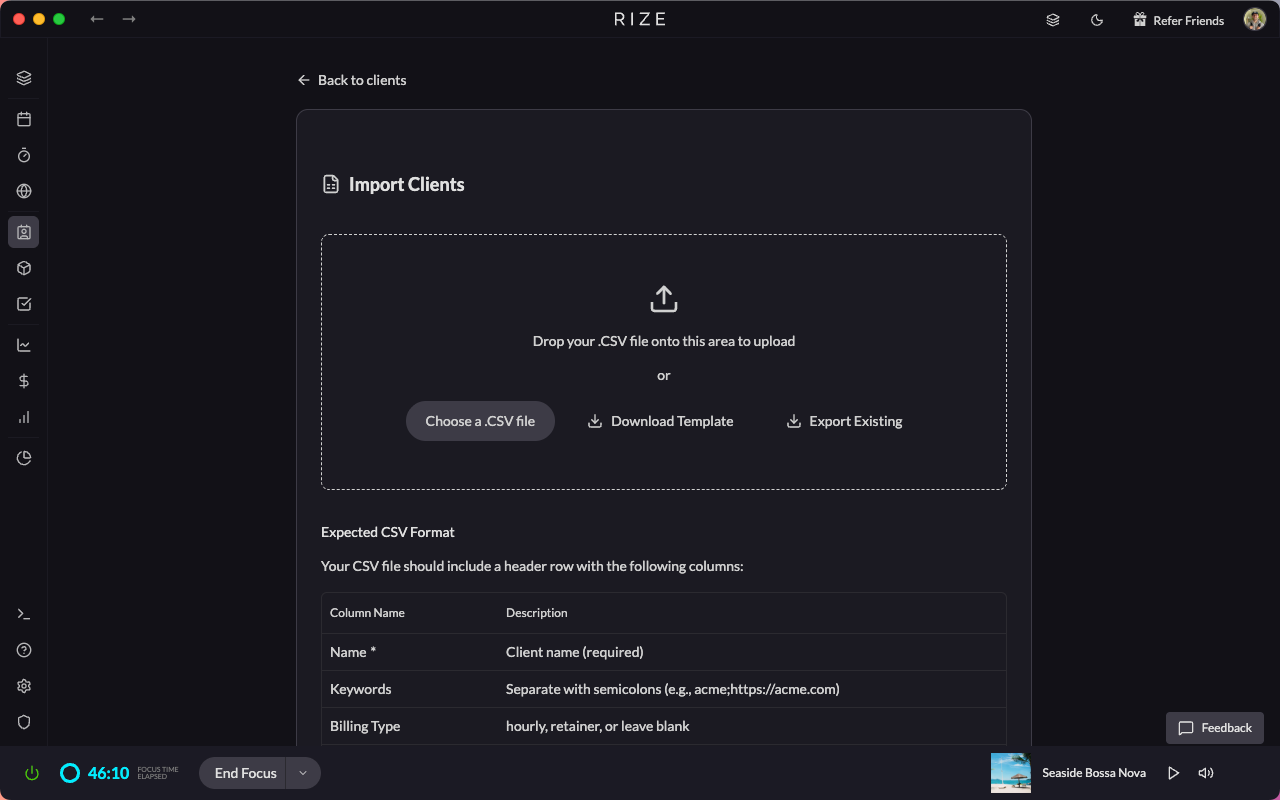
2. Download Template or Upload CSV
You can either download a blank template or export your existing data as a starting point. The template includes all required columns with helpful headers.
3. Edit Your Data
Open the CSV in Excel, Google Sheets, or any spreadsheet app. Add, update, or remove rows as needed.
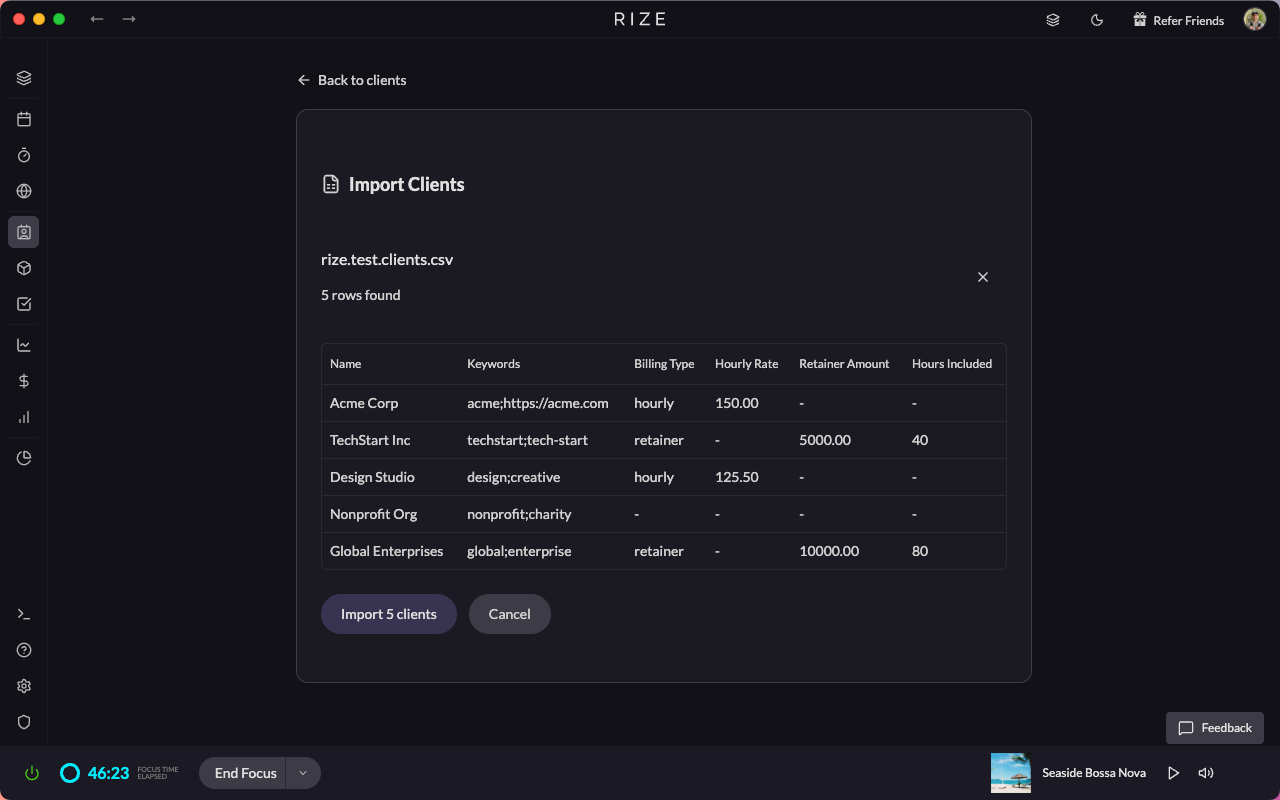
4. Upload and Review
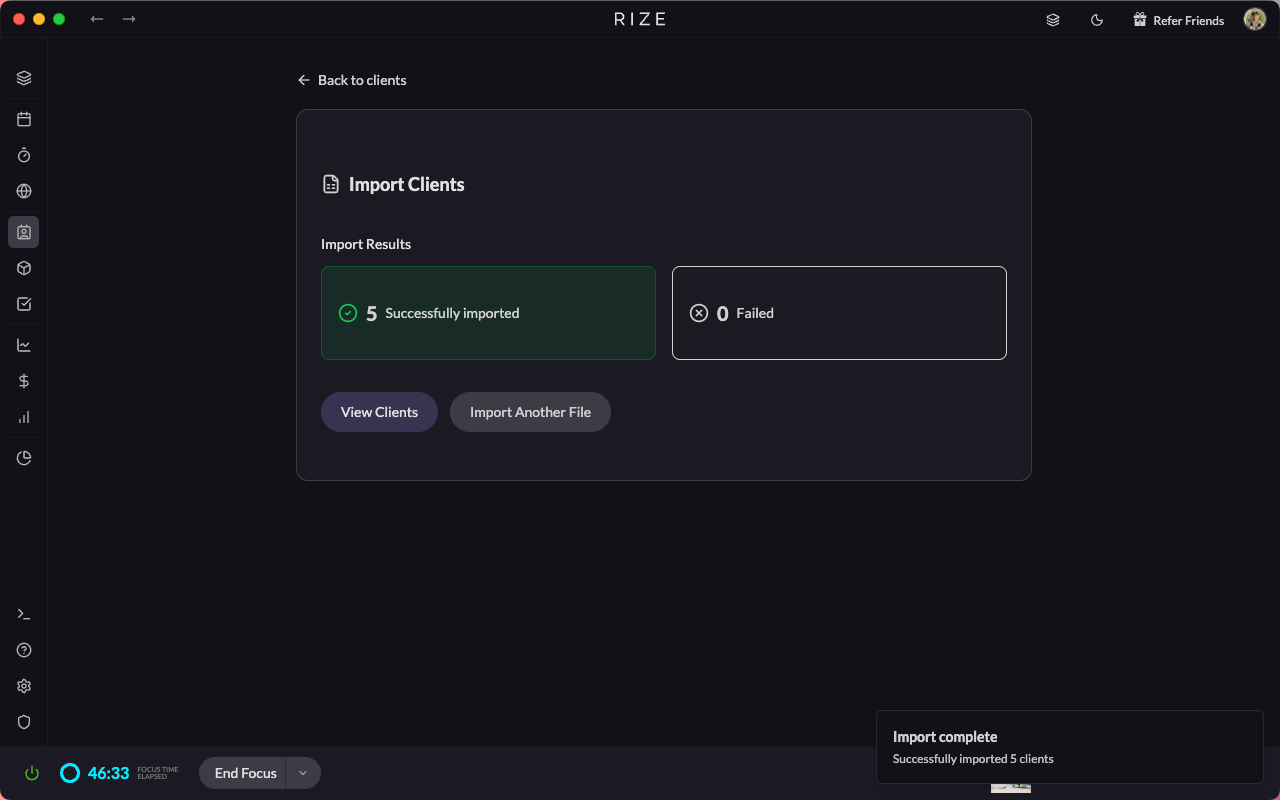
Upload your edited CSV. Rize will validate the data and show you a preview of changes before applying them.
CSV Fields by Type
Clients: Name, Keywords, Billing Type, Hourly Rate, Retainer Amount, Hours Included
Projects: Name, Client, Keywords
Tasks: Name, Project, Assignee Email, Keywords
Team Members: Name, Email, Role, Hourly Rate, Cost Rate
Limits
- Maximum file size: 5MB
- Records are processed in batches for reliability
- Existing records are matched by name (case-insensitive)
CSV Import & Export makes it easy to migrate data from other tools, onboard new team members in bulk, or make sweeping changes to your workspace configuration.