We've completely rebuilt reports in Rize. The new Team, Client, and Project Reports give team managers and administrators comprehensive visibility into team productivity, time allocation, and project progress.
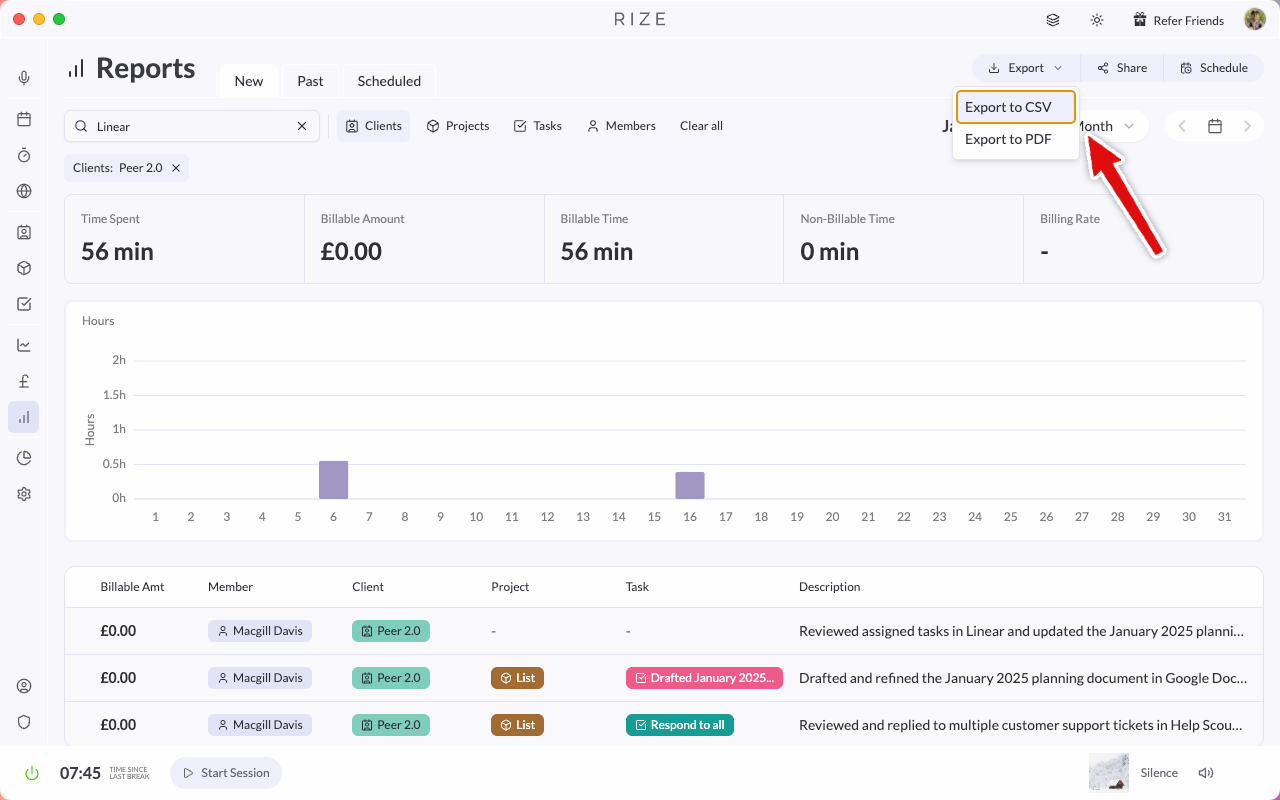
FILTERS
The new reports include a robust filtering system to help you find exactly the data you need.
- Search - Free-text search across all report data to quickly find specific entries
- Clients - Filter by one or more clients to see time allocated to specific client work
- Projects - Narrow down to specific projects within your selected clients
- Tasks - Drill down to task-level detail to see time spent on individual work items
- Team Members - Filter by specific team members to view individual or group contributions
Combine multiple filters to create highly specific reports. For example, filter by a specific client and team member to see how much time that person has spent on that client's work.
DIRECT CSV DOWNLOAD
Reports can now be downloaded directly as CSV files without requiring an email delivery.
How to Download
- Configure your report filters to show the data you need
- Click the Download CSV button in the report toolbar
- The file will download immediately to your browser's default download location
CSV Contents
- Date and time of each entry
- Client, project, and task names
- Team member name
- Duration
- Notes and descriptions
- All relevant metadata
The CSV export now uses your local timezone, ensuring consistency between what you see in the report and what appears in the exported file.
SHARE REPORTS VIA EMAIL
Share reports with stakeholders, clients, or team members directly from Rize.
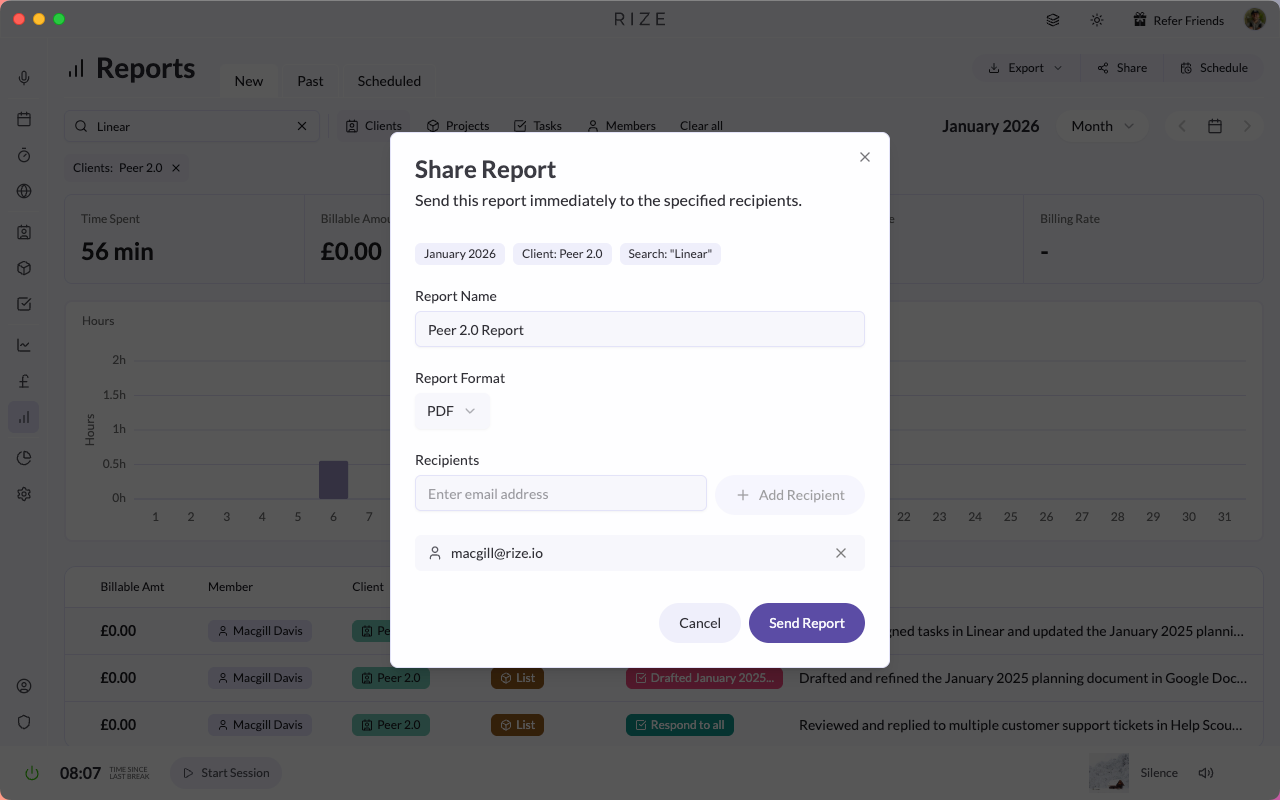
Sharing a Report
- Configure your report with the desired filters and date range
- Click the Share button in the report toolbar
- Enter one or more email addresses
- Add an optional message to accompany the report
- Click Send
What Recipients Receive
- A formatted email with a summary of the report
- An attached PDF or CSV file (based on your selection)
- A link to view the full report (for Rize users)
SCHEDULED REPORTS
Automate your reporting workflow by scheduling reports to be delivered on a recurring basis.
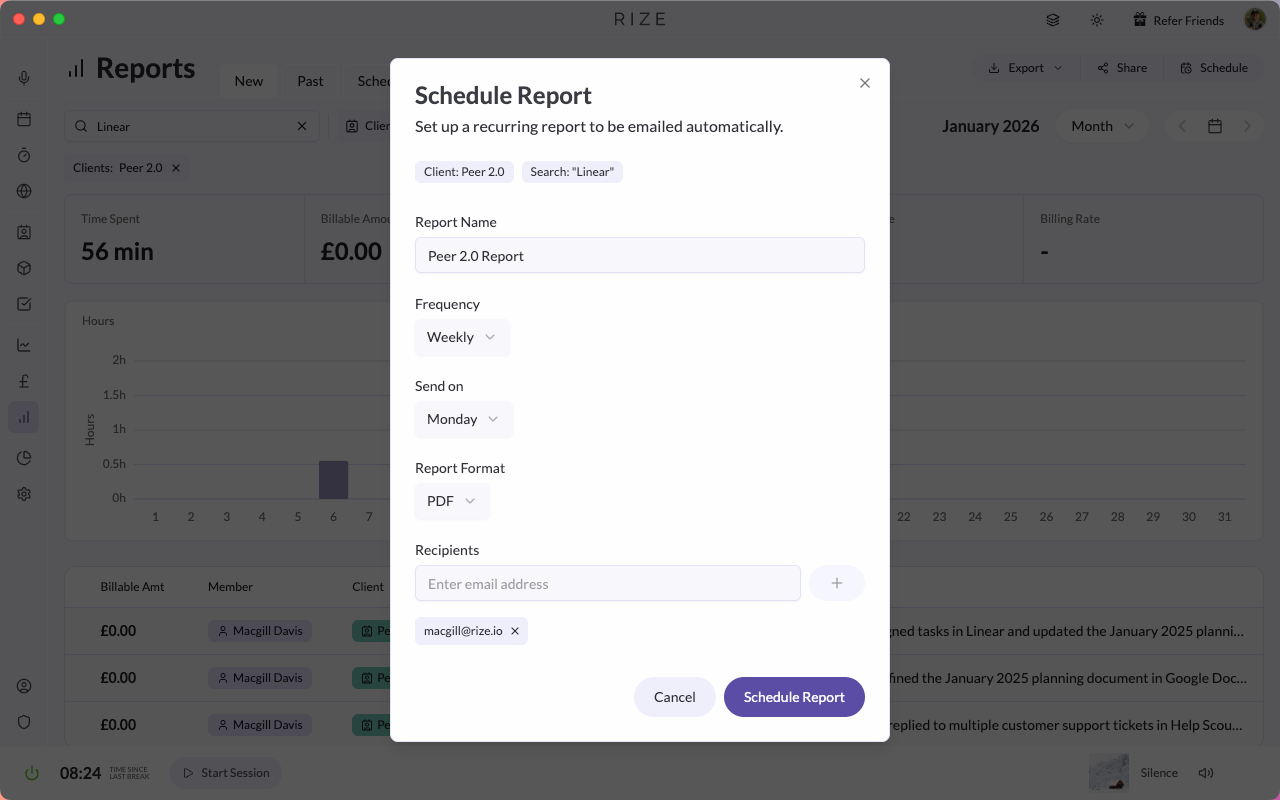
Setting Up a Scheduled Report
- Configure your report with the filters you want to apply regularly
- Click the Schedule button in the report toolbar
- Choose Daily to receive a report every day at your specified time
- Enter the recipient email addresses
- Click Save Schedule
Managing Scheduled Reports
- View all scheduled reports from Teams > [Team Name] > Settings > Scheduled Reports
- Edit or delete existing schedules at any time
- Pause schedules temporarily without deleting them
Daily scheduled reports are perfect for managers who want to start each morning with an overview of the previous day's team activity.
PDF IMPROVEMENTS
The new reports include several PDF enhancements for better presentation and usability.
Landscape Option
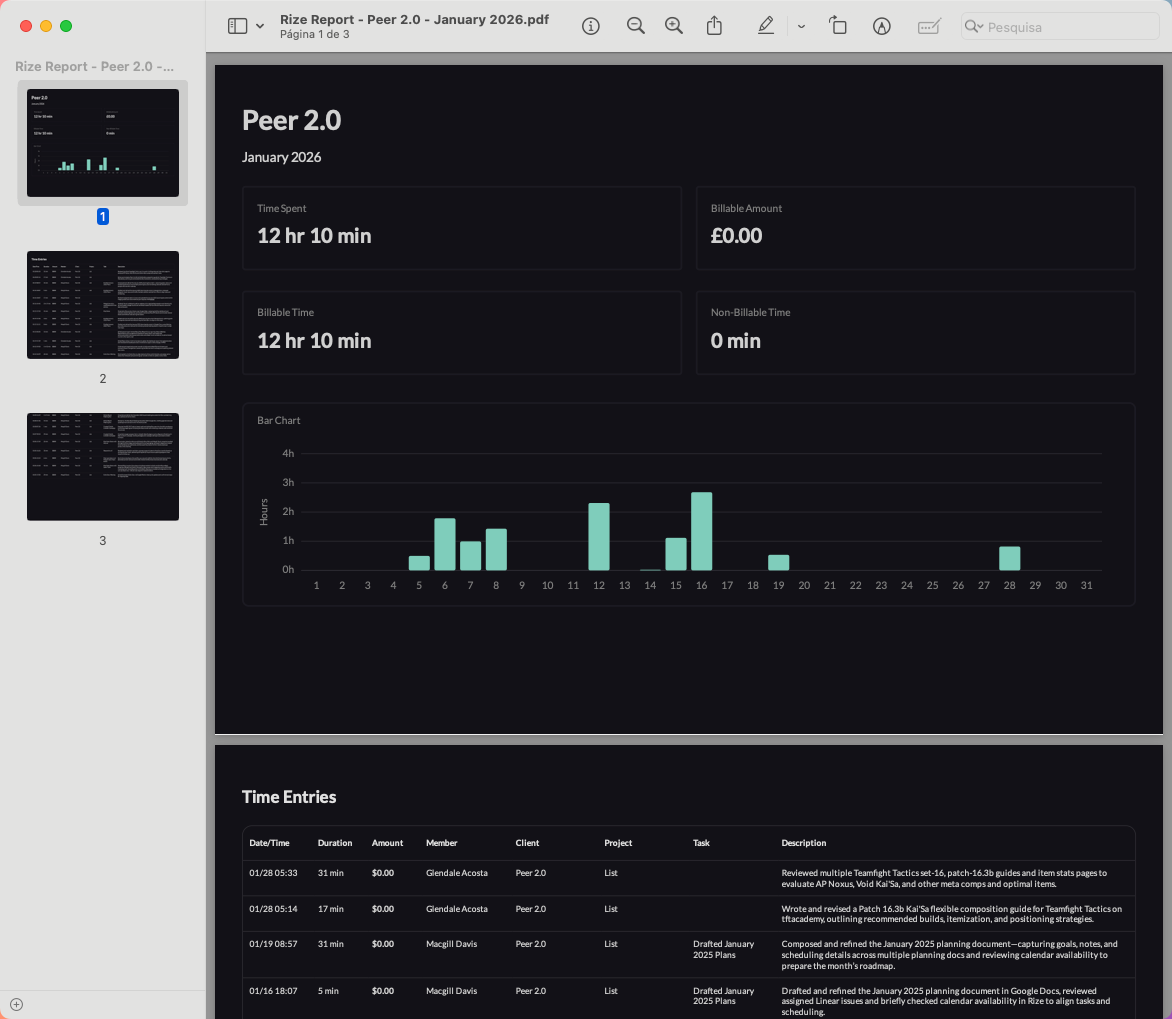
Reports can now be generated in landscape orientation, providing more horizontal space for wide tables with many columns, timeline visualizations, and charts.
- Click Export PDF in the report toolbar
- Select Landscape from the orientation dropdown
- Click Generate
Merged Yearly PDFs
For annual reviews and long-term analysis, generate merged yearly PDFs that combine monthly data into a single comprehensive document.
- Data is organized by month for easy navigation
- Table of contents included for quick jumping between sections
- Consistent formatting throughout the document
Time Entry Table Wrapping
Long descriptions and notes now wrap properly within table cells, ensuring no truncated text, better readability, and a professional appearance for client-facing reports.
BEST PRACTICES
For Team Managers
- Weekly Reviews - Schedule a weekly report to review team productivity trends
- Client Billing - Use client filters to generate accurate billing reports
- Resource Planning - Compare time allocation across projects to identify bottlenecks
For Billing and Invoicing
- Filter by client and date range matching your billing cycle
- Download CSV for import into your accounting software
- Use PDF exports for client-facing invoices with a professional appearance
For Project Analysis
- Filter by project to see total time invested
- Compare against estimates to track project health
- Identify which team members are contributing to which areas