To choose a time tracking app, evaluate eight criteria: automatic vs manual tracking, AI features, reporting depth, integrations, privacy model, pricing structure, platform support, and setup complexity. The right choice depends on whether you bill clients, manage a team, or track personal productivity — and no single app wins across all three. Start with how you work (solo vs team, billable vs internal) and narrow from there.
Most people pick a time tracker based on price or a friend's recommendation, then abandon it within two weeks. The actual failure point is almost never cost — it is friction. A tool that requires you to remember to click "start" twelve times a day will collect dust. One that runs quietly in the background and categorizes your work automatically becomes part of your workflow on day one.
This guide walks through each criterion with specific questions to ask, trade-offs to weigh, and red flags to watch for. By the end, you will have a clear framework for picking the right tool — not the most popular one.
Why Time Tracking Matters in 2026
Time tracking has shifted from a compliance requirement to a competitive advantage. Professionals who track their time accurately consistently bill more than those relying on memory alone, and remote teams that use time data for planning report fewer missed deadlines.
Three trends make this decision more important now than five years ago:
- Remote and hybrid work is permanent. More than half of US knowledge workers now split time between home and office — a figure that has grown steadily since 2019. Without an office to signal "working hours," both freelancers and managers need objective data on where time goes.
- AI has entered the category. Time trackers now categorize work, detect focus sessions, and suggest billing entries — features that did not exist in 2022. The gap between basic timer apps and AI-powered tools is widening fast.
- Billable hour recovery is measurable. Momentum Studio, a 12-person creative agency, recovered 20% more billable time after switching to automatic tracking — hours that were always being worked but never logged.
The rest of this guide covers the eight criteria that separate a tool you will actually use from one you will uninstall in a month.
Automatic vs Manual Tracking
Automatic time tracking captures every app, website, and document you work on without requiring you to start or stop timers. Manual tracking requires explicit action for every entry. The choice between them is the single biggest factor in whether you will still be using the tool three months from now.
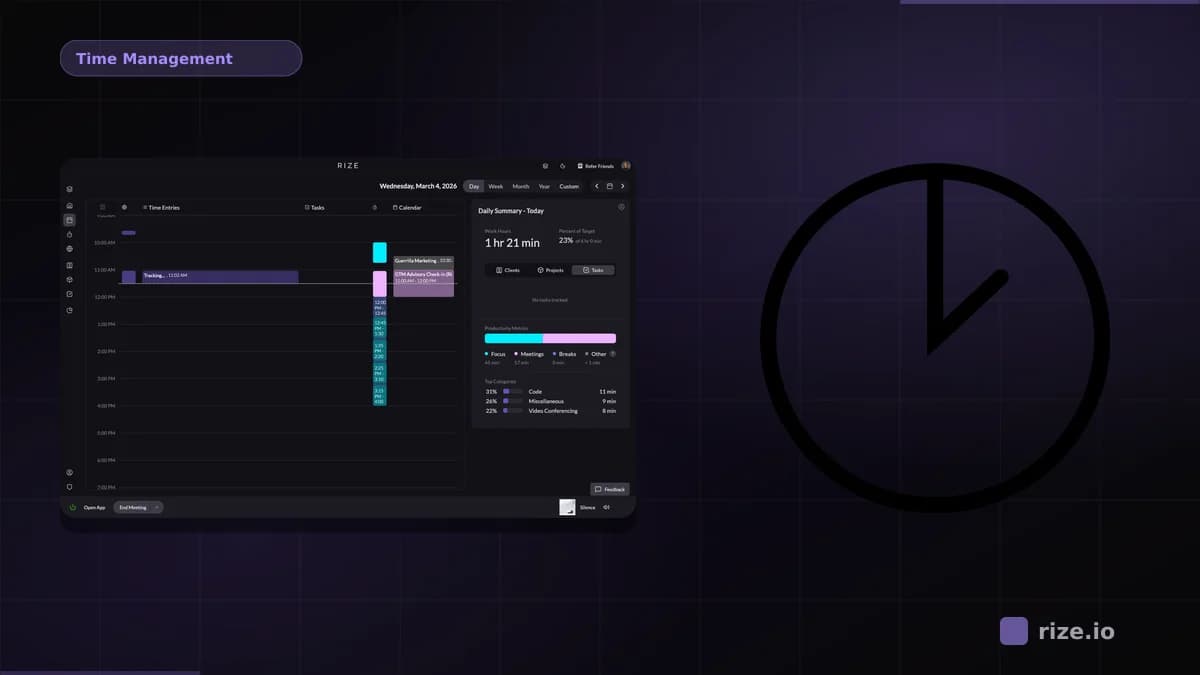
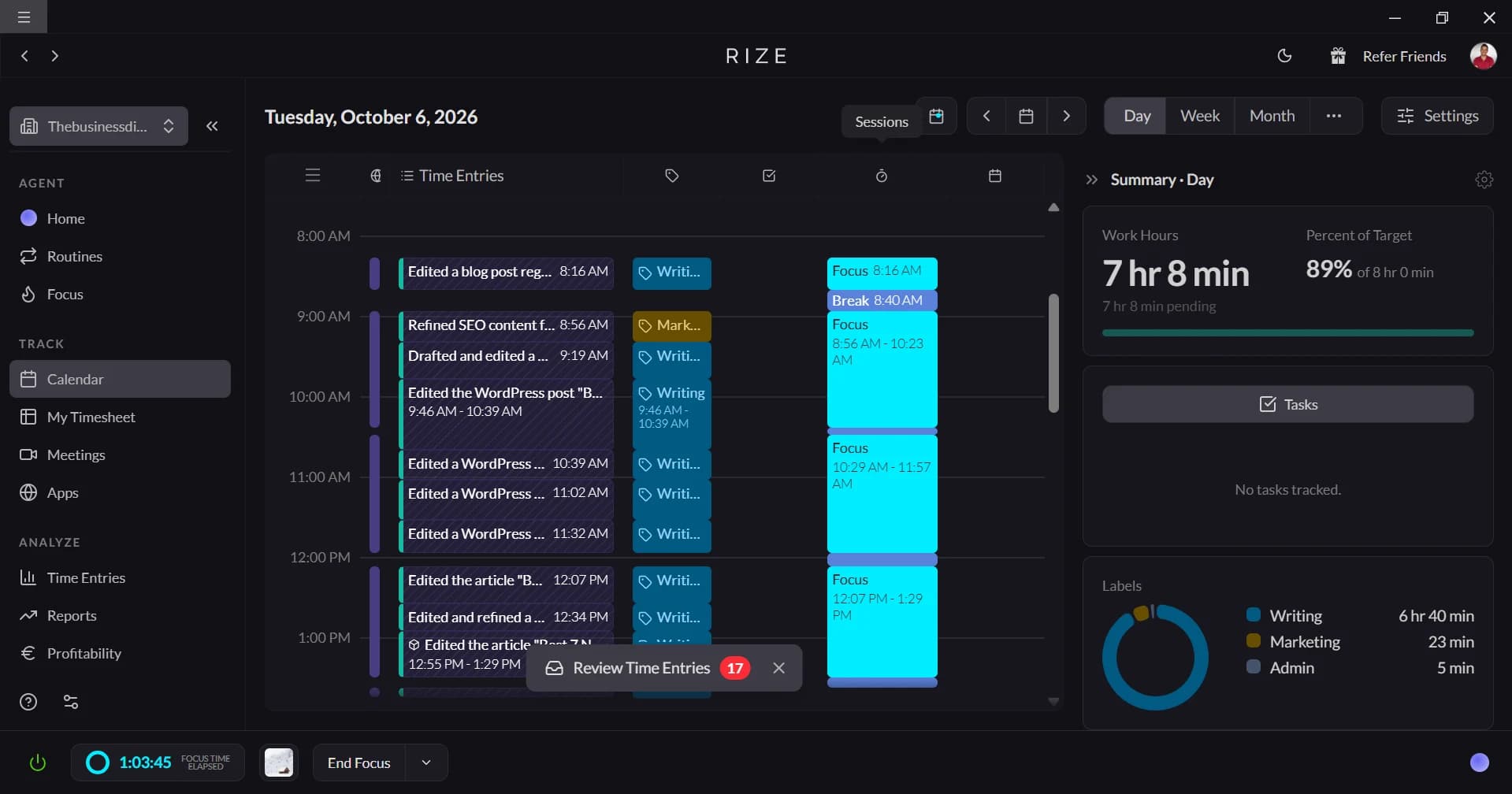
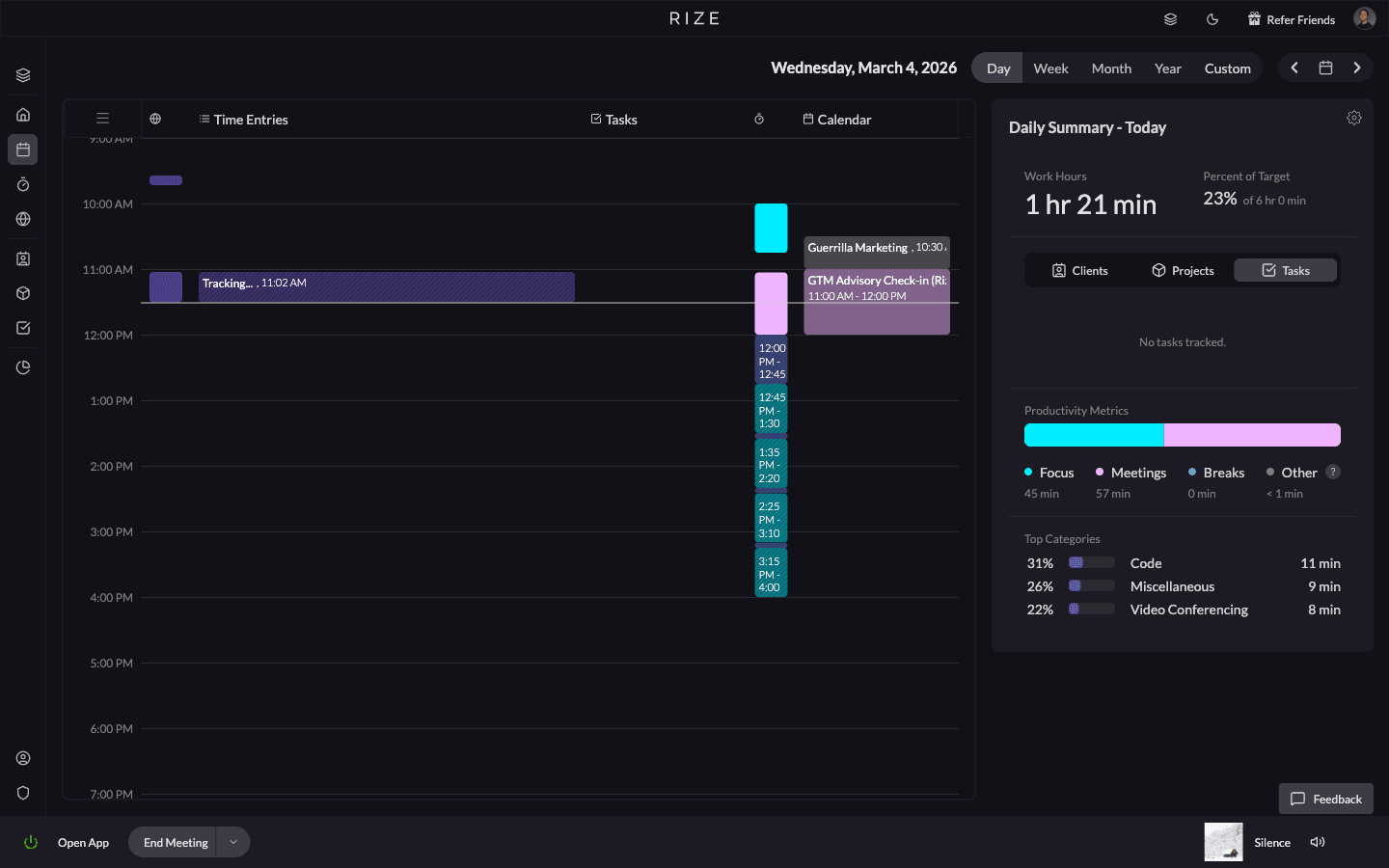
Automatic tracking works by running in the background on your computer and recording which applications have focus. Tools like Rize and Timely use this approach. You open Figma, work for 45 minutes, switch to Slack for 10, then move to Google Docs — the tracker logs all of it without any input from you. At the end of the day, you review a timeline and confirm or adjust categories.
Manual tracking requires you to click start/stop on timers or fill in entries after the fact. Toggl Track, Clockify, and Harvest use this model. It gives you explicit control over what gets recorded, but it depends on your discipline.
When automatic wins: You switch between tasks frequently. You bill multiple clients. You forget timers. You want data on personal productivity patterns, not just billable hours.
When manual wins: You have a simple workflow — one or two projects, predictable blocks of time. You want strict boundaries on what data is collected. Your team already has a timer habit.
The hybrid approach: Some tools offer both. You get automatic background capture plus the option to manually log entries for things that happen offline (phone calls, whiteboard sessions). This covers the most ground, but adds complexity.
Red flag: Any tool that claims "automatic" but actually means "auto-starting a timer when you open an app" is manual tracking with a shortcut. True automatic tracking builds a complete timeline without any user action.
AI and Smart Features
AI-powered time tracking uses machine learning to categorize work, detect focus sessions, and suggest billing entries — reducing the manual review that makes time tracking feel like a chore. The best AI features learn from your corrections and improve over time.
Not all "AI features" in time trackers are equal. Here is what actually matters:
Auto-categorization is the most useful AI feature. Instead of manually tagging "Design — Client A" on every entry, the tool learns that Figma + the Client A project folder = design work for that client. Rize uses AI categorization that adapts to your patterns over several days of use.
Focus detection identifies uninterrupted work blocks and scores them separately from fragmented time. This matters for deep work tracking — knowing you had six hours at your desk is less useful than knowing three of those hours were focused, single-task blocks.
Smart suggestions predict which project or client a time entry belongs to based on the apps and documents you had open. This turns a 15-minute daily review into a 2-minute confirmation step.
What to ignore: Chatbot-style "AI assistants" that let you ask questions about your time data in natural language. These sound impressive in demos but rarely get used in practice. You will check a dashboard, not type a question.
Questions to ask a vendor:
- Does the AI categorize work automatically, or only suggest after I tag manually?
- How many days/weeks until it learns my patterns?
- Can I set rules that override AI suggestions (e.g., "Slack is always Communication")?
Reporting and Analytics
Reports determine whether your time data turns into decisions or just sits in a database. The reports that matter most depend on your role: freelancers need invoice-ready exports, agency owners need profitability by client, and individual contributors need personal productivity trends.
For client billing, look for:
- Time grouped by client and project with billable/non-billable splits
- Export to CSV, PDF, or direct integration with invoicing tools
- Customizable date ranges (weekly, biweekly, monthly — matching your billing cycle)
- Rounding rules (round to nearest 6-minute increment for legal billing, 15-minute for agencies)
For team management, look for:
- Utilization rates per person (billable hours / total hours)
- Project budget tracking with burn-rate alerts
- Comparison views across team members (without surveillance — aggregate, not keystroke-level)
For personal productivity, look for:
- Daily and weekly time breakdowns by category (design, development, meetings, admin)
- Focus time vs fragmented time metrics
- Trend lines over weeks and months — not just daily snapshots
- Distraction tracking (social media, news, non-work browsing)
Red flag: Tools that only offer pre-built report templates without filtering or grouping options. Your billing cycle, client structure, and project hierarchy are unique — the reporting should adapt to you, not the other way around.
Integrations
A time tracker that does not connect to your existing tools creates data silos and double entry. The three most valuable integrations are calendar sync (to auto-log meetings), project management (to map time to tasks), and billing or invoicing (to convert tracked hours into revenue).
Calendar integration (Google Calendar, Outlook) automatically creates time entries for meetings. This is table stakes — skip any tool that does not offer it. Meetings typically consume 15-35% of a knowledge worker's week, and logging them manually is the first place people give up on tracking.
Project management (Asana, Jira, ClickUp, Linear, Notion) ties time entries to specific tasks. The depth varies dramatically:
- Best case: Time entries auto-populate when you work on a linked task, with two-way sync on status and estimates.
- Worst case: A Zapier connection that creates a time entry when a task status changes, with no further context.
Billing and invoicing (QuickBooks, FreshBooks, Xero, Harvest) lets you convert approved time entries into invoices without re-entering data. If you bill hourly, this integration alone can save 2-4 hours per billing cycle.
Browser extensions add tracking context for web-based work. They identify which project board, document, or inbox you are in and pass that context to the tracker.
Questions to ask:
- Is this a native integration or does it require Zapier/Make?
- Does it sync both ways (time data flows back to the PM tool)?
- How often does it sync — real-time, every 5 minutes, or manual push?
Privacy and Data Security
Privacy is the most overlooked criterion in choosing a time tracker, and the one most likely to kill adoption. Teams reject tools that feel like surveillance. The key distinction is between on-device processing (your data stays on your computer) and cloud-first processing (everything uploads to the vendor's servers).
On-device processing means the app analyzes your activity locally and only sends aggregated summaries to the cloud. Rize processes all data on your Mac — no screenshots, no keystroke logging, no raw browsing history leaves your machine. You control what gets shared with team dashboards.
Cloud-first processing means raw activity data (app names, window titles, URLs, sometimes screenshots) is sent to the vendor's servers for analysis. This is common in employee monitoring tools like Hubstaff, Time Doctor, and ActivTrak.
What to check before committing:
- Does the tool take screenshots? If so, how frequently, and who can view them?
- Is raw activity data stored locally or uploaded to the cloud?
- Can employees see exactly what data their manager can access?
- Does the vendor sell or share aggregated usage data with third parties?
- What happens to your data if you cancel? Can you export everything?
The adoption test: If you would feel uncomfortable running this tool on your own computer, your team will feel the same way. Privacy-first tools consistently see higher voluntary adoption rates because people do not feel monitored.
GDPR and compliance: If your team includes anyone in the EU, your tracker must support data export requests, deletion rights, and explicit consent. On-device tools handle this more simply because less data moves to external servers.
Pricing and Value
Time tracker pricing ranges from free to $30+ per user per month, but the cheapest option is rarely the best value. The real cost calculation is: subscription price minus the revenue recovered from better time capture. A $15/month tool that helps you bill two extra hours per week at $100/hour generates $785/month in net value.
Pricing models you will encounter:
- Free tier with limits: Clockify and Toggl offer free plans for basic tracking. These work for solo freelancers with simple needs but lack AI features, advanced reporting, and team controls.
- Per-user monthly: Most tools charge $8-20 per user per month. This scales linearly with team size, which gets expensive fast for agencies with 20+ people.
- Flat monthly: Some tools charge a flat rate regardless of team size. Better for larger teams, but often comes with a user cap.
- Annual discount: Almost every tool offers 15-25% off with annual billing. Only commit annually if you have tested the tool for at least a month.
The ROI calculation for billable professionals:
- Estimate hours you currently miss per week (manual trackers consistently undercount)
- Multiply by your hourly rate
- Subtract the monthly tool cost
- That is your monthly net gain
For a freelancer billing $125/hour who recovers 3 hours/week: (3 x $125 x 4.3) - $15 = $1,597/month net gain.
Hidden costs to watch:
- Per-user pricing that jumps at tier thresholds (e.g., $10/user for 1-5, $15/user for 6-20)
- Essential features locked behind higher tiers (reporting exports, API access, team dashboards)
- No free trial, or a trial that requires a credit card upfront
Platform Support
Platform support determines whether the tracker can follow your work across all devices. Desktop apps capture the richest data (active app tracking, window titles, focus detection), while mobile and web apps handle time logging on the go. Check that the tool covers your primary work device before evaluating anything else.
Desktop (Mac, Windows, Linux): Desktop apps provide the most accurate tracking because they can detect which application has focus, how long you spend in each document, and when you are idle vs active. Rize currently offers a Mac desktop app — the platform where most designers, developers, and creative professionals work.
Mobile (iOS, Android): Mobile apps are useful for logging time during phone calls, site visits, and commutes. They rarely match the depth of desktop tracking (no background app detection on iOS/Android due to OS restrictions), but they fill gaps for field work.
Web and browser: Browser-based trackers work anywhere but can only track time within the browser tab. They miss native app usage entirely. Browser extensions add some context (detecting which web tool you are in) but cannot match desktop-level granularity.
Cross-platform sync: If you split work between a Mac and an iPad, or a Windows desktop and an Android phone, check that the tool syncs time data across all platforms in near real-time. Some tools run independent timers per device and only merge data during daily sync — which creates duplicates and gaps.
Questions to ask:
- Which platforms get the full feature set vs a limited companion app?
- Does the desktop app run natively or through Electron (affects performance and battery)?
- How much memory and CPU does the background process consume?
Ease of Setup and Learning Curve
Onboarding complexity is the strongest predictor of whether a time tracker sticks. Apps that take less than 5 minutes to install and start tracking see significantly higher 30-day retention than those requiring project setup, team invitations, and configuration before any data appears.
The 5-minute test: Install the app, open it, and see if it starts generating useful data within five minutes. Automatic trackers pass this test easily — install Rize, grant accessibility permissions, and your timeline starts building immediately. Manual trackers require you to create a project, set up clients, and start your first timer before anything meaningful happens.
Team onboarding complexity:
- Low: Invite via email, team member installs, data flows to shared dashboard. Under 10 minutes per person.
- Medium: Admin configures project hierarchy, sets permissions, creates billing rules. Team members need a 15-minute walkthrough. About 1-2 hours total for a 10-person team.
- High: Enterprise SSO setup, custom integrations, role-based access control, compliance configuration. Days to weeks, often requiring vendor support.
The complexity trap: Feature-rich tools with steep learning curves often get abandoned before the team reaches the features that justified the purchase. A simpler tool that everyone actually uses beats a powerful tool that three people on the team quietly stopped opening.
What to check:
- Is there a free trial long enough to test with your real workflow (7+ days)?
- Can you import existing time data from your current tool?
- Does the tool provide useful data on day one, or does it need a week of training data?
Decision Framework
Match your primary use case to the criteria that matter most. No tool excels at everything — the goal is to find the one that is strong where you need it and acceptable everywhere else.
If you bill clients hourly: Prioritize automatic time capture + reporting exports + invoicing integration. Missed billable hours are the biggest cost. Look at Rize (automatic capture, detailed reports), Harvest (built-in invoicing), or Toggl (manual timers with clean exports).
If you manage a team or agency: Prioritize utilization dashboards + project budgets + privacy-respecting monitoring. Your team has to voluntarily run it. Look at Rize (privacy-first, agency features), Toggl (team-friendly with manual tracking), or Clockify (free tier for up to 5 users).
If you want personal productivity data: Prioritize automatic tracking + focus metrics + distraction analysis. You want to understand your patterns, not fill out timesheets. Look at Rize (focus tracking, daily scores) or RescueTime (productivity scoring, website blocking).
If you need a free option for a small team: Start with Clockify or Toggl — both offer free tiers for up to 5 users with basic reporting. Upgrade when you need advanced features or more seats.
If privacy is non-negotiable: Filter for on-device processing first, then evaluate everything else. Rize processes all data locally on Mac. Avoid tools with mandatory screenshots or cloud-uploaded browsing history.
Common Mistakes to Avoid
The five most common time tracker selection mistakes are: choosing on price alone, ignoring adoption friction, over-buying features your team will never use, skipping the free trial, and treating time tracking as surveillance rather than insight.
1. Choosing on price alone. A free tool that captures 60% of your billable hours is more expensive than a $15/month tool that captures 95%. Calculate the cost of missed billing, not just the subscription.
2. Ignoring adoption friction. The best features do not matter if your team stops using the tool after week two. Test the onboarding flow with your least tech-savvy team member. If they struggle, the tool will fail at scale.
3. Over-buying features. Enterprise-grade tools with 50+ integrations and custom workflows sound appealing in demos. But if you are a 5-person agency, you need accurate time capture and clean reports — not a platform that takes a week to configure.
4. Skipping the free trial. Never commit to an annual plan without at least two weeks of real usage. Time tracking tools feel different after the novelty wears off. The question is not "does it work?" but "will I still use it on a random Tuesday in month three?"
5. Treating tracking as surveillance. If the primary goal is monitoring whether employees are "working hard enough," the tool will fail. People game surveillance systems — minimizing windows, jiggling mice, clicking timers at strategic moments. Tools that frame tracking as personal insight and team planning see significantly higher adoption than those that frame it as monitoring.
Our Recommendation
For most knowledge workers, freelancers, and agency teams, Rize is the strongest choice for time tracking in 2026. It captures every work session automatically, categorizes time using AI, and provides productivity insights alongside billing data — all while keeping your data on your device.
That said, no single tool is the best for everyone:
- If you need built-in invoicing and your team is comfortable with manual timers, Harvest combines time tracking and billing in one tool.
- If you need a free option for a small team, Clockify offers a free plan for up to 5 users with basic reporting that covers the fundamentals.
- If your team already uses Toggl and has strong timer habits, switching to automatic tracking may not be worth the transition cost. Toggl's reporting and integrations are solid.
- If you need cross-platform tracking across Mac, Windows, and Linux, check whether each tool supports your full device set with feature parity.
Ben Jackson, CEO of Momentum Studio (a 12-person creative agency), put it this way: "I'm a trusting leader, but I don't even trust myself to remember what I worked on two days ago. So how can I expect my designers to?" His team recovered 20% more billable time after switching to automatic tracking — not by working more, but by finally capturing hours that were always being worked but never logged.
The best time tracker is the one your team will actually run every day. Start a free trial, use it for a full work week, and check whether it captured everything without you thinking about it. That is the test that matters.
Start tracking time automatically
Join thousands of professionals who stopped guessing where their time goes. Free for 7 days.
“Rize has been a no-brainer for me.” — Ali Abdaal Read more →
Further reading
- Gloria Mark, UC Irvine — "The Cost of Interrupted Work": Research showing it takes approximately 23 minutes to refocus after a context switch, which is why automatic tracking outperforms manual timers for multitaskers.
- PMI Pulse of the Profession: Industry data on project delivery rates — roughly 55-60% of projects finish on time and on budget, underscoring the role of accurate time estimation in project planning.
- Mark, Gonzalez & Harris — "No Task Left Behind?": ACM study on task fragmentation in the workplace, finding that knowledge workers average only 11 minutes on a task before switching — a pattern that manual time tracking cannot capture but automatic trackers handle by design.