The Rize Chrome extension now supports profile-based tracking - making it easy to distinguish activity across different Chrome profiles.
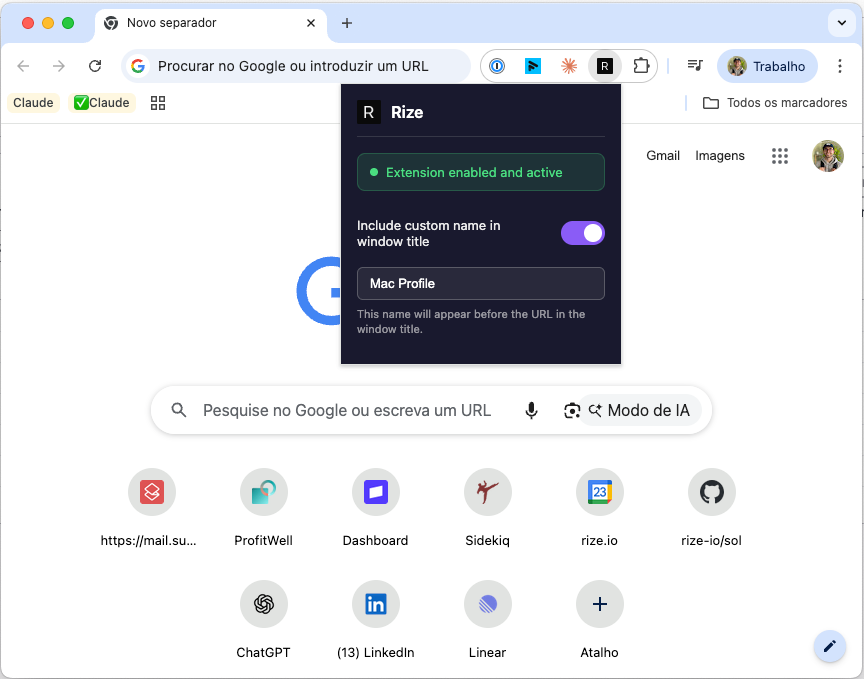
Why Profile-Based Tracking?
Many people use separate Chrome profiles for different contexts:
- Work vs Personal - Keep work browsing separate from personal browsing
- Client-Specific Profiles - Use dedicated profiles for different clients or projects
- Multiple Accounts - Manage different Google accounts or login contexts
Previously, Rize would track all Chrome activity the same way, making it hard to distinguish which profile you were using. Now you can tag each profile with a custom name.
How It Works
1. Click the Rize Extension Icon
In any Chrome profile, click the Rize extension icon in your toolbar to open the popup.
2. Enable Custom Profile Name
Toggle on "Include custom name in window title" and enter a name for this profile (e.g., "Work", "Personal", "Client-ABC").
3. Profile Name Appears in Window Titles
The profile name will be appended to browser window titles, allowing Rize to distinguish activity from different profiles.
Example:
Instead of: Google Docs - https://docs.google.com
You'll see: Google Docs - Work - https://docs.google.com
Use Cases
- Automatic categorization - Create tracking rules that match the profile name keyword
- Better reporting - Filter time entries by profile to see time spent in each context
- Client tracking - Easily attribute browser time to specific clients
Settings Are Per-Profile
Each Chrome profile stores its own settings independently. Set up a different name in each profile, and Rize will track them separately.
To get started, make sure you have the latest version of the Rize Chrome extension installed.